


Ans. It combines two or more drives into a single storage system to improve performance, provide redundancy, or increase storage efficiency.
What is a RAID Array? RAID Levels Explained for NAS Storage
If you have recently bought a NAS or started looking for a better way to protect your files, you have probably come across terms like RAID 1, RAID 5 NAS, striping, mirroring, and parity.
At first, they can seem confusing, but the idea behind RAID is actually simple. It combines multiple drives to improve speed, protect against drive failures, or both. In this guide, I will explain “What is a RAID array?”, how RAID storage works, and which RAID level is best for different storage needs.
What is a RAID Array?
A RAID array (Redundant Array of Independent Disks) is a storage setup that combines two or more hard drives or SSDs into a single logical storage unit. Instead of storing data on one drive, RAID network storage spreads or duplicates it across multiple drives based on the level you choose.
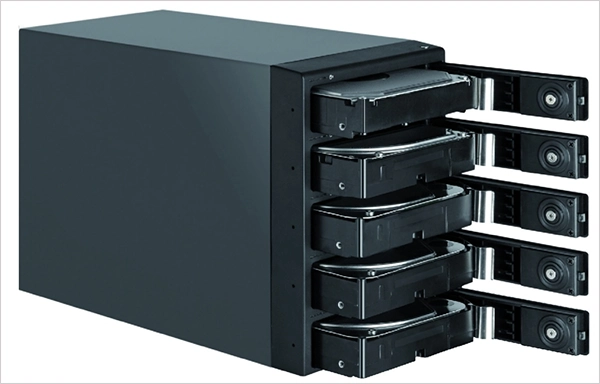
The main goal is to improve one or more of these areas:
- Performance by allowing multiple drives to work together.
- Redundancy by keeping copies of your data or using parity information.
- Storage efficiency by balancing usable capacity with protection.
RAID is like a team rather than individual players. Instead of relying on a single drive, several drives work together to keep your data available and, in many cases, protect it from a drive failure.
How Does NAS RAID Work?
A Network Attached Storage (NAS) device stores your files on multiple drives that work together as a single storage pool. Once RAID configurations are done, the NAS operating system automatically manages how data is written across those drives.
How your data is stored depends on the NAS RAID types. For example:
- RAID 0 uses striping to split data across drives.
- RAID 1 mirrors data by keeping an identical copy on another drive.
- RAID 10 combines striping and mirroring for speed and redundancy.
You do not need to manually manage any of this. The NAS handles it automatically in the background.
One of the biggest advantages of NAS RAID storage is continuous availability. If a supported RAID array loses a drive, the NAS can usually keep running while you replace the failed disk. It then rebuilds the array automatically, helping reduce downtime for home users, businesses, and media professionals who rely on constant access to their files.
Types of RAID Configurations Explained
Each RAID level serves a different purpose. Some improve speed, others focus on data protection, and some balance both. Let’s understand the most common RAID types for NAS:
RAID 0
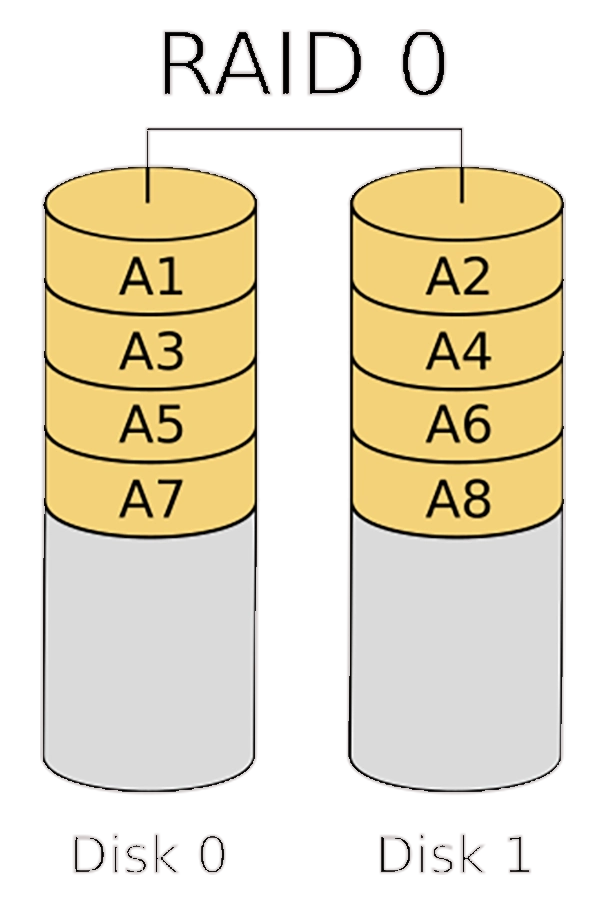
RAID 0 uses striping, which splits data across 2 or more drives so they can work simultaneously. This delivers the fastest read and write speeds but offers no fault tolerance. If even one drive fails, all data in the array is lost.
Best For: Video editing, gaming libraries, and temporary files where performance is more important than data protection.
RAID 1
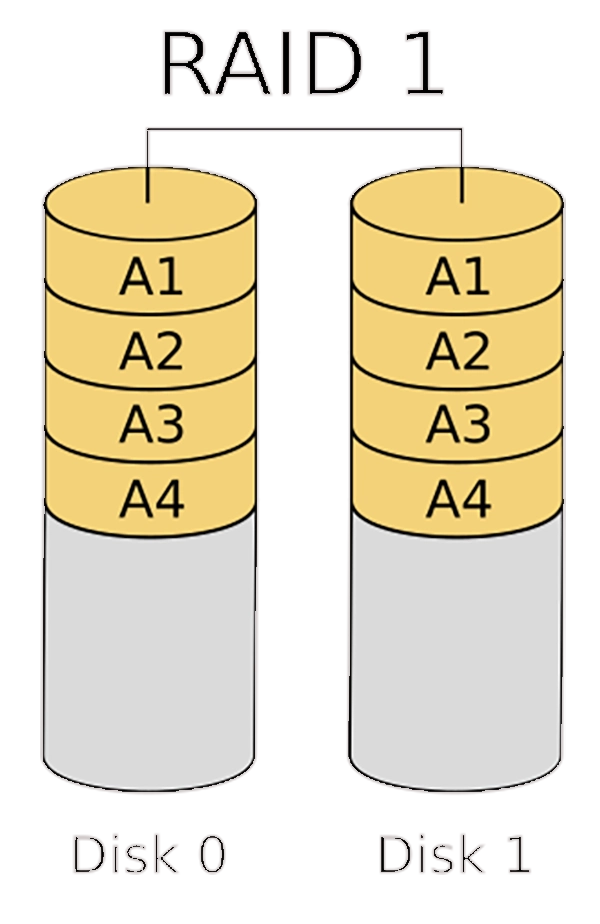
What is RAID 1? This is one of the most common queries on the web. Well, it uses mirroring to store an identical copy of your data on two drives. If one drive fails, the other continues to operate normally, making it one of the simplest and most reliable RAID modes.
Best For: Home NAS devices, personal files, and small businesses that prioritize data protection over storage capacity.
RAID 5
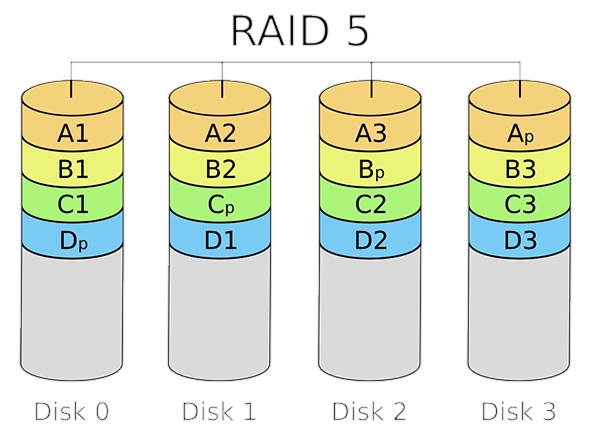
RAID 5 combines striping with distributed parity, allowing it to deliver good performance while protecting against a single drive failure. It requires at least three drives and offers an excellent balance of speed, usable storage, and redundancy.
Best For: Home users, media libraries, and small businesses looking for a well-rounded NAS configuration.
RAID 6
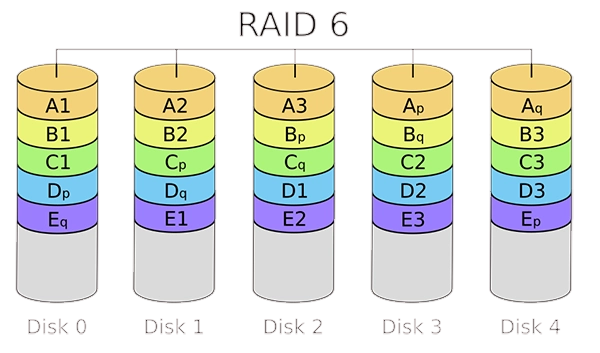
RAID 6 works like RAID 5 but stores an additional parity block. This allows the array to survive the failure of two drives at the same time, making it a safer option for larger storage systems.
Best For: Business servers, surveillance systems, and NAS devices storing large amounts of critical data.
RAID 10
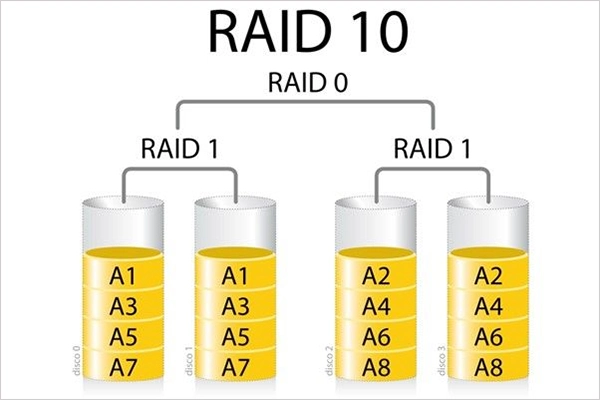
RAID 10 combines the mirroring of RAID 1 with the striping of RAID 0. It offers excellent performance and strong fault tolerance, although only about half of the total storage capacity is usable.
Best For: Databases, virtualization, professional video editing, and other performance-intensive workloads.
RAID 4 and Other RAID Versions
While a few other levels exist, they are rarely used in modern NAS systems:
- RAID 4 uses a dedicated parity drive, which can slow performance, so it has largely been replaced by RAID 5.
- RAID 2 and RAID 3 are outdated and no longer supported in most NAS devices.
- RAID 50 and RAID 60 are advanced enterprise setups used for large-scale performance and redundancy needs.
In most home and small business NAS systems, only RAID 0, 1, 5, 6, and 10 are commonly used.
RAID 0 vs RAID 1 vs RAID 5 vs RAID 6 vs RAID 10
The table below gives a simple side-by-side RAID comparison to help you quickly understand how each level compares.
| RAID Level | Minimum Drives | Fault Tolerance | Performance | Best For |
| RAID 0 | 2 | None | Ultra-fast | Maximum speed |
| RAID 1 | 2 | 1 drive | Moderate | Personal files, home NAS |
| RAID 5 | 3 | 1 drive | High | Home and small business NAS |
| RAID 6 | 4 | 2 drives | Moderate | Large storage arrays, business data |
| RAID 10 | 4 | Multiple (mirrored pairs) | Very high | Databases virtualization, video editing |
RAID vs NAS: Understanding the Difference
NAS vs RAID is a common confusion, but they serve different purposes.
A NAS (Network Attached Storage) is a physical storage device connected to your network. It allows multiple users and devices to store, access, and share files from a central location.
A RAID array is the storage technology that organizes multiple drives inside a NAS or another storage system. Depending on the RAID level, it can improve performance, provide fault tolerance, or balance both.
You can use a NAS with RAID or without RAID, and you can build a RAID array without a NAS. However, combining the two gives you centralized storage along with better performance and protection against drive failures.
How to Choose the Best RAID for NAS?
The best RAID level depends on your storage needs, workload, and how much downtime you are willing to accept. Here’s a quick recommendation based on common use cases:
| Your Requirement | Recommended RAID |
| 2-bay NAS | RAID 1 |
| 3-bay or 4-bay NAS | RAID 5 |
| Business-critical data | RAID 6 |
| Video editing, virtualization, databases | RAID 10 |
| Maximum speed with backups elsewhere | RAID 0 |
Before choosing a level, ask yourself the following important questions:
- How important is my data?
- Can I afford downtime if a drive fails?
- Do I need more usable storage or better fault tolerance?
- Will I add more drives in the future?
And keep in mind, RAID backup is not a thing. It only protects against drive failure, not accidental deletion, ransomware, hardware damage, theft, or disasters.
For important data, follow the 3-2-1 backup rule. Also, monitor drive health and replace aging disks early. Choosing RAID is not about the best option; it is about matching performance, capacity, and data protection needs.
Conclusion
A RAID array helps improve storage performance, availability, and protection against drive failures, making it a popular choice for NAS devices and professional storage systems.
However, each RAID level is designed for a different purpose, so choosing the right one depends on how you plan to use your storage. Whatever RAID version you choose, remember that it improves availability, but only a proper backup protects your data.
Frequently Asked Questions
What does a RAID array mean?
How does RAID work in a NAS?
Ans. A NAS uses RAID to organize multiple drives into a single storage pool. Depending on the RAID level, data is striped, mirrored, or protected with parity.
Which RAID level is best for a home NAS?
Ans. RAID 1 is ideal for two-drive NAS systems, while RAID 5 is the preferred choice for three or more drives because it balances storage capacity and fault tolerance.
Is RAID a backup?
Ans. No, RAID protects against drive failures but can’t recover files lost due to accidental deletion, theft, or disasters. You still need a separate backup.
Which RAID offers the best performance?
Ans. RAID 0 delivers the highest performance but provides no data protection. RAID 10 offers an excellent balance of speed and redundancy for demanding workloads.
Related Posts
Best Tools for Recovering Deleted Files on a Mac
A wrong click can leave you sinking in grief and sorrow, just because that accidental click has deleted an important…

What to Back Up Before Migrating Your Business to New Software
Software migration hardly results in data loss during migration. It’s possible that you lose the data after a week or…

How Modern Enterprises Are Scaling Infrastructure with Custom AI
For many businesses, AI works as a collection of tiny experiments such as a chatbot, a coding assistant, or sometimes…

VMware vs. Sangfor aSV vs. Nutanix: Which Hypervisor Actually Saves You Money?
Selecting the right hypervisor isn’t simply an issue of technology; it could end up having a significant effect on your…

SD Card Corruption in IoT Devices: Why It Happens So Often and How to…
IoT devices can have good sensors, robust software, and an excellent housing, but all it takes is one small thing…

5 Best SaaS Platforms for Financial Services and Growing Businesses in 2026
In 2026, SaaS platforms have become essential for businesses that want to build smooth processes, automate routine tasks and clarify…

How Digital Records Support Workplace Injury Claims
An injury in the workplace does not necessarily mean that you have just a physical problem to overcome. It could…

What Happens When Your Office Emergency Plan Is a Drawer?
An office emergency plan should not end with the first aid box sitting in the last drawer. All employees should…

How Data Recovery and Recordkeeping Failures Cost Businesses More Than They Realize
Most businesses file data recovery issues and recordkeeping gaps under different headings, treating one as an IT problem and the…