


Absolutely not, because the owner changed, but the original owner became an editor who can edit, comment, and make changes accordingly.
How to Transfer Google Drive Ownership Step by Step Without Losing Your Data
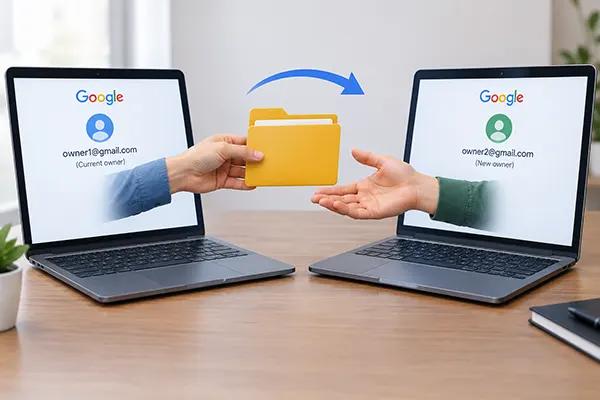
When an employee leaves the company, a freelancer completes the pending work, or a team member changes the ownership of a Google Drive folder, this can become a headache to handle.
Important documents are linked to old testimonials. Transferring ownership doesn’t change every file’s authentication.
The safest process is to identify the restrictions on the file along with dedicated ownership transfer facilities. Some accounts are restricted from transfer. Those files are downloaded and uploaded, or you use migration tools to remove restrictions.
While removing an old account, ensure the documents, spreadsheets, or shared files are secured. This leads to missing access, lost documents, damaged files, and recovery options being intact.
Key Takeaways
For a direct transfer to work properly, both accounts should meet the Google transfer rules. Adequate storage space for files is necessary for new owner accounts. The existing owner has authority to transfer the documents. Editor permission; sharing access is not sufficient.
Before You Start: What Has to Be True First
If your old and new accounts don’t fulfill Google’s requirements, then ownership transfer stops. Other personal Gmail accounts, work, or school accounts have different rules; before starting, check the account type first.
Personal, work, or school account types have no features to transfer ownership directly.
Before you transfer the files, ensure you have enough storage space and the required access to perform the activity safely. For personal accounts, file access needs to be accepted at both ends. For Workspace accounts, additional restrictions in the organization are in place by default.
If you want no issues, then first you have to take a backup of documents, spreadsheets, PDFs, images, or project folders in a listed format. This makes your effort simpler and saves a lot of time.
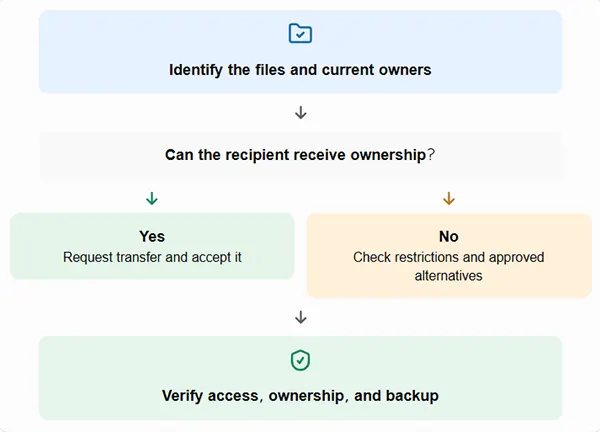
Method 1: Transferring Ownership the Standard Way
In the process of transferring ownership, following some steps can reduce confusion and create a smooth working environment.
- Open Google Drive, find the document or file you want to transfer, then right-click to share the file.
- Add the recipient, and check the name in the sharing list. If the recipient exists, then share the file before giving editor access.
- Start the process of transferring. Beside name open a permission menu to select the transfer ownership option.
- Wait for acceptance. The recipient gets an email invitation to accept the permission. Till now, its ownership is with the old account holder.
- Check results after getting permission. Ensure the new account is visible. Then the old account becomes an editor.
Make sure that this process is repeated afterwards because, after transferring the files, the containing elements still do not have access to the new account. Ownership does not automatically transfer. Shared drives act differently because their content is owned by an organization.
Ownership transfer checklist:
| Stage | Action | What to confirm |
| Before | Shared with recipient | Permit for recipient |
| During | Requesting Ownership transfer | Choice is available |
| After | Approval of Recipient | New owner assured |
| Final check | Reviewing files | Approved content and work |
Method 2: Manual Steps for Files the Standard Way Won’t Touch
When Google Drive doesn’t give direct ownership permission. Then it’s simply a restriction enabled by an organization or company policy. Transferring through Manual steps is an option, but some files may still be missing in the transfer.
- Download the file from the old account and upload it to the new owner’s account. If available, make a copy of the file.
- Open the new copy file and compare the elements like number, structure, or content present. Test the sharing permission, comments, link, or version history. It’s possible that some information is still not transferred properly.
- If a file has a different owner, then tell them to transfer ownership or make an authorized copy. Usually, an editor cannot transfer ownership.
- For big business handovers, ask the Google Workspace administrator about the approval of bulk migration tools.
- Shared drives are to be handled safely. Inspect the membership or drive shared because shared files’ authorship belongs to the organization.
Did You Know?
In Google Workspace, a shared drive does not belong to an individual; it is simply owned by an organization. If anyone leaves, access is still granted to other members. If the required settings are set up, then a shared file is best for work that doesn’t require special permission to access.
A Quick Account-Health Check Worth Doing Anyway
Make sure that your access is securely transferred to new accounts. Permissions, files, or low storage create lots of confusion about whether file transfer completed or was corrupted during the process.
Check the health score tool to review the storage issues that occurred while accessing the permissions. Those permissions that are not required should be removed successfully. These small steps ensure the new owner has access only to the important documents, not the waste of other domains.
Short Callout:
Don’t close your old account.
Before closing, make sure the new account has all desired access, like open, edit, or comments. Check that your link still works. Important documents are in backup files. If some files are missing or access permission is still pending, then resolve the issue first. A small extra checkup can prevent stress and losing important documents.
Why People Keep Putting This Off
The delay in ownership transfer usually happens because, after leaving the company, the permission is still accessible on the files. Service stops when the account expires, and important documents are still not accessible.
The new owner must make sure the permissions and shared files are tested before use; when it comes to business records, add an administrator to this process.
Treat ownership transfers as a maintenance routine of an account and not the last-minute work which is done when something serious happens.
Frequently Asked Questions
Does the original owner lose access completely after a transfer?
Can ownership be transferred between a personal Gmail account and a company Workspace account directly?
No, Google personal or work account transfers are not possible because Google has certain restrictions, but you can download and upload to make copies.
What happens to comments and version history during a transfer?
During a standard transfer, the comments or version history are preserved, but with download and upload, this can be removed.
Does transferring a shared folder also transfer everything inside it?
Absolutely not; a folder containing files has different owners because every file needs to transfer ownership individually to maintain the existing controls.
Is there a limit to how many files can be transferred at once?
Google Drive has an option for bulk selection, but it substantially fails with large files. Check the storage space of new owners and the transferred files as well.
Related Posts
Why Small Businesses Are Moving Payroll Processes Online
Do you know that 82% of small business owners work more than 40 hours a week and most of the…
Ecommerce Competitor Backlink Gap Analysis: A Data-Led Workflow
Ecommerce competitor backlink gap analysis helps a store identify websites that link to competing shops but not to its own.…
Using HeyGen AI for Sales and Customer Onboarding
It’s best to use HeyGen AI to create videos for you that answer a particular question or pain point. You…

Search Console Forgets Everything After 16 Months: How to Back Up Your SEO Data
After completing the period of 16 months, all the data and access are deleted from Google Search Console’s database. After…
Why Digital Transformation Projects Stall: A Resourcing Playbook for Project Managers
Digital transformation projects are on the rise at this time. From government-backed initiatives to enterprise cloud adoption and AI integration.…
How Email Hosting Providers Store and Protect Business Data
Where does your business email go when you click the send button? The impression is that the email just goes…

Best CI/CD Platforms for Coding Agents and AI-Native Development
CI/CD has changed its job because coding agents now write a growing share of the changes that reach a repository.…

Mavlers Agency on Why Global Agencies Are Turning to Offshore SEO Teams
An offshore SEO team in India is becoming more and more an option for great profit for global agencies; it’s…
How to Change Signature in Outlook: A Complete Guide
How do you change signature in Outlook? It sounds simple until you realize that the steps vary across Windows, Mac,…