
Most email services do not support attaching a regular folder directly. You need to compress it into a ZIP file or upload it to cloud storage and share a link.
How to Send a Folder Through Email: A Step-by-Step Guide
 Written by Prakhar Shivhare
When you need to email multiple documents, sending them one by one can be tedious. You might prefer to attach the entire folder, but most email services don’t support folders as regular attachments. So, how do you attach a folder to an email?
Fortunately, there are two simple alternatives: compress the folder into a ZIP file or upload it to cloud storage and share a link. This guide explains how to send a folder through email and handle large attachments.
How to Send a Folder Through Email?
Most email services accept individual files rather than folders. The simplest workaround is to compress the folders into a ZIP file, which packages its contents and subfolders into a single attachment. If you don’t want to compress the folder, you can upload it to cloud storage and share a link.
Here’s how to attach a folder to an email on Windows and Mac:
Method 1: Compress a Folder on Windows
- Open File Explorer and locate the folder you want to send.
- Right-click the folder.
- Select Compress to ZIP file or Send to > Compressed (zipped) folder, depending on your Windows version.
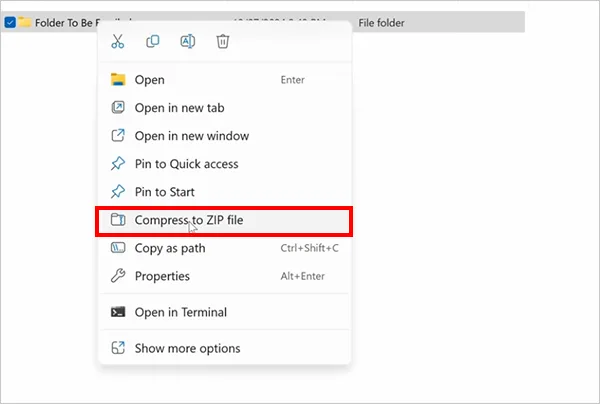
- Wait for Windows to create the ZIP file in the same location.
- Open your email service and compose a new message.
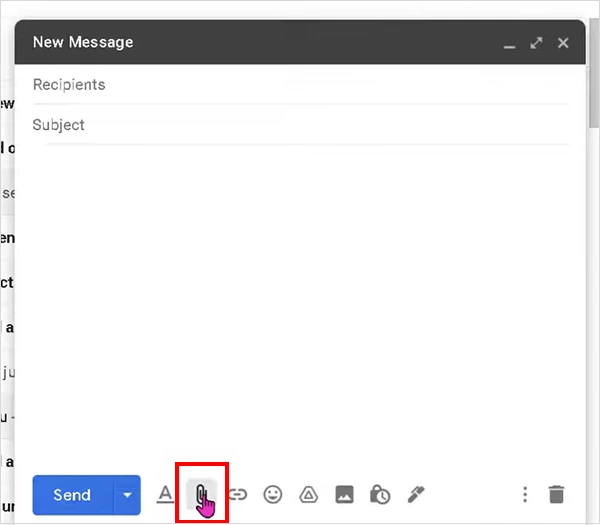
- Click the paperclip icon, select the ZIP file, and send your email.
Method 2: Compress a Folder on Mac
- Open Finder and locate the folder.
- Control-click or right-click the folder.
- Select Compress [folder name].
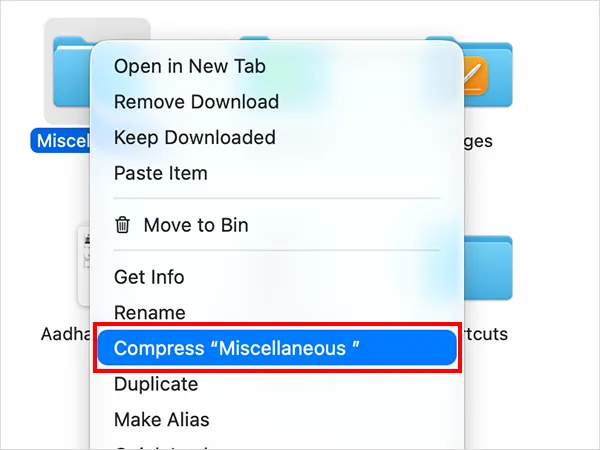
- macOS creates a ZIP file in the same location.
- Attach the ZIP file to your email and send it.
The recipient can download and unzip the file to access the original files and subfolders. Keep in mind that compressing a folder doesn’t always reduce its size significantly, especially if it contains videos, JPEG images, or other already-compressed files.
How to Email a Folder Through Gmail?
Gmail does not let you attach a regular folder directly from your computer. You can either compress it into a ZIP file or upload it to Google Drive and share it.
Here’s how to email a folder as an attachment in Gmail:
Method 1: Attach a ZIP File
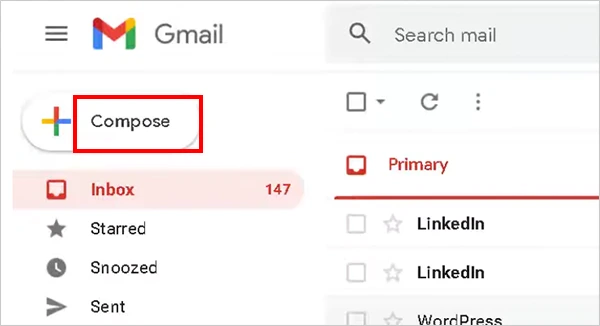
- Open Gmail and click Compose.
- Click the paperclip icon at the bottom of the message.
- Locate and select the ZIP file.
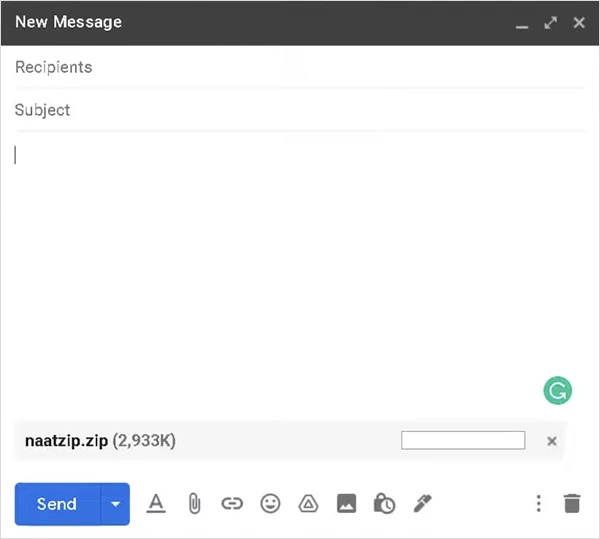
- Enter the recipient’s email address and your message.
- Click Send.
Personal Gmail accounts have a 25 MB attachment limit. If the attachment exceeds this limit, Gmail can replace it with a Google Drive link. The upload must complete successfully before the recipient can access the file.
Method 2: Share a Folder Through Google Drive
Now let’s see how to email folders using Google Drive:
- Open Google Drive and upload your folder by selecting New or dragging the folder into Drive.
- Right-click the uploaded folder and select Share.
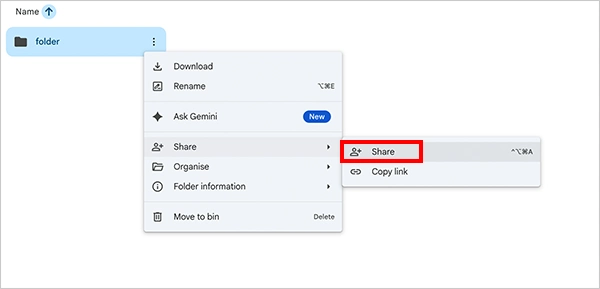
- Add the recipient’s email address or adjust general access settings if appropriate.
- Set the recipient’s permissions, such as Viewer, unless they need to edit the files.
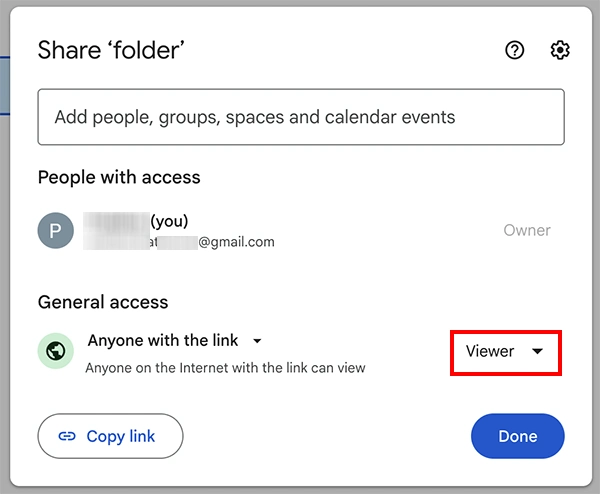
- Copy the sharing link, paste it into your Gmail message, and click Send.
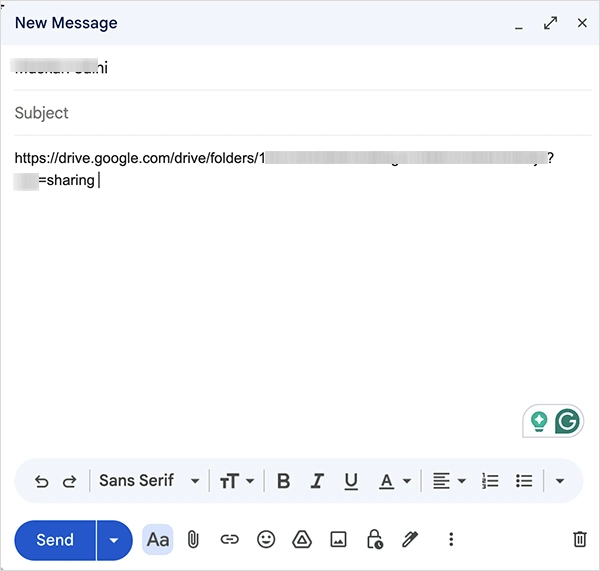
Before sending, check the folder’s sharing permissions. If the recipient does not have access, they may be unable to open the link.
How to Attach a Folder to an Email in Outlook?
Outlook supports regular file attachments and cloud-sharing links. To send a folder, compress it into a ZIP file or share it through OneDrive. Here’s how to attach a folder to an Outlook email:
Method 1: Send a ZIP File
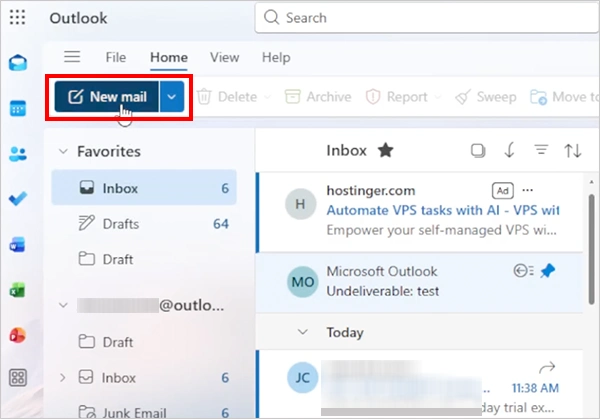
- Open Outlook and click New mail.
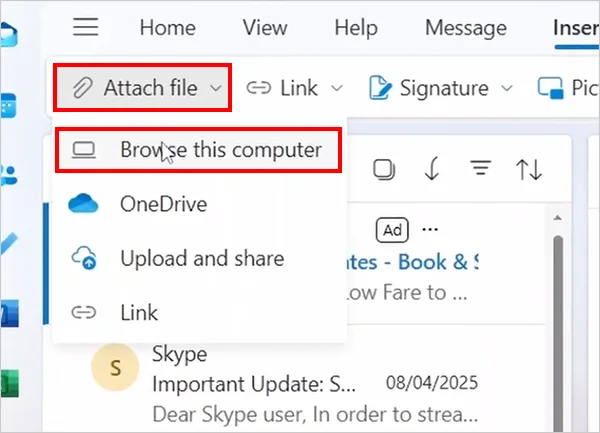
- Select Attach file > Browse this computer.
- Locate and select the ZIP file.
- Add the recipient’s email address and your message.
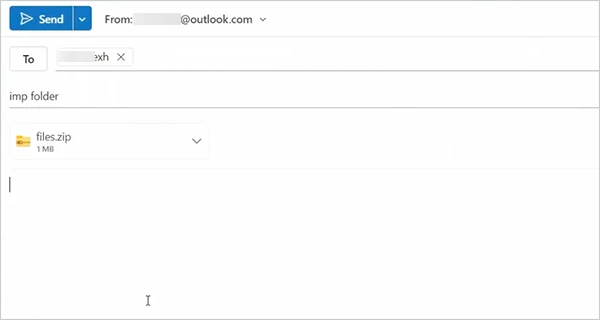
- Click Send.
Method 2: Share a Folder Through OneDrive
Here’s how to send a folder over email with the help of OneDrive.
- Open OneDrive and upload the folder.
- In Outlook, create a new email.
- Select Attach file > OneDrive to browse the available cloud locations.
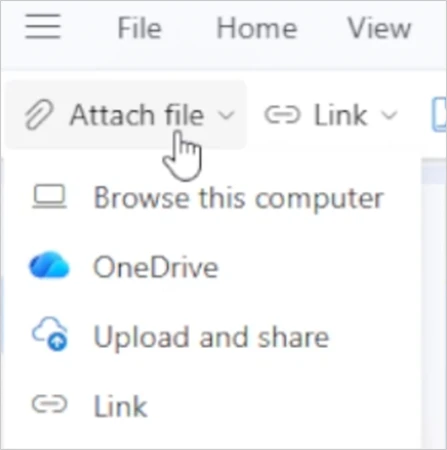
- Choose the folder stored in OneDrive.
- Select the option to share it as a OneDrive link.
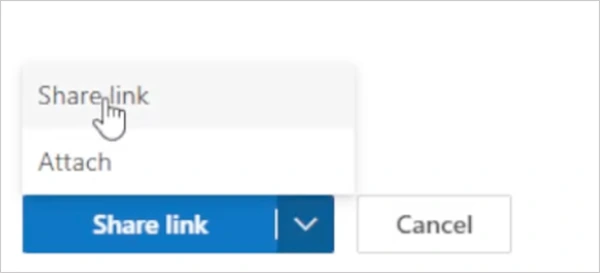
- Review the access permissions and send the email.
The exact menu names vary by Outlook version. In web-based Outlook, you generally share a folder through OneDrive rather than attaching a copy of the folder directly. Check the permissions before sending, as some sharing configurations may allow recipients to edit files.
What to Do If Your Folder is Too Large to Email?
If your folder exceeds your email provider’s attachment limit, compressing it again may not help much. Videos, JPEG images, and other compressed files often shrink very little.
Try one of these alternatives:
- Cloud Sharing: Upload the folder to a cloud solution, like Google Drive, OneDrive, or iCloud, and share a link through Gmail or another email service.
- File-Transfer Services: Use a service such as Smash to upload and share files without creating a ZIP archive first. Check its current size limits, retention period, and privacy settings before uploading.
- Split the Folder Into Smaller Archives: If cloud sharing is not an option, create multiple ZIP files and send them in separate emails. Ensure each attachment stays within your email provider’s size limit.
For most large folders, cloud sharing is the simplest option. It avoids sending multiple emails and allows recipients to download the files when needed. You can also manage access through the storage service, depending on its sharing controls.
Conclusion
How to send a folder via email? The easiest way to send a folder through email is to compress it into a ZIP file and attach it. If you prefer not to compress the folder, or it exceeds your email provider’s attachment limit, upload it to Google Drive, OneDrive, or a file-transfer service and share a link.
Choose the method that suits your folder’s size and privacy requirements, and check the recipient’s access permission before sending.
Frequently Asked Questions
Can you attach a folder to an email?
How do I attach a folder to an email without zipping it?
Upload the folder to Google Drive, OneDrive, or a file-transfer service that supports folder uploads. Then copy the sharing link into your email and ensure the recipient has permission to access it.
How can I send a folder by email larger than 25 MB?
Upload the folder to Google Drive or OneDrive and share a link. Personal Gmail accounts have a 25 MB attachment limit, making cloud sharing a convenient alternative for larger folders.
How do I send a folder in an email via phone?
On Android, use a file manager that supports ZIP compression, then attach the ZIP file through your email app. On iPhone, open the Files app, touch and hold the folder, and select Compress. You can then attach the file or upload the folder to cloud storage and share a link.
Why can’t you attach a folder to an email?
Most email services handle individual files rather than folders and their directory structures. A folder must be compressed into a ZIP file to preserve its structure as a single attachment, or uploaded to cloud storage so you can share it through a link.
Related Posts
The Cost of AR: Is It Affordable for Small Businesses in 2026?
If you have a small shop, or a local brand, or a growing e-commerce store, you don’t need the factory…
Dynamics 365 Integration Debt and How to Reduce It
Business Central and Dataworks are designed to work together, but many organizations still struggle with disconnected data, manual processes, spreadsheet…

AI Strategy at the Doctoral Level: What Changes for IT Leaders
Artificial intelligence is moving from experimental demonstrations into budgets, workflows, and enterprise decision-making, as advanced AI trends are shaping the…

Navigating the Tech Landscape: The Best Software Development Companies for 2026
If you are any kind of modern business, finding a good, reliable developer is essential in 2026. It’s also true…
Why Small Businesses Are Moving Payroll Processes Online
Do you know that 82% of small business owners work more than 40 hours a week and most of the…

Ecommerce Competitor Backlink Gap Analysis: A Data-Led Workflow
Ecommerce competitor backlink gap analysis helps a store identify websites that link to competing shops but not to its own.…

Using HeyGen AI for Sales and Customer Onboarding
It’s best to use HeyGen AI to create videos for you that answer a particular question or pain point. You…

Search Console Forgets Everything After 16 Months: How to Back Up Your SEO Data
After completing the period of 16 months, all the data and access are deleted from Google Search Console’s database. After…
Why Digital Transformation Projects Stall: A Resourcing Playbook for Project Managers
Digital transformation projects are on the rise at this time. From government-backed initiatives to enterprise cloud adoption and AI integration.…