
Yes, you can easily recover SD card files from a Mac if you act quickly. Stop using the card, clone it immediately, and then run a recovery tool on the clone.
Best SD Card Data Recovery Software for Mac (Tested on Apple Silicon and Intel)
 Upasna Deewan
Updated on: Nov 25, 2025
Table of Contents
- Top SD Card Recovery Software for Mac - Quick Comparison
- How I Tested These SD Card Recovery Tools on Mac?
- Best SD Card Data Recovery Software for Mac (Free & Paid)
- How Do I Use SD Card Data Recovery Software on macOS?
- What are the Key Features to Look for in an SD Card Recovery Tool for Mac?
- How Do I Recover SD Cards on Mac with Built-in Tools?
- Tips to Maximize SD Card Recovery on Mac and Prevent Data Loss
- Final Thoughts
- Frequently Asked Questions
I work with SD card recovery on Mac regularly, across both Intel and Apple Silicon devices. Over the last year, I tested hundreds of tools on formatted cards, corrupted partitions, and accidentally deleted photos and video files.
This guide reveals the best SD card data recovery for Mac. It is based on real recovery tests, what worked, what failed, and which tools are actually worth your time. I will also provide you with a short comparison and a clear testing method for transparency.
Important Compatibility Note: Some SD card recovery tools behave differently on Apple Silicon (M1/M2/M3/M4) Macs and APFS-formatted drives. Always check for Apple Silicon and file system support before purchasing any software. DiskWarrior, for example, is excellent at rebuilding HFS+ directories, but does not rebuild APFS volumes.
Quick Glance (If You’re in a Hurry)
- Best all-round choice: Disk Drill
(good reviews, byte-to–byte cloning)- Best free SD card recovery for Mac: PhotoRec (powerful signature scan, no GUI)
- Best for deep or professional work: R-Studio, UFS Explorer, and DMDE (forensics, RAID, enterprise)
- Beginner-friendly options: EaseUS, Disk Drill, and Recoverit
- Best for Apple Silicon and APFS-sensitive recovery: Disk Drill and Stellar
Top SD Card Recovery Software for Mac – Quick Comparison
Here is a simplified comparison of the 10 best recovery software for Mac, so you can quickly shortlist based on your budget:
| Tool | Developer | Pricing & Plans | Free Version | Key Notes |
| Disk Drill | CleverFiles | $89 lifetime | Yes (only scan and preview) | Native Apple Silicon support; byte-to-byte cloning |
| Stellar Data Recovery for Mac | Stellar | $59.99/yr (Standard), $89.99 (Professional), $99.99 (Premium) | 1 GB free | Provides bootable recovery and disk imaging options; best for non-booting Macs |
| R-Studio | R-Tools Technology Inc. | Starting at $79.99 (desktop license) | Yes | Advanced RAID and forensic features |
| EaseUS Data Recovery Wizard | EaseUS | $89.95/month, $119.95/year, and $169.95 for a lifetime | Yes (2 GB free) | Apple Silicon supported; quick recoveries |
| PhotoRec | CGSecurity (open-source) | Free (open-source) | Yes (unlimited) | Signature-based; works even when the file system is badly damaged |
| UFS Explorer Professional Recovery | SysDev Laboratories | Standard Recovery starts from $64.95;Advanced recovery priced from $209.95 to $839.95 | Yes | Enterprise features, wide file system support |
| Wondershare Recoverit | Wondershare | $84.99/month, $114.99/year, and $144.99 for a lifetime | Yes (100 MB) | Video repair module; NAS/Cloud export available |
| DiskWarrior | Alsoft | $119.95 new; $59.95 upgrade | No | Rebuilds HFS+ directories |
| DMDE (DM Disk Editor and Recovery) | DMDE Software | Starts at $20/year; perpetual plans available | Yes | Low-cost disk editor; manual control |
| Data Rescue 6 | Prosoft Engineering | $79 (Standard), $399 (Professional) | Yes | Strong cloning and resume-scan features |
How I Tested These SD Card Recovery Tools on Mac?
I did not just rely on claims, feature lists, or demos. I ran the same set of tests on two machines and three SD card types in real recovery scenarios. I also used the same failure cases to keep the comparison fair.
Here’s a brief look at the methodology used to find the top 10 Mac SD recovery software:
- Macs Used: Intel MacBook Pro and MacBook Pro M1
- SD Cards Tested: 32 GB SDHC (FAT32), 128 GB SDXC (exFAT), and an old card with directory corruption.
- Data Loss Scenarios I Tested (each tool was tested on the same scenarios): Accidental file deletion, quick format of the SD card, corrupted or unreadable SD card, recovering partially overwritten files, missing thumbnails, and partially damaged media files.
- File Types used for Recovery: JPG, HEIC, RAW (CR2/NEF), MP4/MOV, and large project files up to 25 GB.
I always ran a quick scan first, followed by a deep scan if needed. For cards showing corruption, I tried to create a byte-to-byte disk image before scanning. The following recommendations are based on what actually recovered files, not what sounded good on a feature page.
Best SD Card Data Recovery Software for Mac (Free & Paid)
After testing multiple paid and free SD Card Data Recovery Mac tools across real-world scenarios, my team and I shortlisted the 10 most reliable software.
These options work for everything, from recovering deleted photos from SD cards to fixing corrupted or formatted SD cards. So, just go through them (the list is in no particular order) and pick the one that suits your requirements and budget.
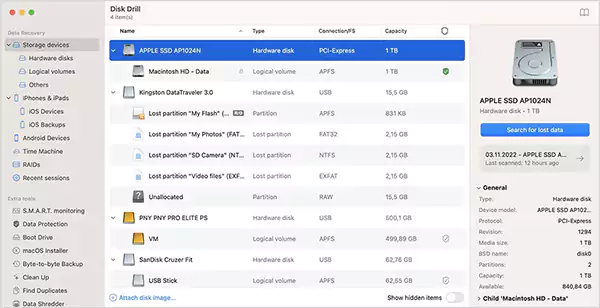
Disk Drill is my personal favorite; I use it for most of my data recoveries. It is one of the most recommended SD card data recovery software for MacBook and Windows as well. It balances powerful scanning with a clean and beginner-friendly interface.
Disk Drill works with all the common SD card file systems (APFS, HFS+, exFAT, FAT32) and can recover almost every file type, like photos, videos, documents, RAW images, and even large projects.
It also offers you ‘Byte-to-Byte Backup’, which creates a full copy of your SD card before scanning. This keeps your original card safe while the app works on the clone. Additionally, it comes with numerous useful extras, including disk health tracking, duplicate file finder, and cleanup tools, making it more than just a recovery tool.
Real Test Note: On a 64 GB formatted SD card containing RAW photos, Disk Drill recovered over 90% of files with original filenames and folder structure intact when scanned from a cloned image.
Pros
- Very simple and intuitive interface (great for beginners)
- Strong preview support, especially for RAW images and long videos
- Maintains original file names and file structure
- Byte-to-byte backup protects your card during recovery
- Can fix corrupted SD cards and external storage
Cons
- No free data recovery on Mac (only scanning and preview are free)
- Scans cannot be customized by file type or folder
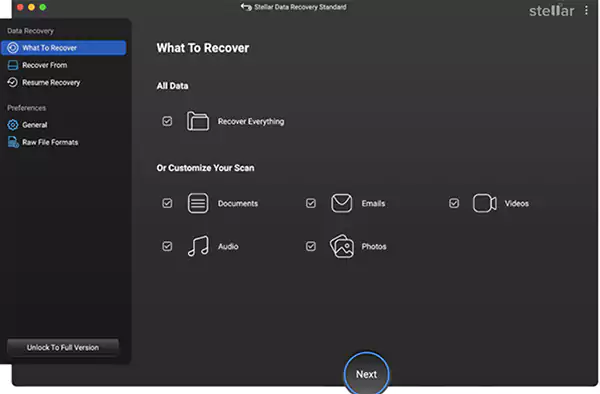
Stellar is known for its powerful deep scans and ability to recover hundreds of file formats. It can restore documents, emails, photos, videos, and more from cards and USBs.
The standout feature of Stellar SD File Recovery Mac is that it can recover data from a non-booting Mac as well, which is not offered by most tools in the market. You can even create a full disk image if your SD card or drive is failing.
Real Test Note: On a corrupted 128 GB SDXC card that failed to mount on macOS, Stellar successfully recovered media from a disk image, including partially damaged files.
Pros
- Works even if your Mac is not booting
- Supports custom file formats
- Repairs corrupted photos and videos
- The free version can recover up to 1 GB
- Includes tools for finding duplicate and large files
Cons
- Scans can be slow
- Year plans only
- Occasional activation issues

Next on the list is R-Studio, one of the most powerful SD card recovery software for Mac. It is made for advanced users and professionals. If you are a photographer, IT technician, or someone who deals with damaged or complex SD cards, this tool gives you full control.
R-Studio supports targeted scans, custom file types, RAID recovery, and even remote network recovery. The only downside is that if you are a beginner, this may feel a bit overwhelming due to its text-heavy interface.
Real Test Note: On an SD card with a damaged partition table, R-Studio recovered a higher number of files than most tools, especially from deep sectors. However, manual configuration was required to get optimal results.
Pros
- Very advanced and customizable tool
- Supports most file systems used in SD cards
- Can recover from damaged or reformatted cards
- Custom scan settings for precise recovery
Cons
- Not beginner-friendly and outdated interface
- Limited SD Data Recovery Free Mac version
- Can struggle with heavily damaged sectors
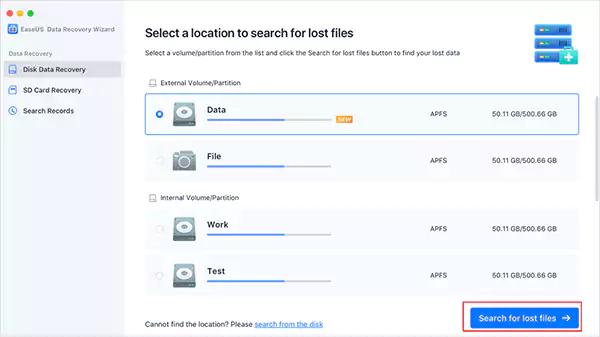
EaseUS is another popular choice for Mac users who want a simple recovery tool that works quickly. You get up to 2 GB of free recovery, which is enough for light use, like retrieving documents or a small number of photos.
The interface is clean and designed for non-technical users. EaseUS also works with formatted cards and supports Time Machine data backup, which is helpful if macOS backup files get corrupted. While testing, I found that one underrated advantage is that it allows file recovery while the scan is still running, which can save you a lot of time.
Real Test Note: On an exFAT SD card with recently deleted photos, EaseUS recovered all the files during the initial scan. However, it missed some RAW files during deep scanning.
Pros
- Supports 2 GB SD Card photo recovery for Free on Mac
- Cloud recovery is available
- Works on formatted SD cards and Time Machine backups
- Beginner-friendly UI
- Supports all popular file systems
Cons
- App collects usage data unless you switch it off manually every session
- Preview is limited for large files
- Less frequent software updates
- More expensive than many alternatives
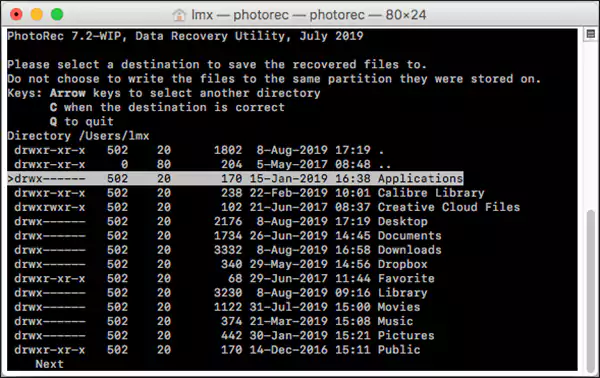
Looking for a reliable SD Card Recovery Mac Freeware? PhotoRec is completely free, open-source, and surprisingly powerful. If you are comfortable with technical tools or don’t mind a learning curve, this app can recover a lot, even from formatted cards.
It does not rely on the file system structure. Instead, it detects file signatures directly, making it great for RAW media recovery. Although improvement is required in the outdated interface and generic file names.
Real Test Note: On a formatted SD card with mixed media files, PhotoRec recovered a large number of photos and videos using signature-based scanning. However, file names and folders were not preserved; it required manual sorting.
Pros
- 100% free software
- Excellent for RAW and media file recovery
- Lightweight and fast
- Works with almost all file systems
Cons
- Command-line interface
- No preview or filters
- Recovered files have generic names
- Requires basic technical knowledge
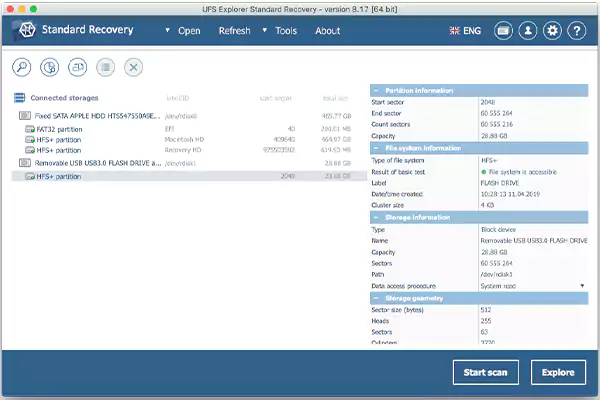
UFS Explorer is designed with business and IT teams in mind. It supports fast recovery, encrypted disks, and complex file systems. So, if you are dealing with professional workflows, this software offers more control than most tools in the market.
Real Test Note: On a heavily corrupted SD card image, UFS Explorer successfully detected lost partitions and recovered files that other tools missed.
Pros
- Powerful for enterprise recovery
- RAID and encrypted volume support
- Multi-user-friendly solution
Cons
- Too expensive for individuals
- No media preview is available
- High system resource usage
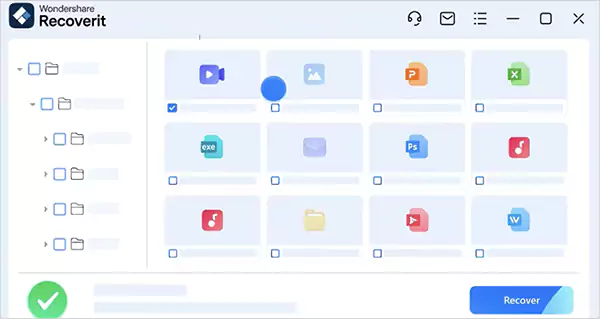
Recoverit can be a great macOS SD card recovery option if you want to recover photos or videos, especially corrupted ones. It has a dedicated video recovery and repair module that works surprisingly well for damaged clips.
You can run a quick scan, a deep scan, or save recovered files directly to NAS or cloud storage. And, the interface is also very clean and straightforward. However, creating a bootable USB drive was not that smooth for me.
Pros
- User-friendly interface
- Strong at repairing broken photos and videos
- Supports NAS and cloud export
- Video-specific scan mode reduces the overall recovery time
Cons
- Only 100 MB free recovery
- Not all files can be previewed
- No estimated recovery time displayed
- The USB boot utility can fail sometimes
Real Test Note: Recoverit’s video repair module restored playable footage of corrupted video files. However, the free recovery limits are too low to recover even for the first time.
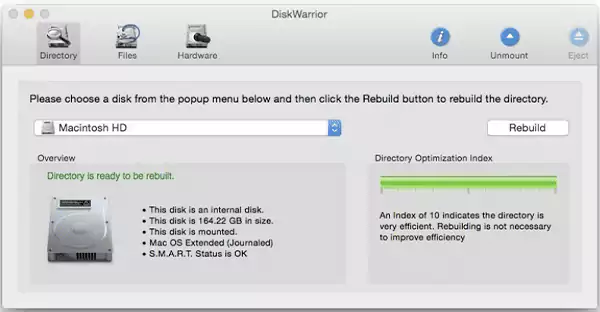
DiskWarrior is a unique tool in this list. It focuses on repairing damaged directories instead of just file-level recovery. If your SD card on a Mac suddenly becomes unreadable, it can help you rebuild the directory structure and make the drive accessible again. It is trusted by many experts, and one of the standout features of the software is that it warns you about potential disk failure.
Real Test Note: DiskWarrior rebuilt a directory using HFS+ and made the card readable again. But the tool was not effective for recovering deleted files or handling APFS volumes.
Pros
- Excellent for fixing folder/directory issues
- Predicts potential drive failure
- Very stable and trusted
Cons
- Outdated interface
- Not suitable for recovering large sets of deleted files
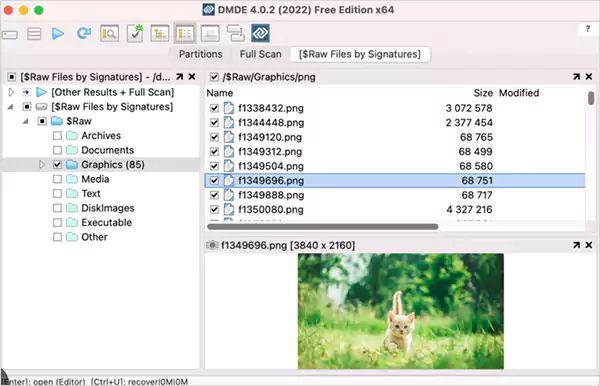
DMDE is another good tool with deeper controls for Mac recovery. It has a disk editor, partition recovery tool, and RAID recovery options. It allows you to recover almost all types of files, and you can even clone the entire disk. So, if you want something technical and hands-on, it is a solid option.
Real Test Note: On an SD card with missing partitions, DMDE allowed low-level disk access and cloning. With some technical work, partial file recovery was possible.
Pros
- Fast and efficient recovery
- Several free features
- Disk cloning is available
- Supports a wide range of file types
Cons
- Steeper learning curve
- Interface looks like a file manager
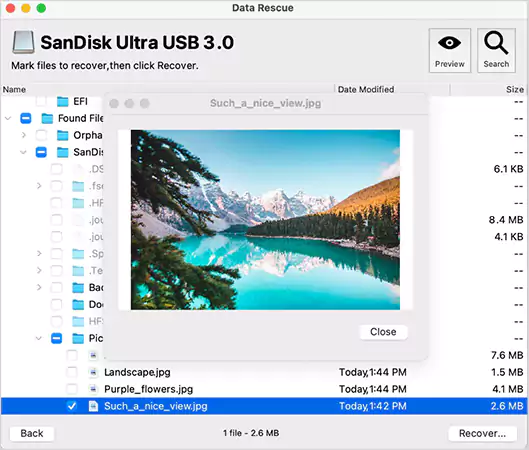
Data Rescue 6 is built for everyday users who want something easy and stress-free. It offers quick and deep scans, allows you to clone weak drives, and supports Time Machine backups. And the layout is pretty clean and simple. What’s even better is that you can easily switch between internal and external drives.
Real Test Note: During testing on a failing SD card with read errors, Data Rescue 6 successfully created a disk image and recovered part of the deleted data.
Pros
- User-friendly and intuitive interface
- Supports cloning for failing drives
- Can resume from previous scans
- Works with Time Machine backups
Cons
- Limited free recovery
- Can’t perform advanced recovery
How Do I Use SD Card Data Recovery Software on macOS?
Now you know your options for paid and free SD card recovery software for Mac. To give you some idea, I will walk you through a general process, since the steps are similar across most Mac recovery tools.
Step 0: If your SD card shows errors or behaves inconsistently, create a disk image or clone first and run recovery on the copy. This prevents further damage and improves recovery success.
- Start by downloading the software of your choice from its official site and installing it like any normal app.
- Now, connect your SD, microSD, or any other memory card to the Mac.
- Launch the data recovery software and select your SD card from the list of storage devices.
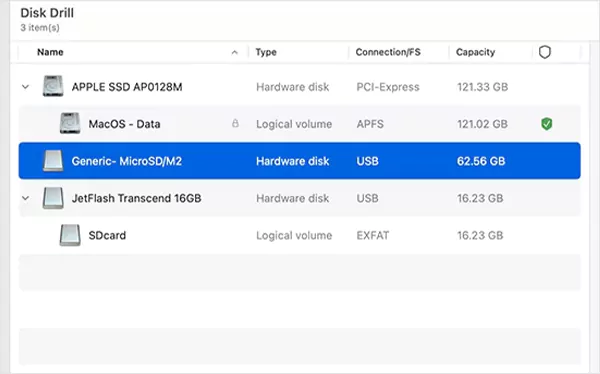
- Next, look for the option to start scanning. Most tools will show you real-time progress and the estimated time remaining.
- After the scan, you can filter and sort the results to quickly find what you need.
- Click on any file to preview and make sure it is recoverable.
- Finally, just select the files, click on the Recover button, and choose a safe location on your Mac.
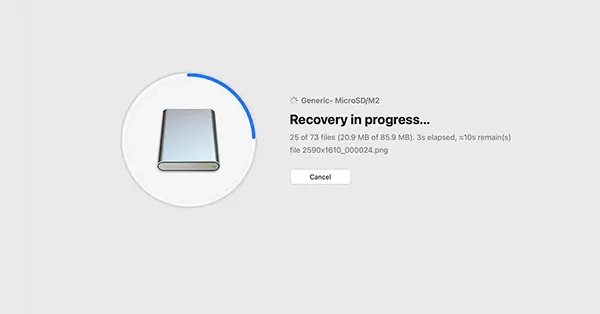
And that’s it, your deleted files are back. As a friend (and also as a professional), I would advise you to avoid saving restored files back to the same SD card.
What are the Key Features to Look for in an SD Card Recovery Tool for Mac?
I have worked with numerous recovery tools for different operating systems. Not all recovery tools are equal. I have tried to include 10 software programs that can cater to a diverse range of needs and people.
But how would you know which is the best Mac SD card data recovery software for you? Here’s a quick and expert-backed checklist to help you choose the right software:
- Performance: A good software should be able to handle different data loss scenarios while maintaining high recovery success rates. Look for something that can offer fast and efficient scanning.
- Compatibility: Make sure the software supports your macOS version, SD card formats (like exFAT, FAT32, APFS, HFS+, etc.), and common photo/video formats.
- Value for Money: The ideal Mac SD Card Recovery tool is the one with the most features. In my experience, not all cheap tools are reliable, and expensive ones are not always necessary.
- Interface and User Experience: Data recovery can be technical, so a clean user interface can make a big difference. It is crucial to choose according to your skill level.
- Extra Features: Useful add-ons can significantly improve the recovery process and outcomes. Backup tools, disk cloning, preview options, and disk health monitoring are some useful extras.
If you can’t choose among a few options, take a quick look at user reviews. It might help you learn about the real-world strengths and weaknesses of the software.
How Do I Recover SD Cards on Mac with Built-in Tools?
If you prefer not to use third-party apps, native macOS recovery tools may help you recover deleted files from your SD card. In most cases, you have 4 options:
- Recover from the Trash
Start by checking your Trash folder on Mac. When you delete files from an SD card connected to a Mac, they often move to the Trash instead of being permanently deleted.
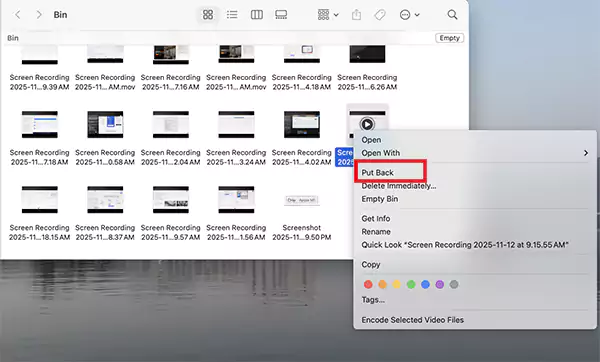
So, just open the Trash from the Dock and look for the deleted files. If you are able to locate them, right-click on the files and choose Put Back.
- Recover SD Card Files Using Terminal
To recover emptied Trash on Mac, you can use a native SD card recovery software on Mac: Terminal. You can try searching for the lost data by using commands.
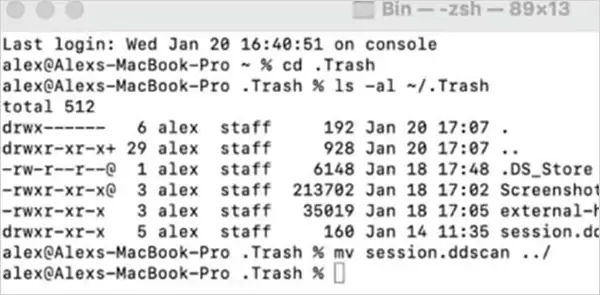
Launch Terminal on your Mac, type ‘cd.Trash’, and press Enter. If you can see the file, you can restore the file by typing ‘mv filename ../’. Replace filename with the exact name of your deleted files, and your file will reappear in its original destination.
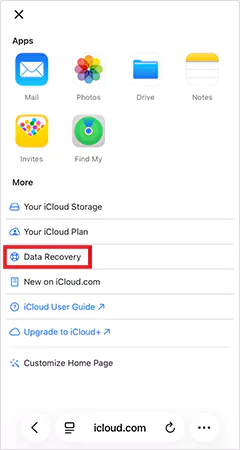
- Restore from iCloud
If iCloud Drive syncing was enabled on your device, your deleted SD card files may still be available online. So, go to iCloud.com, access your iCloud drive, and see if you can find the file you want. And, don’t forget to check the Recently Deleted folder.
- Recover with Time Machine Backup
If you regularly back up your Mac with Time Machine, first of all, you have my respect, and another piece of good news is that you might find an older copy of your SD card files.
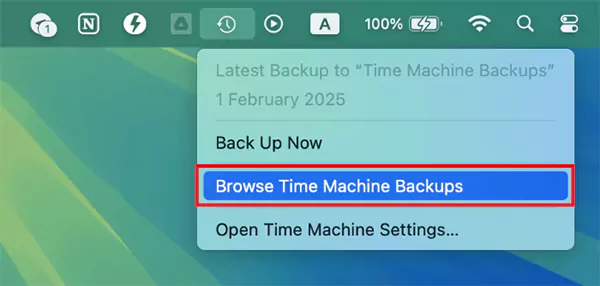
Launch Time Machine, select the Browse Time Machine Backups option, and search for your deleted files. If available, just click on Restore, and you won’t have to stress anymore.
However, if you are too late for the recovery using the built-in Mac tools, you will have to take the route of advanced third-party software.
Tips to Maximize SD Card Recovery on Mac and Prevent Data Loss
Okay, before I conclude things here, I want to emphasise the importance of good habits. When it comes to SD card recovery on Mac, timing and careful handling can make a huge difference.
So, here are the most effective tips to protect your data and improve your recovery success rate:
- Stop using the SD card immediately after you notice missing files or accidental formatting. Otherwise, you can overwrite your deleted data and make recovery impossible.
- Always eject the card properly to avoid sudden corruption.
- Start the recovery process as soon as possible. The longer you wait, the higher the risk of permanent data loss.
- If your card is showing errors or symptoms of corruption, create a full disk image first. This allows you to work on the copy while keeping your original data safe.
- Avoid using low-quality cards and readers. Poor hardware is one of the biggest causes of SD card damage.
- Use a protective case and keep the card away from water, heat, dust, and pressure.
- Always keep some free space on your card. Keeping 10-15% free helps in maintaining performance and reduces the chance of file system errors.
- Never remove your card or switch off your device while files are being transferred or copied.
- If you see any signs of a failing drive, like slow performance, missing thumbnails, or save errors, back up everything immediately.
If you follow these small but impactful practices, you will rarely face permanent data loss.
Final Thoughts
I have tried to share everything from my experience in a simple and precise form. With the right SD card data recovery software for Mac and a bit of caution, most files can be recovered easily. The key is acting fast, cloning first, and choosing a tool that matches your Mac and file system.
Based on my testing, Disk Drill is the fastest and safest starting point for most Mac users, especially photographers. For complex or heavily damaged cards, R-Studio or UFS Explorer offer deeper control. PhotoRec remains the best free fallback if you are comfortable with manual cleanup.
Frequently Asked Questions
Can you recover deleted files from an SD card on a Mac?
What is the best SD card recovery software for Mac?
There is no single winner. Disk Drill and Stellar are the best starting points for most users. R-Studio and UFS Explorer are good for power users, and PhotoRec is one of the best free options for Mac SD card recovery.
How to recover SD card data on Mac?
Stop using the card to avoid overwriting, and check out the Trash bin of your Mac. If it is not in the Trash, try using Terminal, Time Machine, iCloud, or data recovery software.
Is there free data recovery software for Mac?
Yes, there are various freeware programs for SD recovery on Mac. PhotoRec is one of the best free tools for this purpose.
Are free SD card recovery tools safe to use?
Yes, free tools like PhotoRec are safe to use. However, it is important to only use the reliable ones and make sure to install them from their official source.
When to stop DIY recovery and call a professional lab?
If cloning of a corrupted SD card fails or files remain unreadable after multiple scans, you should call a professional recovery lab to avoid permanent damage.
How do I avoid losing SD card data again?
Keep at least two backups, use higher-quality cards, avoid filling cards completely, eject properly, and clone critical cards.
Related Posts
How Poor Contract Visibility Leads to Revenue Leakage in Growing Companies
Growth is an important factor that determines the success rate of any business. When we witness new operations, partnerships and…

Managing Bitcoin Operations? Here’s How Salesforce Automation Helps
“Digital currency is here to stay, and it’s only a matter of how long before governments embrace it.” — Brad…

Why Modern Organizations Depend on Data Privacy Software
Data growth has significantly accelerated beyond what most compliance teams can manage, with personal records, financial details, contracts, and emails…

Converting Chats Into Leads While Maintaining Professionalism
The way marketing teams and businesses approach their potential clients to boost their sales has completely transformed in the last…
How to Delete iCloud Account? Complete Guide for 2026
Thinking, how can I delete iCloud or Apple account? It is not just about removing an account; it is about…

How Different Industries Use Specialized Software to Stay Competitive
In the market we have today, companies are always trying to find ways to work better and get results. The…

What Key Adjustments Enhance Visual Appeal Across Web Pages
Attractive web pages form the roots of any appealing website. For instance, imagine looking for content on Google, and you…

When is it Time to Consider IT Support Services for Your Business?
Every business needs to ensure smooth operations for a successful business. But despite trying hard to avoid barriers, technical issues…
How to Delete User Profile in Windows 10: Step-by-Step Guide
You don’t notice user profiles until one starts causing problems. A profile gets corrupted, a login error pops up, or…