
The shortcut to turn off sticky keys is to press the Shift key five times and click No to disable Sticky Keys.
How to Turn Off Sticky Keys on Windows? For Windows 11, 10, 8, and 7
 Mahima Dave
Updated on: Aug 30, 2024
If you’ve been active on Windows for a while, you must have at least once stumbled upon the Sticky Keys pop-up. Most users don’t even know what it’s about or how to get rid of it.
So, if you’ve turned it on by mistake or are getting annoyed by the constantly appearing prompt, we’ll provide you with the steps to turn off sticky keys regardless of the Windows version you’re using. Read on!
What is “Sticky Keys”?
Sticky Keys is an accessibility feature on Windows that allows you to use keyboard shortcuts by pressing one key at a time instead of pressing all of them simultaneously.
Let’s take an example: when you need to create an asterisk, you press the Shift key and 8. When Sticky Keys are off, you’ll have to press and hold the Shift key and then press 8 altogether.
However, when Sticky Keys are on, you just have to press Shift, let go of it, and then press 8. This feature usually works efficiently for shortcuts that use the Ctrl, Alt, or Windows keys. So, if you don’t like to press and hold a key for long, or if you’re just not a touch-typist or someone avoiding repetitive strain injury, you can use Sticky Keys; otherwise, it’s better to be turned off.
How to Turn Off Sticky Keys Using the Keyboard Shortcut?
The easiest way to turn off Sticky Keys is by using the keyboard shortcut. All you have to do is press the Shift key five times. It will turn on the sticky keys as well as turn the feature off.
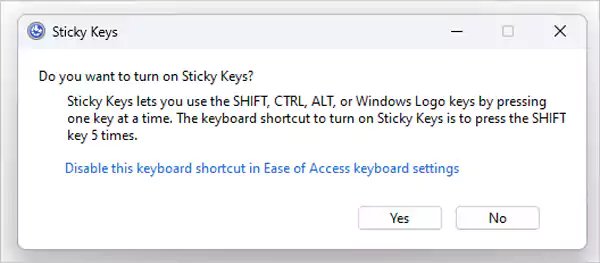
Alternatively, you can press two function keys simultaneously, like Alt Shift, Windows, and Ctrl.
How to Turn Off Sticky Keys on Various Windows Versions?
The steps to turn off Sticky Keys slightly vary depending on different Windows versions. So, if you’re using the latest Windows 11 or a bit older version, take a look at the steps below:
Windows 11
Starting with Windows 11, you need to follow these steps to disable Sticky Keys:
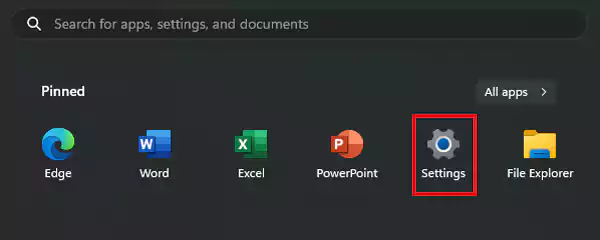
- Click the Start button and go to Settings.
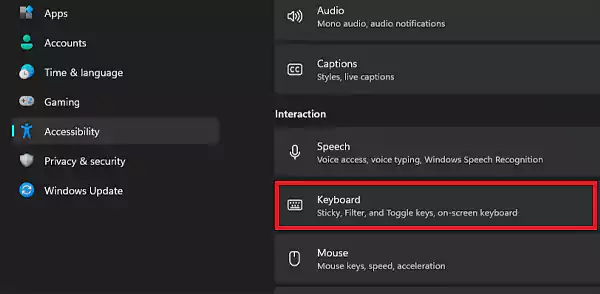
- Go to Accessibility from the options given on the left and then click Keyboard.
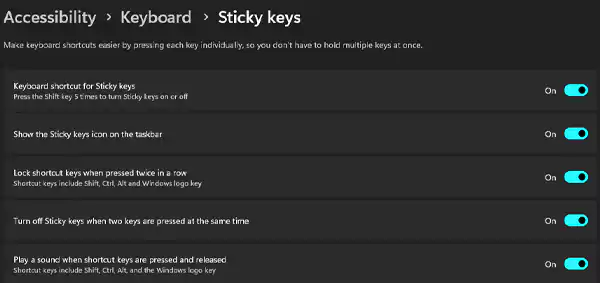
- The first option would be Sticky Keys only. If it’s turned on, set the toggle to off. Doing this will turn off sticky keys on Windows 11.
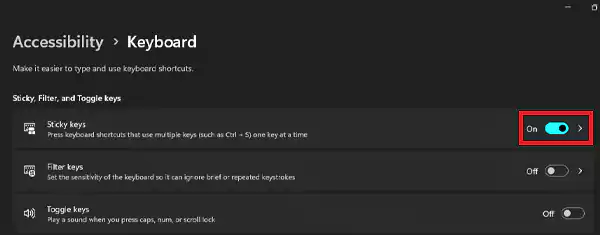
- You can also click the “>” button along the toggle to access more options related to Sticky keys.
Windows 10
When using Windows 10, follow these methods to disable sticky keys:
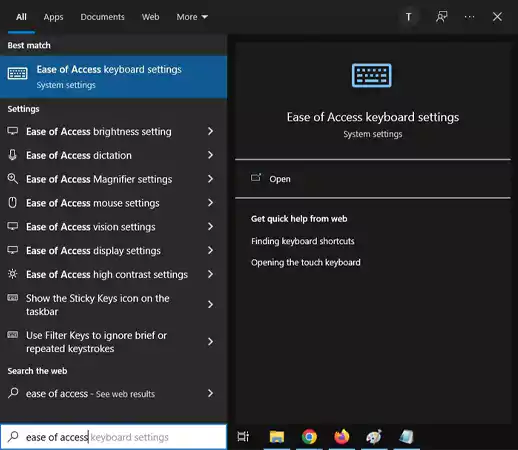
- Click the Start button and type “ease of access.” Then, open “Ease of Access keyboard settings.”
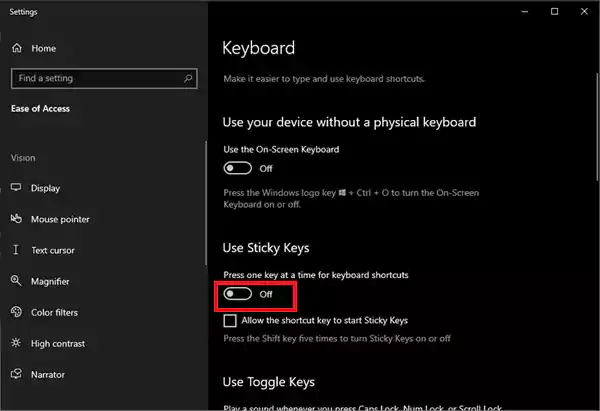
- Turn off the toggle under Use Sticky Keys. Also, uncheck the box below for “Allow the shortcut key to start Sticky Keys” to avoid its activation again.
Windows 8 and 7
When using either Windows 8 or 7, you can disable the sticky keys feature from the Control Panel. However, these steps can also be used on other versions (10 and 11).
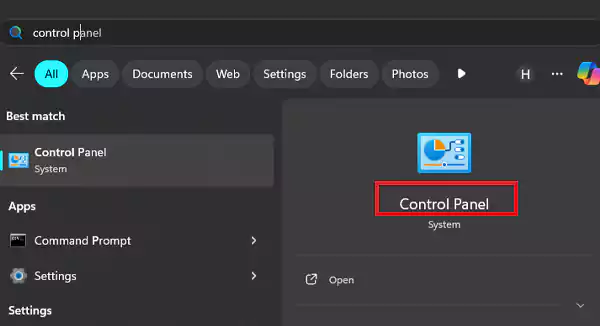
- Open the Control Panel from the Start button.
- Open Ease of Access from the list of options.
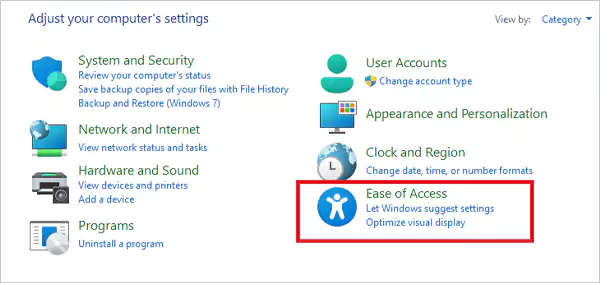
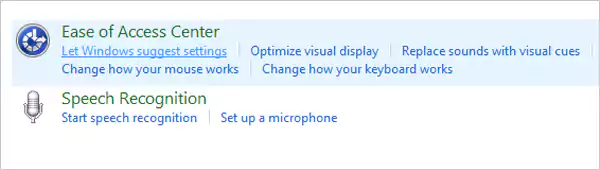
- Then, click on Ease of Access Center.
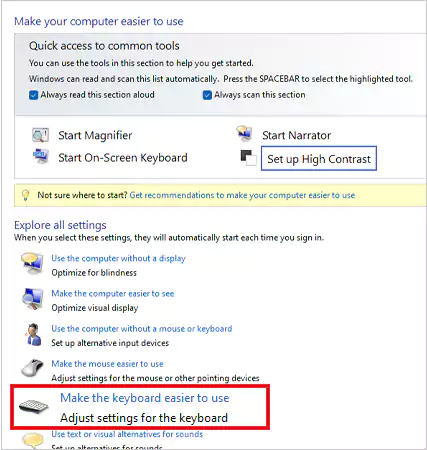
- From the list, click “Make the keyboard easier to use.”
- Uncheck the box for “Turn on Sticky Keys.” Then, click Apply or OK to confirm.

- Now, to disable the shortcut, click “Set up Sticky Keys.”
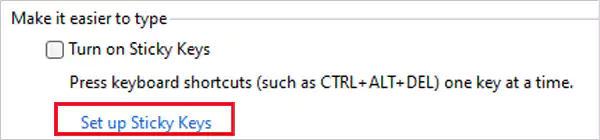
- Uncheck all the boxes, and you’re done.
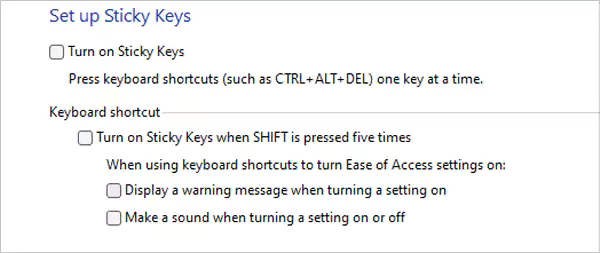
That’s it. You now don’t have to worry about the sticky keys message popping up.
What to Do If You Can’t Turn Off Sticky Keys on Windows 10 or 11?
If you’ve already tried every single method given above to turn off sticky keys, you can try these solutions to fix the issue:
Check for Malware
When none of the methods work to turn off sticky keys, it’s possible that your PC is infected with malware. Perform a malware check by following these steps:
- Press the Start button, and type “Windows Defender” in the search panel.
- If you find no results, download the software from Microsoft.
- Open Defender.
- Click Scan now.
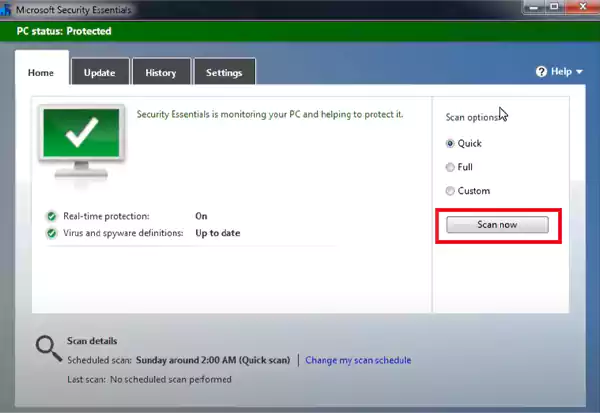
Then, if you find any malware in the system, click on the option “Remove All.”
Reinstall Keyboard Drivers
Corrupt keyboard drivers could be another reason why you’re not able to turn off sticky keys. Reinstalling keyboard drivers can fix this issue, and you can do that by following these steps:
- Press Windows + X to open Device Manager.
- Click Device Manager from the list.
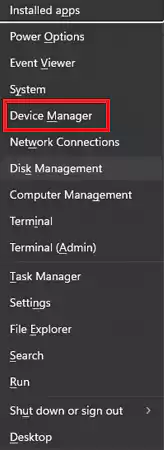
- Navigate to the Keyboards option, and click on it to open the driver section. Right-click on the driver and click “Uninstall device.”
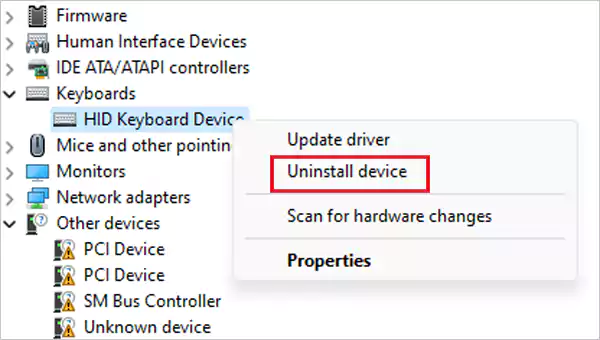
This will uninstall the keyboard driver. Just restart your PC to reinstall the driver.
Reinstall the Synaptic Pointing Device
The synaptic pointing device sometimes interferes with the sticky keys and creates problems in turning off the feature. The only solution here is to reinstall it using an uninstaller like IObit, Revo Uninstaller Pro, Geek, etc.
The uninstaller will remove all registry files and other files belonging to the synaptic pointing device. As you visit the official website, download the uninstaller, run it, and click “Uninstall.”
Alter Registry Values
Another solution you can try when sticky keys don’t turn off is to change the registry values. Follow these steps to take so:
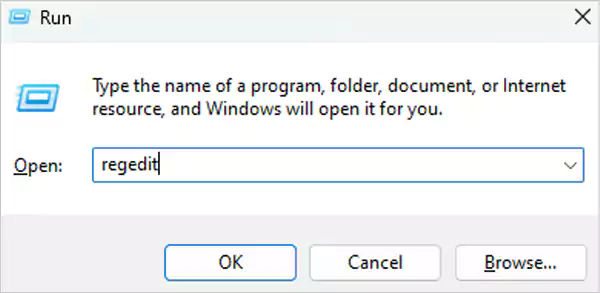
- Open the Run command by pressing Win + R.
- Type “regedit” and press Enter to open the Registry Editor.
- Now, click HKEY_CURRENT_USER >> Control Panel >> Accessibility >> Sticky Keys.
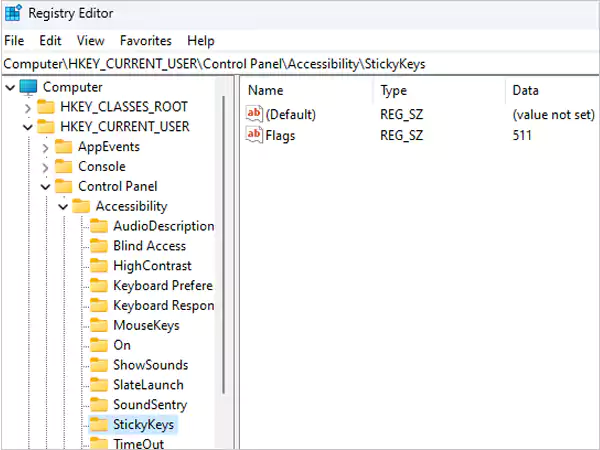
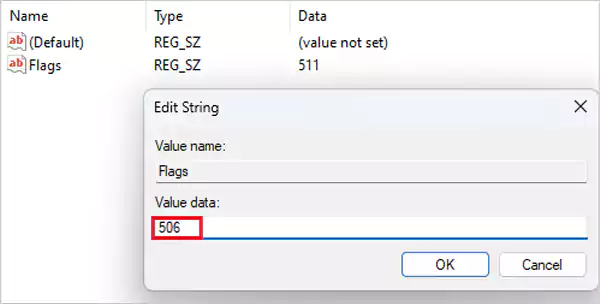
- Double-click the option Flags on the right and change the value to 506 under “Value data.”
- Now, under the Accessibility section only, go to the Keyboard Response.
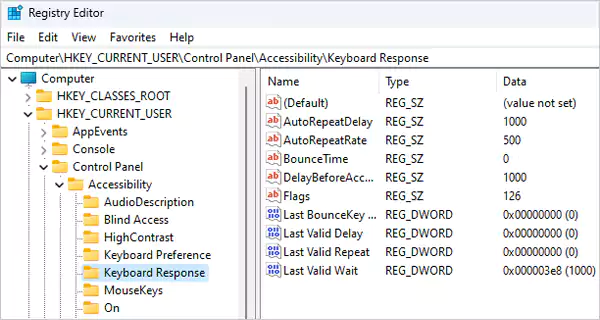
- Then, double-click Flags on the right and change the given value to 112.
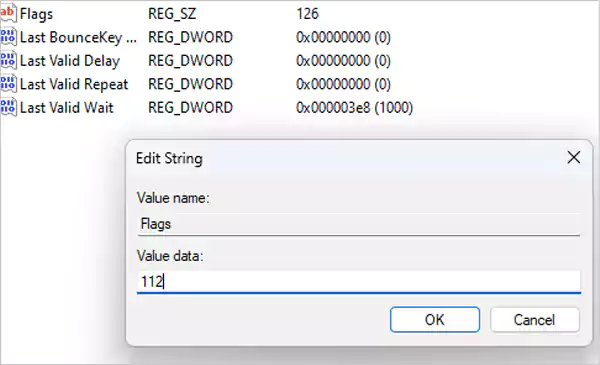
- Similarly, go to Toggle Keys >> Flags and change the given value to 58.
Close the Registry Editor and restart the system to enable the changes.
Change Your Keyboard’s Power Management Settings
Changing your keyboard’s power management settings can also help in fixing the sticky keys problem. You can do that by following these steps:
- Press Win + X and open the Device Manager.
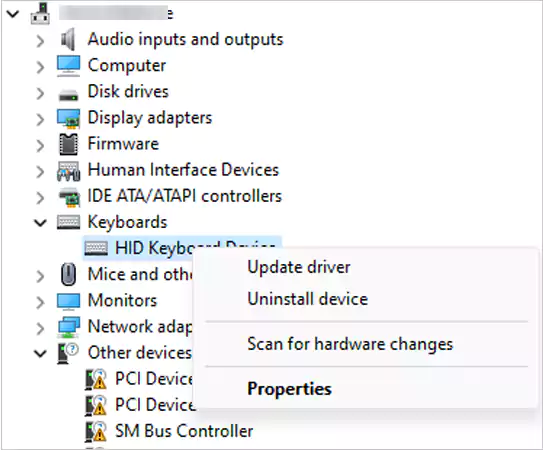
- From the list, navigate to Keyboard, right-click on it, and click Properties.
- Go to the Power Management Tab and uncheck the “Allow the computer to turn off this device to save power” option.
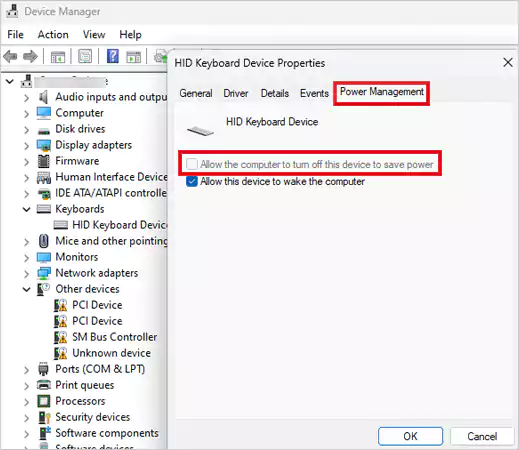
- Click OK to save the changes.
Try Using Another Keyboard
A faulty keyboard can also cause issues with turning off sticky keys. If the problem persists after making all the required changes, try replacing your keyboard with a new one.
Update Windows
Updating your Windows can also fix the problem. Just go to Settings >>
Update & Security >> Check for Updates. If there are any updates available, download and install them, and restart your computer.
Frequently Asked Questions
What’s the turn-off Sticky Keys shortcut?
Why are my Sticky Keys not turning off?
There could be a problem with the PC’s registry values, update problems, an issue with a synaptic pointing device, or you’re using a faulty keyboard.
Why do Sticky Keys keep popping up?
Sticky Keys may pop up if it’s enabled accidentally, and you’re not allowed to press and hold multiple keys to perform a specific action.
Related Posts

8 Best AI Presentation Makers for Business-Ready Slides
Making a presentation doesn’t just mean designing slides. It’s about defining a clear structure, using defined logic, useful visuals, and…

Queue Management Software Troubleshooting Guide: 8 Common Faults and Fixes
The long wait times and ineffective management of customer queues can have a significant impact on customer satisfaction and business…

How to Use Similarweb Website Traffic Data for Competitor Research
Competitor research without traffic data is guesswork. You can guess who your rivals are, guess how big they are, guess…

Choosing the Right Hosting Model for Scalable Digital Platforms
The performance of digital business is directly related to website speed, uptime, and scalability. Slow page performance has a negative…

How Data-Driven Performance Tools Are Transforming Employee Recognition in Tech Companies
“People work for money but go the extra mile for recognition, praise, and rewards.” — Dale Carnegie (Writer & Teacher)…

Why Businesses Struggle to Collect Reliable Data from the Web
Almost every company that depends on data runs into the same problem: although they can find the data they need,…

Why Financial Data Recovery Matters for Businesses
Financial data supports every part of a business, directly affecting cash flow, payroll, tax reports, audits, customer billing, and daily…

CMMC Compliance Is Coming for Manufacturers. Here Is What You Need to Do
“Cybersecurity is much more than a matter of IT.” — Stephane Nappo (Cybersecurity Professional) For manufacturers working within the defense…

How Data-Based Tools Influence Learning Performance
Learning has transformed in the modern age with the integration of new technologies to help students and professionals prosper in…