
This may happen due to a change in location settings of the default folder, or the screenshots were taken using a different method. Try to learn the method used and find the location accordingly.
Where are Screenshots Saved in Windows? A Complete Guide to Find Your Screenshots
 Mahima Dave
Updated on: Jan 25, 2025
If you are reading this article, you must be struggling to know where are screenshots saved in Windows. There are several built-in and third-party solutions to take a screenshot on a laptop. This makes it a little confusing to understand where these files end up.
Typically, a screenshot can be found in the Pictures > Screenshots folder. However, it changes as per the method used to take the screenshot.
Do not worry; we will provide you with complete information to find your screenshots on Windows devices. We will discuss all the possible scenarios and additional tips to quickly locate your screenshot.
Where are Screenshots Saved in Windows for Different Scenarios?
One can take a screenshot on laptops using the Print Screen button, the Snipping Tool, and various other methods. Some methods allow you to save it in your desired location, while some may need you to go to a specific folder to access it.
Let’s find out how to screenshot on pc and where are screenshots saved in window in different cases:
Method 1: Print Screen Key
When you press the Print Screen key, the screenshot does not automatically get saved to a folder on the device. Then, where do images go on prtsc? Well, your system copies the screen image into the clipboard for quick action. It is a special feature used for temporary copy and paste.

If you want to save the screenshot on your device, just paste the image into an image editor (like MS Paint) and save it to a desired location. You need to follow the same process if you use Alt + Print Screen methods to capture the active window.
Method 2: Snipping Tool (Windows Key + Shift + S)
The second method to capture your monitor screen is using the Snipping Tool (Windows Key + Shift + S). By default, it goes straight to the clipboard of your system.

Additionally, after you take the shot, a pop-up window will appear at the bottom right corner of the screen. Click on the window to open the preview and edit window. Here, you can select the location to save the image.
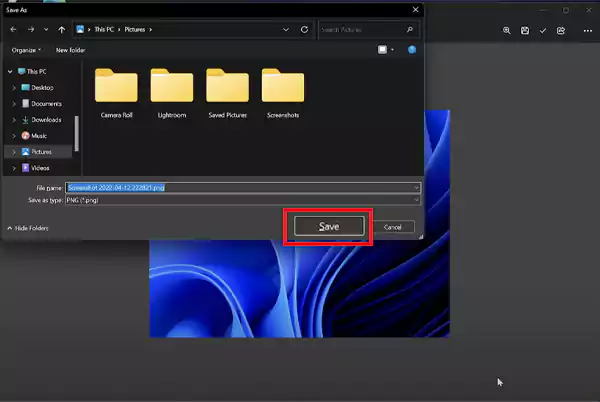
Just press Ctrl + S or click on the save icon in the top right corner and choose a desired location on your device.
Method 3: Windows + Print Screen
I personally use the Windows + Print Screen keyboard shortcut the most to take my screenshots on Windows 10 and 11. This option saves the image as a PNG file in the ‘Screenshots’ folder under ‘Pictures’.
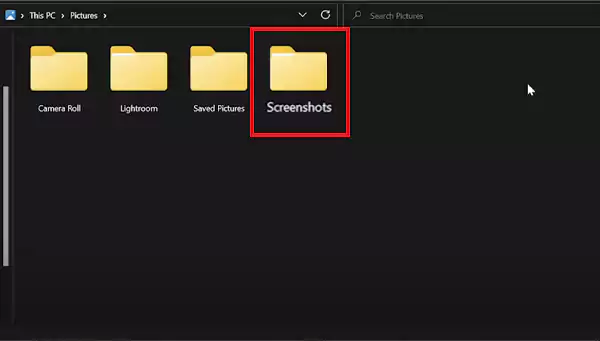
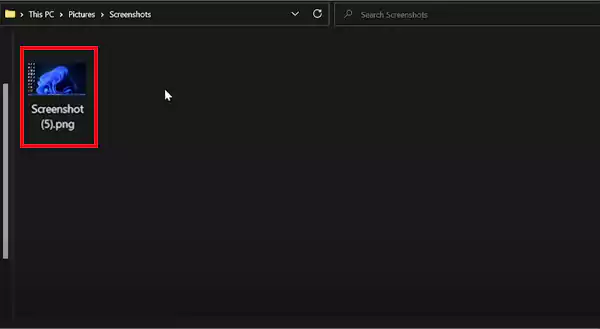
Your system takes a full-screen screenshot and saves it as Screenshot (#).png. ‘#’ indicates the number of screenshots saved on a device. You can find this file at C:\Users\[User Name]\Pictures\Screenshots.
Method 4: Xbox Game Bar
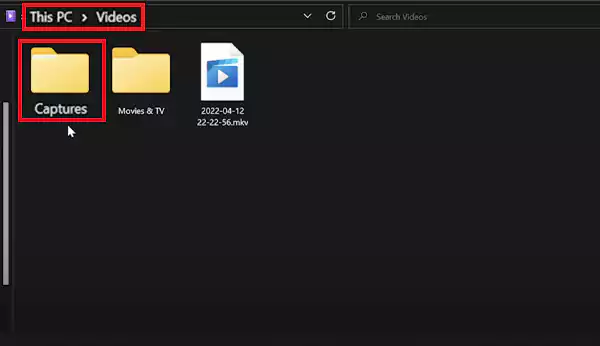
Xbox also saves your gameplay screenshots and videos on your Windows device. To find the location of your Xbox Game Bar screenshots:
- Go to This PC and click on Videos.
- Under Videos, you will find the Captures folder storing your gameplay screenshots on Windows.
Alternatively, you can also press Win + G to open the Game Bar. Then, click the Capture icon and click on See My Captures to find the screenshot folder.
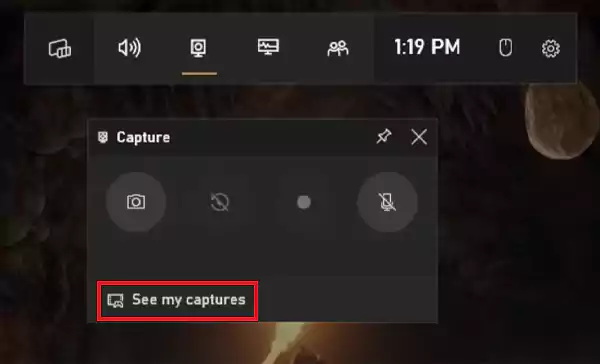
These are the four major options to capture screens on Windows. Now you know where to find the screenshots on your device while using all the major built-in methods.
Where Do Windows Screenshots Go While Using a Third-Party Tool?
When you take screenshots on Windows 11 and 10 using third-party solutions, usually the tool decides where to save the file. Depending on the tool you use, you may see a small preview window in the bottom right corner of the screen. Clicking on the pop-up window will either open the editing tool or take you directly to the file location.
Few third-party solutions also allow you to select the location of your captures. One can also check the tool’s menu or settings option to find the save location.
If you are still not able to figure out where are screenshots saved in window? open File Explorer and try to locate the folder manually. Typically, you will find the folder in the Pictures or Documents folders.
How to Change the Default Location of My Screenshots on Windows?
Yes! You can easily change the location of your screenshots on Windows. There are 2 methods to choose your desired location. This will help you to remember where are screenshots saved in window.
Both Windows 11 and 10 have the Snipping Tool feature, which allows you to capture a part of the screen and choose where to save it. Your system remembers the last save location to make things easier for you in the future.
Another way is to move the Screenshots folder using the Properties menu. Here’s how to change the default location of your screenshots:
- Go to the ‘Pictures’ folder, right-click the ‘Screenshots’ folder, and click on ‘Properties’.
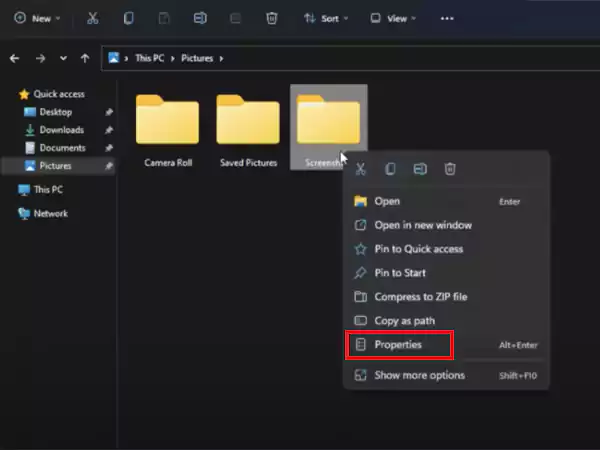
- Click on the Location tab and see where the folder is currently saved. Click on ‘Move’ to change the location.
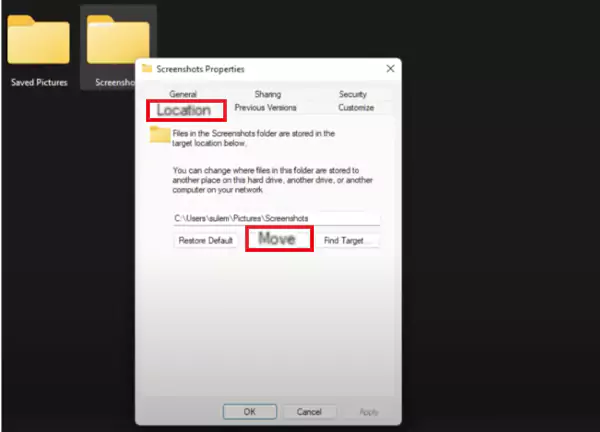
- A new window will appear. Here, make a new folder and name it as per your preference. Now, select the new folder and click on ‘Select folder’.
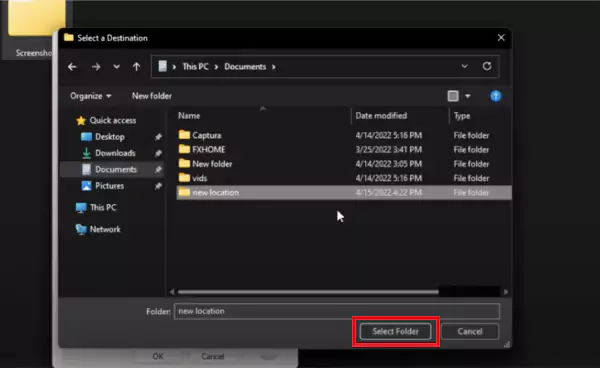
- Finally, click on Apply in the Properties window.
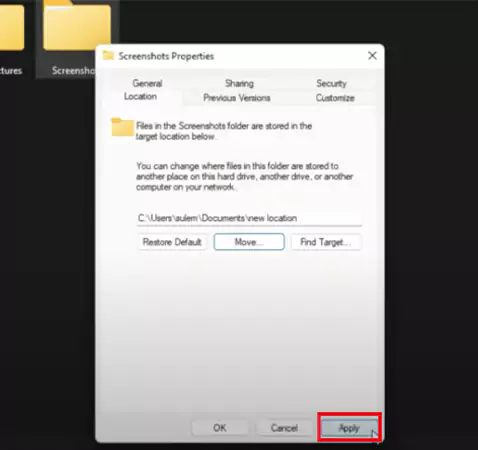
This will ensure that all your new screenshots taken with the Windows + Print Screen option get saved to the newly assigned folder.
Conclusion
I have tried to cover everything crucial to help you find your screenshot on laptops and computers running on Windows. If none of the mentioned methods work for you, try to take another screenshot and search for recently modified files or check the clipboard.
For easier access in the future, you can also pin the screenshot folder to Quick Access or change the default location of the folder to Desktop. With these tips, I hope you now know where to find the saved screenshots in Windows and how to screenshot on pc or laptops with different methods.
Frequently Asked Questions
Why are my screenshots not in my screenshot folder?
Where does the Print Screen go in Windows?
If you use the Print Screen key, your screenshot will be saved in the clipboard. In case you use the Windows + Print Screen method, you can find the image in the Screenshots folder under Pictures. You can also change the default location of this folder.
What is the desktop key for screenshots?
You can use the Windows + Print Screen keys and Windows + Shift + S keys to take a screenshot.
Related Posts

8 Best AI Presentation Makers for Business-Ready Slides
Making a presentation doesn’t just mean designing slides. It’s about defining a clear structure, using defined logic, useful visuals, and…

Queue Management Software Troubleshooting Guide: 8 Common Faults and Fixes
The long wait times and ineffective management of customer queues can have a significant impact on customer satisfaction and business…

How to Use Similarweb Website Traffic Data for Competitor Research
Competitor research without traffic data is guesswork. You can guess who your rivals are, guess how big they are, guess…

Choosing the Right Hosting Model for Scalable Digital Platforms
The performance of digital business is directly related to website speed, uptime, and scalability. Slow page performance has a negative…

How Data-Driven Performance Tools Are Transforming Employee Recognition in Tech Companies
“People work for money but go the extra mile for recognition, praise, and rewards.” — Dale Carnegie (Writer & Teacher)…

Why Businesses Struggle to Collect Reliable Data from the Web
Almost every company that depends on data runs into the same problem: although they can find the data they need,…

Why Financial Data Recovery Matters for Businesses
Financial data supports every part of a business, directly affecting cash flow, payroll, tax reports, audits, customer billing, and daily…

CMMC Compliance Is Coming for Manufacturers. Here Is What You Need to Do
“Cybersecurity is much more than a matter of IT.” — Stephane Nappo (Cybersecurity Professional) For manufacturers working within the defense…

How Data-Based Tools Influence Learning Performance
Learning has transformed in the modern age with the integration of new technologies to help students and professionals prosper in…