
Data-driven testing is a testing method that sees the same test executed with various sets of data.
Test Automation Tools Guide 2026: Best Practices for Desktop App Testing and Automation
 Reviewed By Brijesh Kumar Singh
  Saipansab Nadaf
Updated on: Mar 19, 2026
Table of Contents
The majority of businesses today rely on desktop applications for finance, healthcare, operations, and enterprise data integrity, and therefore, software testing has become more important than ever. And since manual testing can be extremely time-consuming and inconsistent for modern development environments, test automation is another important aspect of software quality assurance.
From improving testing speed to reducing human error, automation tools help businesses maintain application performance, stability, and security, and that is why businesses are trusting them. According to a Statista report, the global software testing market continues to grow rapidly as organizations invest in faster and more reliable testing solutions.
Let’s dive deeper into this topic and learn how desktop test automation is playing a major role in ensuring reliable software experiences across modern operating systems and enterprise environments.
Key Takeaways
- Test automation is the enhancement of software testing speed and exactness.
- There are desktop automation tools to help lessen manual testing efforts.
- Cross-platform frameworks offer greater compatibility testing.
- Using stable scripts and reporting helps to make testing more reliable.
- Automation also helps to maintain software security and business continuity.
What is Test Automation?
Automated software tools and scripts to automatically run tests on applications, without manual effort being required at all times. These tools are used by developers and QA teams to ensure that desktop applications work as expected when they are updated, patched, or added with new features.
Today’s automation frameworks can test user interfaces, workflows, performance, and system integrations efficiently. However, before diving into any of the tools for automating tests, you need to understand why automated testing has become a must for desktop application testing.
Test automation offers the following benefits:
- Faster testing cycles
- Reduced manual effort
- Improved software accuracy
- Better test coverage
- Early bug detection
- Consistent testing processes
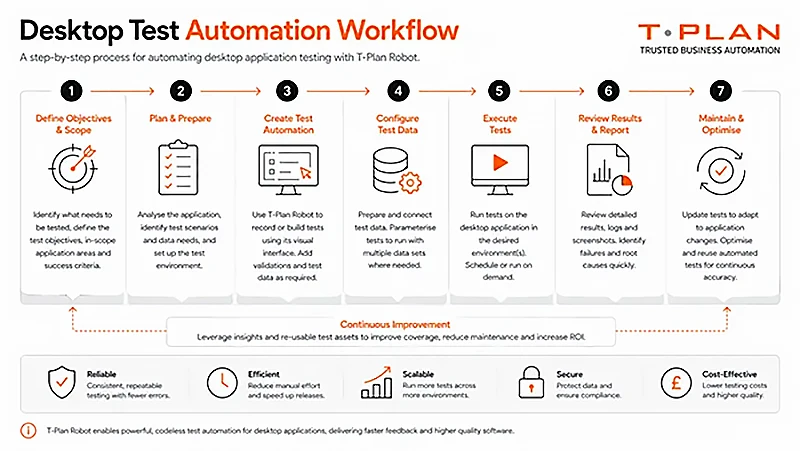
The need for frequent updates and compatibility testing makes automation crucial for applications on operating systems such as Windows 11. The infographic below further explains how desktop test automation workflow looks like
Key Features to Look for in Desktop Test Automation Tools
To create reliable and scalable testing environments, it is crucial to select the right automation tool. Application complexity and infrastructure vary from business to business, hence the testing capabilities need to be different from one business to another. Here are some important features to consider when choosing a desktop test automation tool:
- User interface automation
- Cross-platform compatibility
- Script resuability
- Real-time reporting
- Continuous integration and delivery (CI/CD) is possible
- There is support for low-code/no-code
- Security testing capabilities
- Scalable test execution
Tools that offer detailed logs, analytics, and automated reporting are also a priority for businesses to help in troubleshooting and quality monitoring. Implementing a proper automation platform will help enhance software testing efficiency and minimize operational costs.
INTERESTING FACT
The first generation of automated software testing was in the 1970’s when big companies began applying scripts to test the performance of mainframe applications automatically.
Popular Test Automation Tools for Desktop Applications
There is a wide variety of automation tools that can be used for desktop application testing, from open source frameworks to enterprise-level commercial solutions. Knowing the pros and cons of each class can assist businesses in selecting the best solution for their testing requirements.
Open-Source Desktop Automation Tools
Open source tools are commonly used by startups and development teams due to their flexibility and reduced implementation expenses. Its common advantages are that it is free to use, highly customizable, has a large developer community, and strong integration support.
Support frameworks and UI automation libraries are often used for desktop applications and are included in popular open source testing solutions.
In addition, many developers look into resources and blogs on automation testing. To keep abreast of changes in testing trends, scripting techniques, and the comparisons of frameworks.
Commercial Testing Platforms
Advanced features, technical support, and enterprise-grade scalability are offered by commercial testing platforms. The common advantages are dedicated customer support, advanced analytics, built-in reporting dashboards, AI-powered testing capabilities, and better security integrations.
Such tools are often employed by big corporations with intricate requirements and testing environments.
Cross-Platform Automation Frameworks
Cross-platform frameworks enable businesses to test applications on various platforms and environments. Major advantages include multi-device testing, reusable test scripts, improved compatibility testing, and faster deployment workflows.
These frameworks minimize testing duplication and guarantee application performance and consistency across platforms.
Best Practices for Reliable Desktop App Testing
Whilst the use of advanced automation tools is invaluable, businesses need to adhere to testing best practices to ensure the results are reliable and accurate. A proper testing strategy enables a team to minimise failures, increase efficiency, and keep the software quality up in the long run.
Build Stable Test Scripts Around Core Workflows
Prioritize user workflows that are most critical for automation, such as logging, transactions, and application functionalities. Recommended practices:
- Avoid using elements that are hard to use in the UI.
- Use reusable components
- Design scripts to be simple and modular
- Update scripts regularly
Maintenance requirements and test reliability are reduced with stable scripts.
Use Data-Driven Testing for Repeated Scenarios
With data-driven testing, the same tests can be executed with a variety of data sets, enhancing test coverage and efficiency. Benefits include:
- Reduced repetitive scripting
- Better scenario coverage
- Faster testing cycles
- Improved scalability
This can be particularly helpful for applications that need to process a lot of user or transactional information.
Maintain Clear Test Reports and Logs
Detailed reports and logs aid teams in the quick identification of failures and better debugging processes. The important reporting elements are:
- Error screenshots
- Execution summaries
- Failure timestamps
- Performance metrics
- Security alerts
Documentation enhances teamwork among the development, testing, and business teams.
How Test Automation Supports Data Security and Business Continuity
Software reliability and system availability are a critical part of modern businesses. Test automation helps to ensure security and operational continuity in an organization. Automated testing detects application vulnerabilities, compatibility problems, and performance-related issues before the applications are released to users.
Faster vulnerability detection, improved compliance testing, minimized human testing errors, enhanced disaster recovery preparedness, and reduced operational downtime are some of the major benefits of security and continuity.
Another important aspect of automation for business continuity is that software updates do not cause disruptions to critical workflows or customer experiences. With the growing trend of organizations moving to the cloud and remote work arrangements, automated testing has become a crucial tool for ensuring uninterrupted digital operations.
Final Thoughts
Test automation is an integral component of all software development and software quality assurance today. Businesses require robust automation solutions to ensure software stability, security, and performance as desktop applications keep developing in complexity.
Modern automation solutions include open source frameworks, enterprise testing platforms, and all this helps organizations to save manual efforts, enhance testing process accuracy, and speed up the software delivery. The observance of best practices like stable scripting, data-driven testing, and detailed reporting further enhances the reliability of testing and its operational efficiency.
By 2026, companies with robust desktop test automation programs will have the tools to ensure software quality, minimize risks, and deliver a seamless user experience in a dynamic digital landscape.
Frequently Asked Questions
What is data-driven testing?
Describe the meaning of Desktop Test Automation.
The art of automatically testing desktop applications with tools and scripts.
How does test automation help?
Test automation enhances the speed, accuracy, and reliability of testing and software.
Can open source automation tools be trusted?
Yes, there are a lot of widely used and highly customizable open-source tools.
Related Posts

8 Best AI Presentation Makers for Business-Ready Slides
Making a presentation doesn’t just mean designing slides. It’s about defining a clear structure, using defined logic, useful visuals, and…

Queue Management Software Troubleshooting Guide: 8 Common Faults and Fixes
The long wait times and ineffective management of customer queues can have a significant impact on customer satisfaction and business…

How to Use Similarweb Website Traffic Data for Competitor Research
Competitor research without traffic data is guesswork. You can guess who your rivals are, guess how big they are, guess…

Choosing the Right Hosting Model for Scalable Digital Platforms
The performance of digital business is directly related to website speed, uptime, and scalability. Slow page performance has a negative…

How Data-Driven Performance Tools Are Transforming Employee Recognition in Tech Companies
“People work for money but go the extra mile for recognition, praise, and rewards.” — Dale Carnegie (Writer & Teacher)…

Why Businesses Struggle to Collect Reliable Data from the Web
Almost every company that depends on data runs into the same problem: although they can find the data they need,…

Why Financial Data Recovery Matters for Businesses
Financial data supports every part of a business, directly affecting cash flow, payroll, tax reports, audits, customer billing, and daily…

CMMC Compliance Is Coming for Manufacturers. Here Is What You Need to Do
“Cybersecurity is much more than a matter of IT.” — Stephane Nappo (Cybersecurity Professional) For manufacturers working within the defense…

How Data-Based Tools Influence Learning Performance
Learning has transformed in the modern age with the integration of new technologies to help students and professionals prosper in…