
Yes, you can retrieve an unsaved PPT file by using the native features of Microsoft or by checking the temporary files folder of your device.
How to Recover Unsaved PowerPoint Files: Fast and Effective Methods
 Mahima Dave
Updated on: Dec 02, 2025
Table of Contents
- How to Recover Unsaved Presentations from PowerPoint?
- How to Recover Unsaved PowerPoint Files Using AutoRecover?
- How to Recover an Unsaved PPT from the Temporary Files Folder?
- How to Recover Unsaved PowerPoint Files Using the Document Recovery Pane?
- How to Recover Deleted PowerPoint Files?
- How to Prevent Future PPT File Loss?
- Final Thoughts
- Frequently Asked Questions
Hassling on the web to figure out how to recover unsaved PowerPoint documents? Now, just relax and follow this guide; you will be able to retrieve your files.
It happens to everyone; you cannot predict a sudden shutdown, an accidental close, or a random crash. Microsoft understands this, and that is why PowerPoint automatically keeps hidden backup versions while you work.
This allows you to recover PPT files in seconds, and that is just one way to do so. I will guide you through 8 different methods to recover a deleted or unsaved PowerPoint file so that no stone is left unturned.
Quick Answer: How to Recover Unsaved PowerPoint?
- Closed PowerPoint without saving? – Restore using the ‘Recover Unsaved Presentations’ option and checking the AutoRecover folder or the system’s temporary files folder.
- PowerPoint crashed before you could save? – Look for the Document Recovery pane when relaunching PowerPoint and search for temporary files.
- Deleted your PPT file by mistake? – Recover from the Recycle Bin or Trash, search the backups, use data recovery software, or try Windows File Recovery.
How to Recover Unsaved Presentations from PowerPoint?
Losing a presentation before you can save it is frustrating. PowerPoint itself gives you multiple safety nets. It quietly saves backup versions of your file every few minutes. If the app or system crashes, the backup copies become your lifesaver.
Here’s how to recover a PowerPoint that was not saved using the built-in feature:
- Open Microsoft PowerPoint on your computer.
- Then, go to File > Open.

- Click on the Recover Unsaved Presentations option (at the bottom of the Recent section).
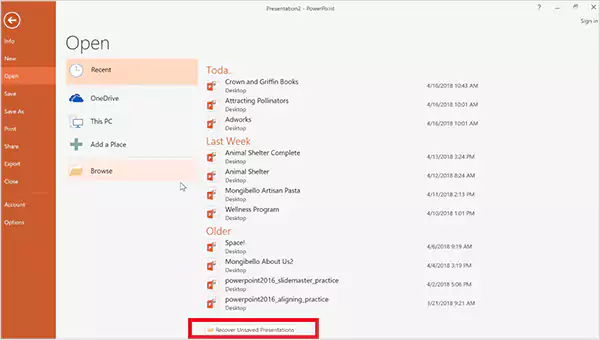
- Now, you will see a list of unsaved files that PowerPoint saved temporarily.
- Open the file you were looking for and save it immediately to a safe location on your device.
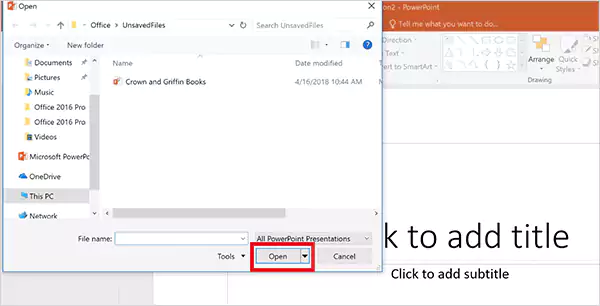
I have personally relied on this quick method, and I was able to get my files back on most occasions. PowerPoint keeps these backup versions only for a short time. So, acting quickly increases the chances of restoring the latest version.
Expert Tip: Go to File > Options> Save, and set AutoRecover to every 1 minute instead of the default 10 minutes. Reducing the autosave interval offers better protection.
How to Recover Unsaved PowerPoint Files Using AutoRecover?
If the above method of PowerPoint presentation recovery does not show your file, you can check the actual AutoRecover folder directly on your device.
Location of AutoRecover folder on Windows:
C:\Users\[Username]\AppData\Roaming\Microsoft\PowerPoint\
Location of AutoRecover folder on Mac:
/Users/[Username]/Library/Containers/com.microsoft.PowerPoint/Data/Library/Preferences/
Now, let’s see how you can recover a PowerPoint not saved using this folder:
- Locate and open the folder on the MacBook or Windows.


- Now, look for your missing PowerPoint document.
- If you find it, open it with PowerPoint.
- Finally, just save it to a secure place.
This method to recover unsaved Word documents and PPT files is especially helpful when Microsoft does not show the recovered file automatically.
How to Recover an Unsaved PPT from the Temporary Files Folder?
Your system also stores temporary versions of files created by apps like PowerPoint, Excel, Pages, etc. This temporary files folder can also help in unsaved PowerPoint recovery.
Here is how to recover PPT files not saved on Windows:
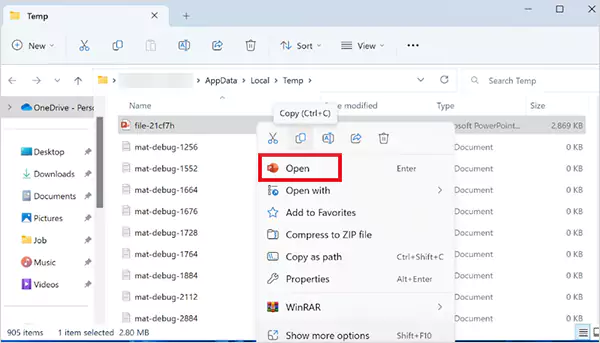
- Press Win + R, type %temp%, and press Enter to open the temporary files folder in File Explorer.

- You can also locate the folder manually by going to: C:\Users\USERNAME\AppData\Local\Temp.
- Now, in the folder, search for .pptx, .ppt, and ppt*.tmp files.
- If you find your file, just open it and save it instantly.
Mac, on the other hand, stores temporary items in a hidden system directory. So, let’s see how to recover a PowerPoint file not saved on a Mac:
- Open Terminal, and type: cd $TMPDIR.
- Then, type: 1s to view the files in the directory.
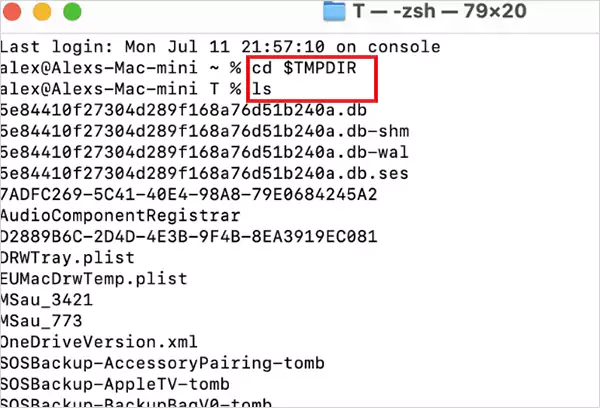
- Now, navigate to the TemporaryItems folder and look for your presentation.
- Copy it to a safe folder, open it with PowerPoint, and save normally.
This is a lesser-known method, but it has helped many users recover PPT files even after a full system freeze.
How to Recover Unsaved PowerPoint Files Using the Document Recovery Pane?
If your app crashed due to a power cut, system freeze, or app error, there is another key feature of Microsoft that can save the day for you. The Document Recovery Pane usually appears automatically when you reopen PowerPoint after the crash.
So, just relaunch the PowerPoint app and look at the left side of your screen. Here, the Documentary Recovery Pane should list all the recoverable versions. Just click on the file you want to restore, review it, and save it by going to File > Save As.

This unsaved PPT recovery method shows multiple autosaved versions, often with timestamps, so you can pick the cleanest or most recent one.
Most people rely on just the first method, but trying all four dramatically boosts your chances. I have helped users recover presentations even days later simply by checking temp folders and AutoRecover paths manually.
So, whenever you fail to save a document, try these four methods one-by-one. It is the fastest rescue workflow for you.
How to Recover Deleted PowerPoint Files?
Moving on from unsaved presentations, let’s talk about deleted or overwritten PowerPoint files. Both are different things, and we need to tackle them differently. Deleted files are those files that you have removed from the system willingly or by accident.
Here are the 4 most reliable ways to learn how to recover deleted slides in PowerPoint:
Restore from the Recycle Bin or Trash
When you hit Delete, Windows moves your file to the Recycle Bin, and macOS sends it to Trash or Bin. As long as you have not emptied these folders, you can easily retrieve deleted files from the Recycle Bin on Windows and Mac.
On Windows:
- Open the Recycle Bin on your desktop.
- Look for your PPT or PPTX file.
- Now, just right-click on the file and click on Restore.
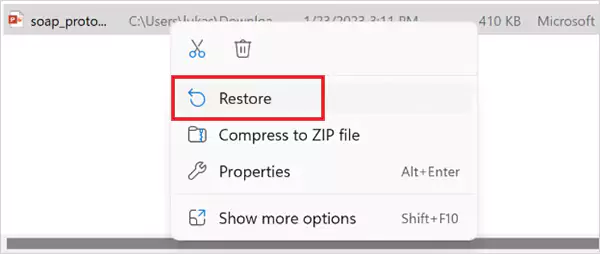
It will go back to the original location. Windows keeps deleted files until the bin fills up to 5-10 percent of your drive. So, if you act quickly, your file is almost always there.
On Mac:
- Click on the Trash icon in the dock.
- Try to locate your deleted PowerPoint file.
- Right-click on the file and select Put Back, or drag it anywhere you like.
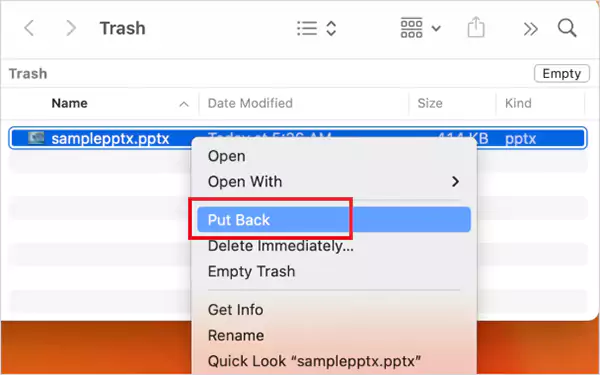
Keep in mind that macOS auto-cleans the Trash after 30 days if you enabled the “Remove items after 30 days” option. So, if this window is gone, you would have to try another method.
Recover PowerPoint Files Using Backups and Version History
If you have ever set up Windows File History or Mac Time Machine, or used any other cloud service, your PPT file might be waiting in an older backup.
Here is how to recover deleted PowerPoint slides using Windows File History:
- Search for File History from the Start menu.
- In Control Panel, make sure the file history option is enabled.
- Next, click on Restore personal files.
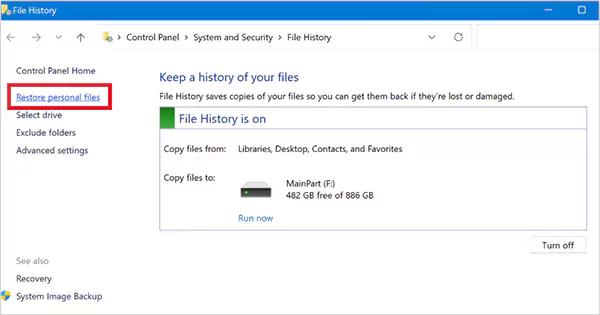
- Here, browse all old versions until you find your slides.
- Finally, hit the green recover button to restore it to its original location.

File History saves snapshots of important folders, like documents, desktop, libraries, etc.
Now, let’s quickly understand the Time Machine method to recover on a Mac device:
- Connect the drive used for Time Machine backup to your device.
- Now, go to Launchpad > Utilities > Time Machine.
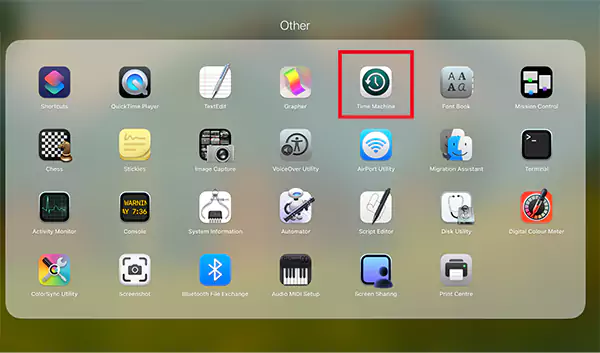
- Here, navigate through different backed-up folders.
- If you find your file, select it and just click on Restore.
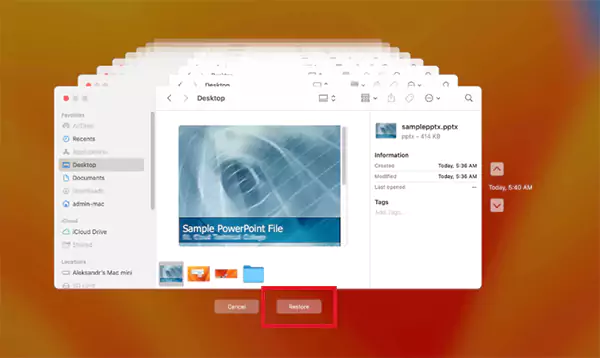
Time Machine also makes local snapshots of the last 24 hours of your system. So even if you have not secured backup with the external drive, these local snapshots can help you recover recently deleted PPT files the same way.
Furthermore, if you store files in cloud services, like iCloud, Google Drive, OneDrive, and Dropbox, don’t forget to check their main backup and recently deleted folders. Most of these platforms keep deleted items for around 30 days.
Retrieve Deleted PPT Files Using Windows File Recovery
Most deleted PPT files are not gone instantly. Your OS just marks the space as free to make storage available for other data. This allows advanced data recovery tools to scan and retrieve these files.
Windows offers a free command-line tool called Windows File Recovery. It is powerful, but not beginner-friendly. You need to type commands to scan your drive; there is no preview or graphical user interface. Just follow the given steps:
- Install Windows File Recovery from the Microsoft Store.
- Open it as Administrator.
- Now, use the following command line:
– winfr C: E: /extensive /n *.ppt /n *.pptxHere, C: is the drive you lost the file from, and E: is where the recovered file will be saved. Always choose different source and destination drives.

- Press Y when prompted and wait for the scan.
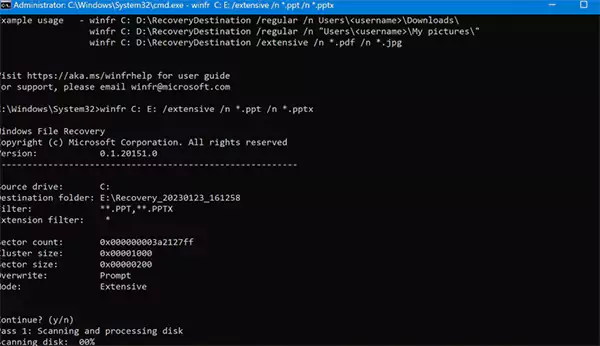
- Microsoft automatically creates a recovery folder on the destination drive.
- Here, just check if you are able to find the lost PowerPoint files inside the folder.
I recommend recovering deleted files in Windows using this method only when other options fail, and you are comfortable typing precise commands.
Recover a PowerPoint Using Data Recovery Software
If your presentation is not in the recycle bin, Trash, backups, or AutoRecover, it is time for you to try full data recovery. Tools like Datarecovee, Disk Drill, or EaseUS scan the entire drive to find deleted PowerPoint files, even from the emptied recycle bin. Here’s how they work:
- Download and install a recovery tool.
- Open it and choose the drive where your file was located.
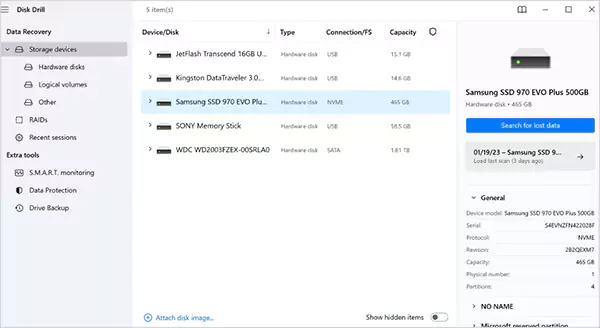
- Now, run a Quick Scan or Deep Scan.
- After the scan is complete, browse the files and preview the one you want to retrieve.
- Finally, select the file and recover your PowerPoint slides.
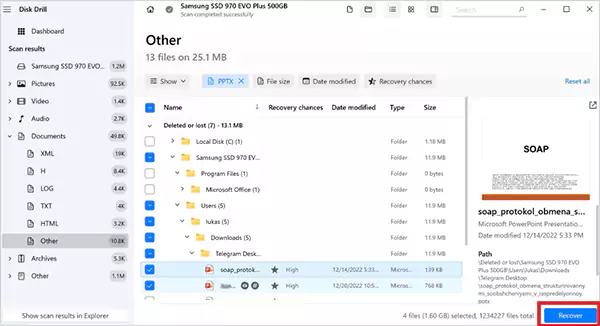
Why do I recommend this? Well, these are the best data recovery software, and they don’t rely on backups or temporary files. They dive straight into your disk, which gives you the highest chance of getting your PPT back.
Most of these tools offer free recovery for a limited amount of data, and that is usually enough for a PPT file.
How to Prevent Future PPT File Loss?
Now you know that recovering a deleted file or unsaved PPT file is possible. Here are a few powerful habits that can save you hours of panic and recovery attempts:
- When your device crashes or freezes, don’t save new files or install anything immediately.
- The quicker you act, the higher your chances of getting the full file back.
- Make sure you have enabled AutoSave and set AutoRecover to every 1 minute to avoid data loss. Also, enable the “Keep the last AutoRecovered version if I close without saving” option.
- Create extra backups of important presentations on external drives, USBs, cloud solutions, etc.
- Viruses and malware can corrupt your PPTs. Use tools like Windows Defender or any other strong antivirus software to prevent file corruption.
- If you work in an area with unstable electricity, a small UPS can give you the extra few minutes you need to save your presentation safely.
Also, I would advise you to understand all your recovery options before you need them. Most people start learning recovery steps after losing a file. But knowing them beforehand makes recovery faster and more effective.
Final Thoughts
You now have every essential tool to recover unsaved PowerPoint files and to recover your work after accidental deletion.
Turn on AutoSave, set up Autorecover, and keep at least one backup for important PPT files. And if everything fails, third-party data recovery software can still bring back the deleted presentation.
Just don’t panic, don’t overwrite your drive, and go through all methods systematically.
Frequently Asked Questions
Can you recover an unsaved PowerPoint?
How do I recover unsaved PowerPoint presentations?
Start by using the ‘Recover Unsaved Presentations’ option in PowerPoint. Then, check the AutoRecover folder of your device and your system’s temporary files folder.
Where are my AutoRecover files saved?
On Windows, you can find them by following this path: “C:\Users\[Username]\AppData\Roaming\Microsoft\PowerPoint\”. On Mac, go to: “/Users/[Username]/Library/Containers/com.microsoft.PowerPoint/Data/Library/Preferences/”.
Can you bring back deleted slides?
Yes, you can easily bring back deleted slides or presentations by checking the bin and backups, or using data recovery software.
Can you recover a previously saved version of a PowerPoint?
Yes, you can do so by using the version history in Microsoft 365 or by using the File History or System Restore feature on Windows.
Related Posts
Recovering Lost YouTube Videos from a Corrupted Drive
Losing your videos strikes fear into any YouTuber. One instant everything runs smoothly—crisp footage, clean sound, visuals locked in place—the…

How to Fix Windows Update Error? 10 Reliable Fixes
Windows Update keeps your Windows system secure, fast, and packed with the latest features. But let’s be honest, sometimes Windows…
How to Recover Data on Mac
People who work on a Mac almost every day often lose data, whether on purpose or by accident. And it…
Making Games Accessible Worldwide on Your Chromebook
Historically seen as a device for educational purposes, Chromebooks have become a global hub for gaming due to their use…
Best Ways To Convert Email Files (EML) To Images
An EML file is a saved email message. It contains the full content of the email, including the text, sender…
The Ultimate Guide to Becoming a Data Scientist
Whether you are someone choosing a career, switching it, or still deciding on what to pursue, a thorough knowledge of…

Practical Benefits Of Authentication Employee Time Clock Systems
Accurate attendance tracking plays a critical role in workforce management. Authentication-based employee time clock systems help organizations verify employee identity…

Top 7 Technology Consultant Services Every Data-Driven Business Needs (2026)
Data loss isn’t just an IT inconvenience. It is a threat to the survival of a business. Research shows that…

What is Hardware Accelerated GPU Scheduling and How to Enable It? (Windows 10 &…
Hardware accelerated GPU Scheduling allows the user’s graphics card to run its own memory management and task queue, rather than…