


Ans. Yes, Microsoft provides the OCT as a free web-based service. The Office Deployment Tool is also available as a free download.
Office Customization Tool: What It Is and How It Works
Table of Contents
- What is the Office Customization Tool?
- Key Features of the Office Customization Tool
- How to Use the Office Customization Tool?
- Office Customization Tool Download
- Office Customization Tool vs. Office Deployment Tool
- Best Practices for Using the MS Office Customization Tool
- Conclusion
- Frequently Asked Questions
Deploying Microsoft Office is simple until you need to control which apps are installed, how updates are managed, or what settings users receive. That’s where the Office Customization Tool (OCT) comes in.
Designed for IT administrators, it allows you to create customized Office deployment configurations without manually editing XML files. In this guide, you will learn what OCT is, its key features, how to use it, and how it works with the Office Deployment Tool (ODT) to simplify Microsoft 365 deployments.
Office Customization Tool: Quick Overview
- OCT is Microsoft’s web-based tool for creating custom Microsoft 365 Apps deployment configurations.
- It allows IT administrators to choose Office apps, languages, update channels, licensing, and other installation settings before deployment.
- Once configured, it generates an XML file that is used with ODT to install Office consistently across multiple devices.
What is the Office Customization Tool?
The Office Customisation Tool is a browser-based service from Microsoft that helps IT administrators configure Office deployments through an easy-to-use graphical interface.
Instead of manually creating or editing XML files, you can simply choose your preferred settings and export a ready-to-use configuration file. Before deployment, you can customize almost every aspect of the installation, including:
- Office edition
- 32-bit or 64-bit architecture
- Office apps to include or exclude
- Language packs
- Update channels
- Application preferences
- Licensing and automatic EULA acceptance
Since all settings are defined before installation, every device receives the same Office configuration. This reduces setup time, minimizes manual errors, and makes large-scale deployments much easier to manage.
Key Features of the Office Customization Tool
The custom configuration tool gives administrators detailed control over how Microsoft 365 apps are deployed. Some of its most useful features include:
- Choose Office Products and Apps: Select exactly which Office products and applications should be installed. You can exclude apps like Access, Publisher, or Teams if your organization does not require them, reducing unnecessary software and storage usage.
- Configure Languages: Deploy Office in one or multiple languages using the same configuration file, making it ideal for organizations with multilingual teams.
- Manage Update Channels: Choose how devices receive Office updates, whether from Microsoft’s cloud, Configuration Manager, or another supported source. This helps control feature rollouts and maintain stability across your environment.
- Set Application Preferences: Preconfigure Office settings such as Default file formats, VBA macro notifications, trusted locations, and other application preferences. This eliminates the need for employees to configure these settings individually after installation.
- Cloud-Based Configuration Management: Configurations can be saved, copied, edited, and reused directly from the Microsoft 365 Apps admin center, making future deployments faster and more consistent.
- Support Existing Office Installations: The Office Deployment Tool can also apply many application preferences to devices that already have Microsoft 365 Apps installed, reducing the need for complete reinstallations.
How to Use the Office Customization Tool?
Creating an Office deployment configuration is fairly straightforward. Here’s what you need to do:
- Access the Office Customization Tool through the Microsoft 365 Apps admin center or Microsoft’s Office configuration website.
- Choose the Microsoft 365 Apps or Office edition you want to deploy.
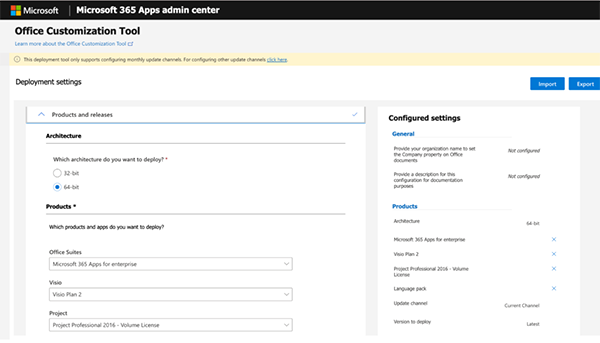
- Select your preferred options, including 32-bit or 64-bit architecture, Office applications, languages, installation options, and licensing preferences.
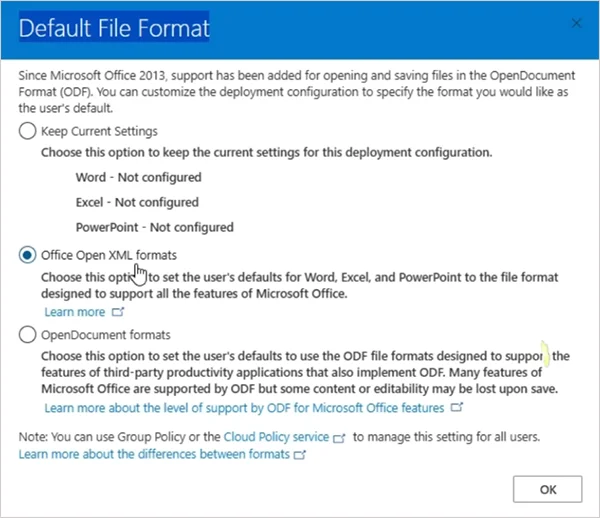
- If needed, define settings such as default save formats, macro behavior, security options, and other Office preferences.
- Review your settings and export the XML configuration file.
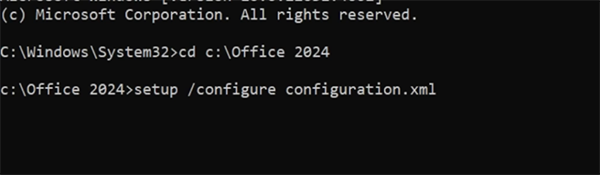
- Now, run the Office Deployment Tool using the exported XML file in the Command Prompt. ODT reads the configuration and installs Office exactly as specified.
Using Office customization tools instead of manually editing XML files helps reduce configuration mistakes and simplifies deployment.
Office Customization Tool Download
Many users search for an Office Customization Tool download, but there is not a separate application to install. It is entirely web-based.
The downloadable component is the Office Deployment Tool. Microsoft provides it as a free utility that includes setup.exe and sample XML configuration files.
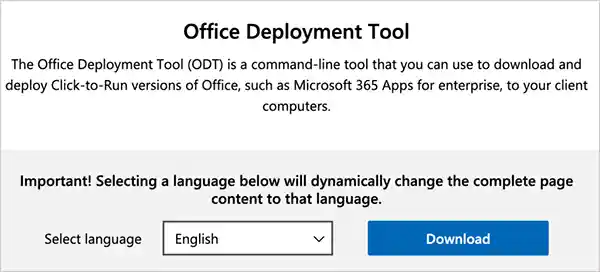
After downloading ODT, you use it together with the configuration generated by OCT to install or update Microsoft 365 apps. You can easily download ODT from Microsoft’s Download Center.
Office Customization Tool vs. Office Deployment Tool
Although these tools are designed to work together, they serve different purposes. The Office Customization Tool 2021, or other versions, is used to create the deployment through a visual interface. It allows administrators to customize installation settings without writing XML manually.
ODT, on the other hand, is the command-line utility that downloads, installs, updates, and manages Microsoft 365 Apps based on that configuration.
A simple way to remember the difference is that OCT plans the deployment and ODT executes it. Using both together helps standardize Office deployments while reducing configuration errors and administrative effort.
Best Practices for Using the MS Office Customization Tool
The Office configuration tool offers extensive control over Office deployments, but a little planning can prevent problems later. Microsoft also recommends using the tool instead of manually editing the XML files to reduce errors. Here are a few tips to follow:
- Test Before Full Deployment: Always deploy your configuration to a small group of test devices first. This helps identify compatibility and configuration issues before rolling it out across your organization.
- Choose the Right Office Architecture: Use 64-bit Office for most modern systems and memory-intensive workloads. If your organization relies on older add-ins or legacy applications, verify compatibility before choosing 32-bit or 64-bit.
- Select the Appropriate Update Channel: Choose an update channel that matches your deployment strategy. Stable channels are generally best for production environments, while preview channels are better suited for testing devices.
- Exclude Unnecessary Applications: Only install the apps your users actually need. Removing unused applications reduces storage usage and simplifies long-term maintenance.
- Reuse Proven Configurations: Keep your XML configuration files organized. Reusing tested configurations ensures consistent deployments and saves time during future installations.
Conclusion
The Office Customization Tool makes deploying Microsoft 365 Apps faster, easier, and more consistent. Instead of manually editing XML files, administrators can configure Office through a simple web interface and create standardized deployments for multiple devices.
If you are managing Office across an organization, using OCT with ODT gives you greater control over apps, updates, languages, and user settings while reducing deployment errors.
Frequently Asked Questions
Is the Office Customization Tool free?
How does the Office Customization Tool work?
Ans. It allows you to create a custom Office deployment through a web interface. After configuring your preferred settings, you can export an XML file and use it with ODT to install Microsoft 365 Apps.
When should you use the Office Customization Tool?
Ans. It is best for organizations deploying Microsoft 365 Apps across multiple devices or when you need to customize Office apps before deployment.
Should I choose 32-bit or 64-bit Office?
Ans. Microsoft generally recommends 64-bit Office for most modern systems. However, 32-bit Office may still be required if you rely on older add-ins or legacy applications.
Can I use the Office Customization Tool without the Office Deployment Tool?
Ans. No, OCT only creates the deployment configuration. You will need ODT to download, install, or update Microsoft 365 Apps using that configuration.
Related Posts
Using HeyGen AI for Sales and Customer Onboarding
It’s best to use HeyGen AI to create videos for you that answer a particular question or pain point. You…

Search Console Forgets Everything After 16 Months: How to Back Up Your SEO Data
After completing the period of 16 months, all the data and access are deleted from Google Search Console’s database. After…

Why Digital Transformation Projects Stall: A Resourcing Playbook for Project Managers
Digital transformation projects are on the rise at this time. From government-backed initiatives to enterprise cloud adoption and AI integration.…
How Email Hosting Providers Store and Protect Business Data
Where does your business email go when you click the send button? The impression is that the email just goes…

Best CI/CD Platforms for Coding Agents and AI-Native Development
CI/CD has changed its job because coding agents now write a growing share of the changes that reach a repository.…

Mavlers Agency on Why Global Agencies Are Turning to Offshore SEO Teams
An offshore SEO team in India is becoming more and more an option for great profit for global agencies; it’s…
How to Change Signature in Outlook: A Complete Guide
How do you change signature in Outlook? It sounds simple until you realize that the steps vary across Windows, Mac,…

Best 7 AI Development Companies for Data AI Solutions for Your Project: Guide for…
Buying model work before the data work is the most expensive order to do it in. The pilot shows well,…

Top Software Development Companies Backed by GoodFirms Reviews
In September 2026, GoodFirms listed 853 software development companies in California. The group had a median hourly rate of $37,…