
Mac can slow down when the storage is almost full, many applications are open, or there is a weak internet.
How to Store, Stream, and Watch Content Efficiently on Mac
 Mahima Dave
Updated on: Oct 14, 2025
Table of Contents
World-class entertainment on a Mac does not only mean the presence of the internet at high speed, but it also means keeping your computer neat, streamlined, and furnished with the necessary tools. According to Apple, Mac performance can slow down significantly when storage drops below 10% free space, affecting tasks like video playback and app responsiveness. Whether it is planning how to save and watch shows offline or subscribing to cloud services and keeping your system in good condition, every little thing will contribute to your Mac providing better playback and zero lag streaming.
A number of useful habits and the correct apps can help make your Mac a potent, structured, and productive entertainment place where movies, shows, and big media files can be moved without any hassles.
Key Takeaways
- Manage your Mac’s storage smartly to avoid lag and enjoy smoother playback.
- Download content for offline viewing to eliminate buffering and internet issues.
- Use cloud storage and regular maintenance to keep your system organized and running effectively.
Organize and Manage Your Storage Smartly
One of the major factors that decides the performance of your Mac is how well the storage is maintained. It’s simple. If the drive is full, you’ll struggle to play even the basic playbacks. And this is why you must keep the storage in check at all times. Here is how you can do that:
- Using macOS Storage Management
Apple Menu → About This Mac → Storage → Manage Identity Space → Hungry Apps & Files
- Enable Optimize Storage: This feature automatically removes watched movies and old attachments that are no longer in use.
- Adding External Drives: Users who store 4K videos or download large files can add an external SSD or HDD.
These measures will keep your Mac in optimized conditions and save you from frustrating lags during a movie.
PRO TIP
Apply advice, keeping a minimum of 10% storage on your device. But it is better to keep at least 20-25% free storage on your Mac. This gives your system extra breathing room for caching streaming 4K videos, editing files, and running large apps without stuttering. A slightly emptier drive often results in noticeably faster playback and a smoother overall experience.
Download Content for Offline Watching
No one wants the headache of weak signals, especially when you’re streaming while traveling. This is where downloading the files in advance comes into play. Once the file is downloaded into your system, you just have to hit play, lie back, and enjoy the program. But there is a catch: Mac doesn’t allow users to directly download things from any streaming platform.
So, how to download Netflix shows on Mac? Well, the answer is Setapp. It enables you to safely download any series and watch offline without any disruptions. By using the correct apps, you can build an offline library that plays episodes smoothly without any internet connection.
Stream Without Buffering or Glitches
Glitches, buffering, and ads are the most annoying things that could happen while watching your favorite show. To avoid this, you can download the show beforehand, use a wired connection over WiFi, use Safari instead of Netflix or YouTube, close unnecessary apps in the background, or balance playback quality by setting it up to your network capabilities. You can drop from 4K to 1080p to prevent buffering if your network fluctuates.
Use Cloud Storage to Stay Organized
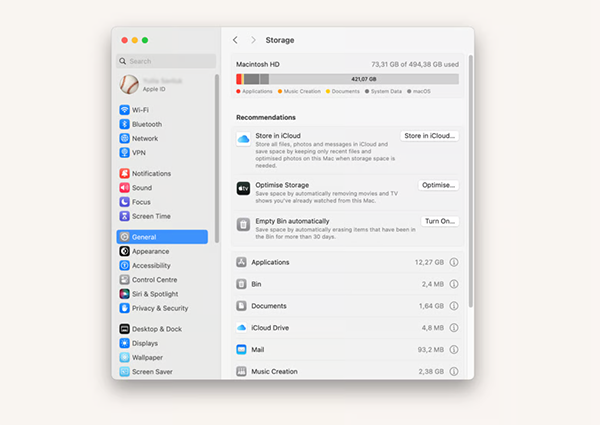
Cloud storage is a game-changer in case you do not want your local storage of your Mac to fill. If iCloud Drive is taking up space on Mac, applications such as iCloud Drive, Google Drive, or Dropbox will allow you to store movies, shows, and sizable video files in the cloud and still be able to access them when you need them.
The secret lies in transferring the content that you rarely watch to the cloud and retaining only the favourites in the device. When iCloud Drive is consuming space on a Mac, optimization of settings can be done to save files only in the cloud. This frees GBs without having to lose access to your media library.
Keep Your System in Top Shape
A well-kept Mac equates to streaming and enhanced playback. The frequent maintenance of the system helps avoid delays and makes your device act like a new device. Here’s what you should do:
- We should restart the Mac every week to free up memory and restart processes.
- Install the latest updates on macOS and applications to improve its performance.
- Clean up, run disk utilities to clear up cache files and temporary files.
- Activity monitor to identify programmes that consume resources.
Enhance Your Streaming Setup with Smart Tools
Wish to have more in-store television? Streaming can be even improved with some smart tools and tricks to the Mac. Play local video files using IINA or VLC, which play just about any format with no stuttering. Get browser extensions such as AdBlock in order to avoid annoying interruptions during streams.
Experiment with picture-in-picture mode to play content and continue with other activities. And in the event you are serious about quality, then connect your Mac to an external monitor or TV through HDMI to have a real movie feel at home.
The infographic below outlines best practices to enhance your streaming setups with smart tools. Take a look!

Don’t Forget Backups and Security
Your media library is worth preserving. Get a time machine to automatically save your files to an external disk. In this manner, you will not lose your downloaded material in case of any kind of setback.
Also, you should be careful about downloading sources; you need to use reliable sources and good applications to prevent malware. The smallest precaution will be to prevent the loss of your Mac and your content.
Final Thoughts
There is no need to complicate storing, streaming, and watching content on your Mac. It is possible to have a smooth viewing experience with offline downloading, smart storage management, and the right tools to avoid buffering and headaches in terms of storage.
By keeping the above-mentioned points in account, you can ensure a smooth and lag-free streaming experience. So, say goodbye to those lagging videos and the frustration that comes with them and store, stream and watch content efficiently on Mac. Happy Streaming!
Frequently Asked Questions
Why does my Mac take a long time when playing videos?
What is the offline version of watching movies on my Mac?
Third-party applications like SetApp are ways to download content because most streaming websites do not provide direct downloads on macOS.
Does cloud storage increase Mac performance?
Yes, sending big files to iCloud can release some space on your computer, allowing your Mac to run faster and without delays.
Ia a Mac good for streaming and gaming?
Yes, a Mac is good for streaming and gaming, but with some caveats.
Related Posts

8 Best AI Presentation Makers for Business-Ready Slides
Making a presentation doesn’t just mean designing slides. It’s about defining a clear structure, using defined logic, useful visuals, and…

Queue Management Software Troubleshooting Guide: 8 Common Faults and Fixes
The long wait times and ineffective management of customer queues can have a significant impact on customer satisfaction and business…

How to Use Similarweb Website Traffic Data for Competitor Research
Competitor research without traffic data is guesswork. You can guess who your rivals are, guess how big they are, guess…

Choosing the Right Hosting Model for Scalable Digital Platforms
The performance of digital business is directly related to website speed, uptime, and scalability. Slow page performance has a negative…

How Data-Driven Performance Tools Are Transforming Employee Recognition in Tech Companies
“People work for money but go the extra mile for recognition, praise, and rewards.” — Dale Carnegie (Writer & Teacher)…

Why Businesses Struggle to Collect Reliable Data from the Web
Almost every company that depends on data runs into the same problem: although they can find the data they need,…

Why Financial Data Recovery Matters for Businesses
Financial data supports every part of a business, directly affecting cash flow, payroll, tax reports, audits, customer billing, and daily…

CMMC Compliance Is Coming for Manufacturers. Here Is What You Need to Do
“Cybersecurity is much more than a matter of IT.” — Stephane Nappo (Cybersecurity Professional) For manufacturers working within the defense…

How Data-Based Tools Influence Learning Performance
Learning has transformed in the modern age with the integration of new technologies to help students and professionals prosper in…