
Yes, if the issue is logical. File-system errors, RAW drives, and lost partitions can often be repaired using recovery or repair tools. Physical damage is harder to fix and may require replacement.
10 Best USB Drive Repair Tools in 2026 (Tested for Real Fixes)
 Prakhar Shivhare
Updated on: Feb 20, 2026
Table of Contents
- When Do You Actually Need a USB Drive Repair Tool?
- Quick Checks Before You Repair a USB Drive
- 10 Best USB Drive Repair Tools to Fix Corrupted USBs
- USB Flash Memory Repair Tools: A Quick Comparison
- How We Tested These USB Stick Repair Tools?
- How to Repair USB Flash Disks Without Formatting?
- How to Avoid USB Corruption in the Future?
- Wrapping Up
- Frequently Asked Questions
USB drive not showing up, acting slow, unreadable, or showing as RAW? Please, don’t format it immediately.
I am going to tell you about the 10 outstanding USB drive repair tools, tested on real corrupted drives and unstable flash media. You will learn how to check the drive quickly, recover files, and repair the file system.
I have included tools that can image a failing USB before any risky step, plus the best recovery software for Mac and Windows both. Choose the right USB repair software for your issue and fix what you can.
When Do You Actually Need a USB Drive Repair Tool?
You don’t need a repair tool every time a USB drive acts weirdly or stops showing up. Many issues come from a bad port, weak connection, or driver glitch. Repair USB pens only after basic checks fail and the drive still shows signs of corruption.
You will likely need a USB repair tool if:
- The USB shows up, but files won’t open or keep disappearing.
- It asks you to format before use.
- It appears as RAW or unallocated.
- You keep getting the USB device not recognized error.
- File transfers fail or slow down suddenly.
- The drive connects and disconnects on its own.
These are early signs of file-system damage or failing storage. That’s where repair tools help.
Quick Checks Before You Repair a USB Drive
Before installing any USB pen repair tool, run these quick checks. A lot of corrupted USB cases are actually system or connection issues:
- Try another port or computer: A weak port or low power can stop detection. Test the USB on another system first.
- Restart the Computer: Rebooting computers resets the USB controller and often fixes detection instantly.
- Remove Hubs and Adapters: Extra cables and hubs weaken the signal and cause read errors.
- Update or Reinstall USB Drivers: Broken or outdated drivers can make a working drive unreadable.
- Inspect the USB Physically: Look for dust, bent connectors, or a loose port.
If the drive works on another computer, don’t repair the USB; fix your system. If it fails everywhere but still appears in Disk Management, then it is time for a proper USB drive fixer.
10 Best USB Drive Repair Tools to Fix Corrupted USBs
These USB drive repair tools are picked for real ability, safe recovery, and reliability. This list fits almost all types of USB problems.
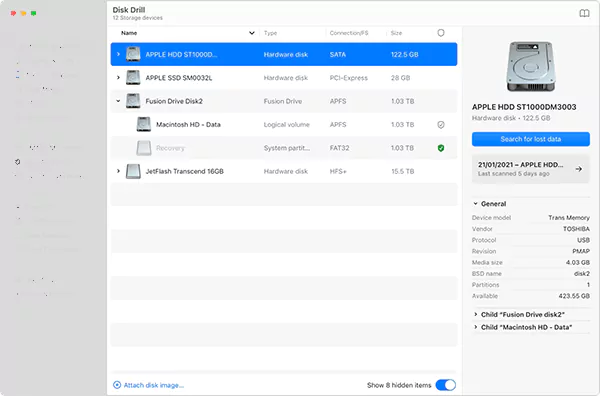
Best For: Recovery-first workflows and byte-to-byte imaging.
Pricing: Starts at $89 (lifetime).
Disk Drill is a strong recovery-first repair option. It scans corrupted, RAW, or unreadable USB drives and lets you recover files before attempting fixes. You can also create a full image of the drive so you don’t damage unstable storage during recovery.
It organizes results into deleted, existing, and reconstructed files, which makes recovery faster. The pause feature is also very useful for drives that keep disconnecting.
Pros
- Recovers data from RAW or corrupted drives.
- Disk imaging protects failing USBs.
- Clean interface with previews.
- Works on both Windows and Mac.
Cons
- The free version has recovery limits.
- The full version is paid.
- Deep scans take time.
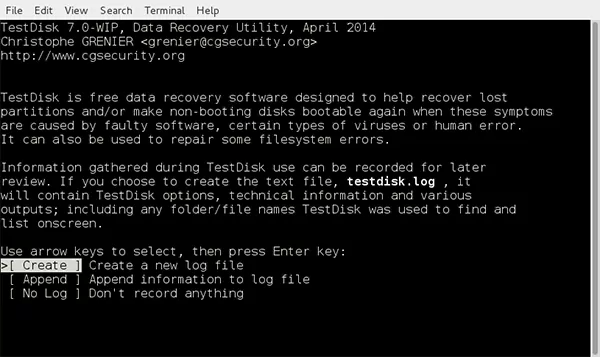
Best For: Fixing partition issues and unreadable USB drives.
Pricing: Open source and completely free.
TestDisk is a powerful open-source repair tool used for serious corruption. It is one of the best hard drive recovery software programs. It can rebuild partition tables, restore boot sectors, and make unreadable drives usable again.
It runs through a command-line interface, which makes it more suited for advanced users or technicians. It supports FAT, exFAT, NTFS, and Linux file systems and can run without installation.
Pros
- Completely free and open-source
- Repairs partition tables and boot sectors.
- Works on multiple operating systems.
- Handles severe corruption.
Cons
- Command-line interface.
- Not beginner-friendly.
- No modern visual interface.
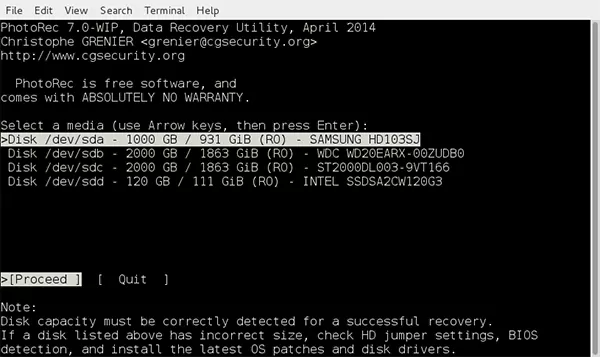
Best For: Deep raw recovery when the file system is destroyed.
Pricing: Free (bundled with TestDisk at CGSecurity).
PhotoRec works well when the USB structure is completely damaged. Instead of relying on folders, it scans raw storage sectors and pulls out files based on type.
This makes it useful after formatting, severe corruption, or missing partitions. Many professionals pair it with TestDisk for full repair and recovery, including partition recovery.
Pros
- Recovers files from badly damaged drives.
- Supports many file formats.
- Free and open-source.
- Works on most platforms.
Cons
- No original file names or folders.
- Basic interface.
- Results need manual sorting.
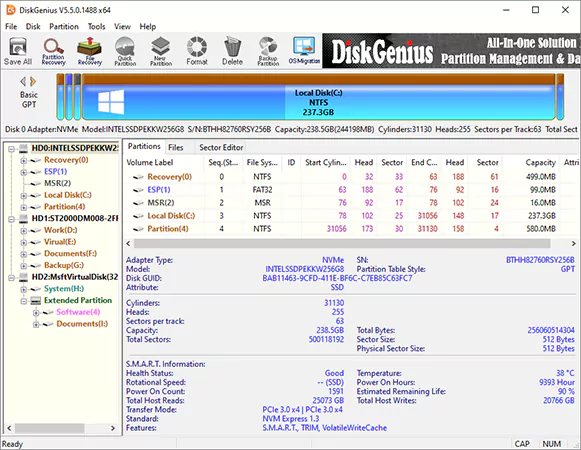
Best For: Partition repair, bad sector checks, cloning, and recovery.
Pricing: One-Month $69.90, One-Year $99.90, and Lifetime $129.90 (personal license for 1 PC).
DiskGenius combines repair and recovery in one place. This USB pen repair tool can build partitions, check bad sectors, and recover files from unreadable USB drives. It also allows you to clone failing drives so you can work on a copy instead of the original. This reduces the risk of losing data during repair.
Pros
- Repairs partitions and file systems.
- Recovers data from RAW drives.
- Can clone unstable drives.
- Great SD card data recovery software.
- Good for deeper repair work.
Cons
- Many features require a paid subscription.
- The interface feels technical.
- Deep scans are slow.
- It takes time to learn.
CHKDSK(Windows Built-in)
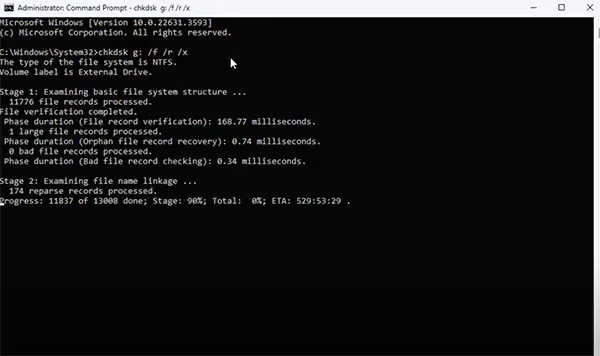
Best For: Quick fixes when the USB is detected but showing errors.
Pricing: Free (built into Windows).
CHKDSK is already inside Windows. It scans the drive for logical file-system issues and tries to fix them. This is usually the first step when a USB asks to be formatted or shows small errors.
It works well for light corruption, like broken directories or improper ejection. However, it does not handle severe damage. Use this USB drive fixer carefully because force fixes can remove already damaged files.
Pros
- Free and built into Windows.
- Fixes common file-system errors.
- Can fix the I/O device errors and Error Code 0xc00000f on Windows.
- Fast and simple.
- No installation needed.
Cons
- Limited recovery ability.
- Uses the command line.
- Can cause data loss if misused.
- Not meant for severe corruption.
- Only available for Windows.
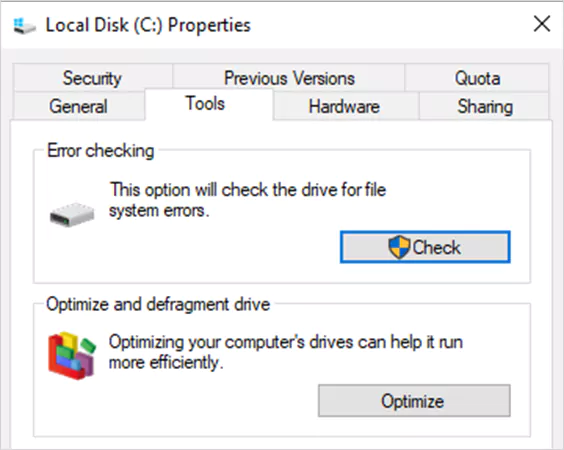
Best For: Beginners who want a simple scan-and-repair USB tool from File Explorer.
Pricing: Free (built into Windows).
This is the visual version of CHKDSK inside Windows. You can scan and repair a USB through a simple interface without typing commands.
It is a useful USB repair utility when the drive is still open but behaves oddly. Like slow performance, random errors, or unsafe ejection damage. It is good for quick health checks before trying advanced tools.
Pros
- It is very easy to use and a built-in tool in Windows.
- Quick scans and a safe starting point.
Cons
- Limited repair depth.
- No file recovery features.
- Basic functionality only.
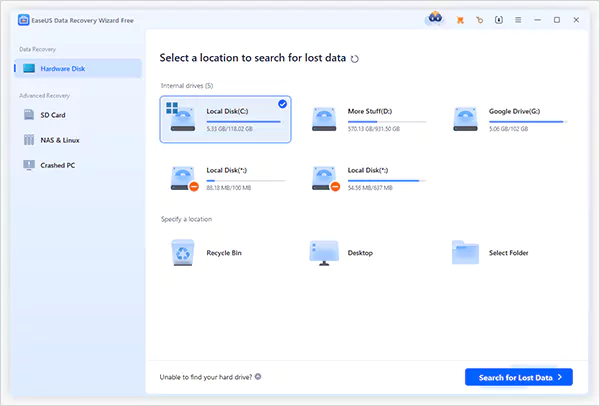
Best For: Guided file recovery with minimal effort and RAID data recovery.
Pricing: One-Month $69.95, One-Year $99.95, and Lifetime Upgrade $149.95
EaseUS focuses on recovering files from corrupted, formatted, or inaccessible USB drives. It is one of the best beginner-friendly USB key repair tools and walks you through quick and deep scans automatically.
You can preview files before recovery, which helps confirm the quality before restoring large data sets. It has strong recovery success, but the free version has limits.
Pros
- Very easy to use
- Strong recovery success rate.
- Deep scan support.
- File preview before recovery.
Cons
- Free recovery is limited.
- Paid upgrade needed for full use.
- Focuses on recovery, not repair.
- Slower on large devices.
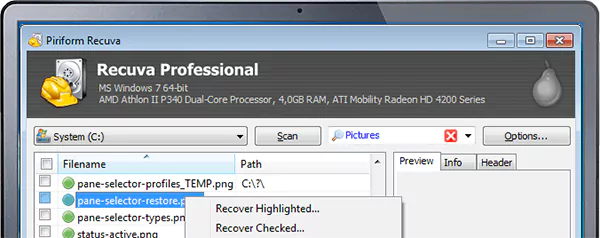
Best For: Quick and lightweight recovery of deleted files on Windows.
Pricing: Recuva Free; Recuva Professional $24.95, and CCleaner Professional Plus $59.95.
Recuva is a lightweight and fast USB repair utility. It works best when files are deleted, but the drive itself is still readable. It is not built for heavily corrupted drives. Its wizard-based setup makes recovery quick, which is why many people keep it as a first-response tool for accidental deletion.
Pros
- Free and simple interface.
- Fast scans.
- Good for basic recovery
Cons
- Weak on severe corruption.
- Limited repair tools for Windows only.
- Fewer advanced features.
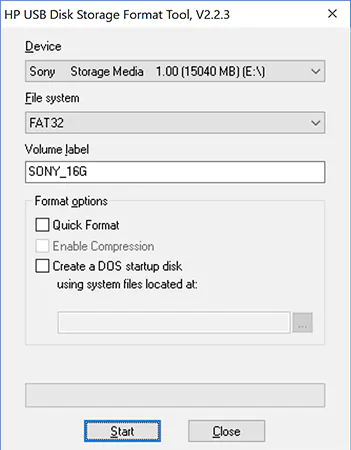
Best For: Making an unusable USB stick work again after recovery.
Pricing: Freeware.
This USB drive repair tool reformats damaged drives and restores usability when standard formatting fails. It wipes everything, so use it only after recovering important files. It is often used when a drive shows the wrong capacity or refuses to format normally.
Pros
- Free and simple tool.
- Works on most USB drives.
- Fixes stubborn formatting errors.
- Support FAT, FAT32, and NTFS.
Cons
- Deletes all data.
- No recovery features.
- Last-step repair tool.
- Available only for Windows.
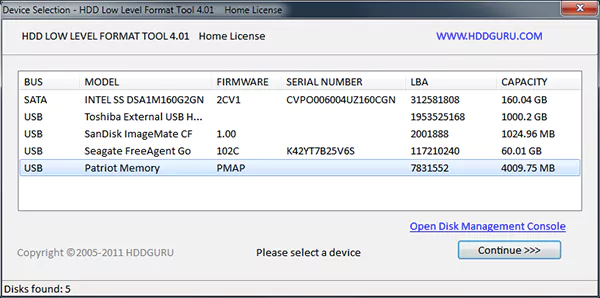
Best For: Final reset when nothing else works.
Pricing: Free USB repair utility.
This is a deep reset tool. It wipes the USB at a low level and rebuilds storage sectors, similar to a factory reset. It can revive drives that normal formatting cannot fix. Use only when all recovery attempts are done because it permanently erases everything.
Pros
- It can revive failing drives.
- Deep formatting ability.
- Works on many devices.
- Useful for severe errors.
Cons
- Erases all data.
- Slow process.
- No recovery features.
- Final-step option only.
USB Flash Memory Repair Tools: A Quick Comparison
Use the table to match the right USB key repair tools to your exact problem. Focus on what your drive is doing, not just the name of the software.
| USB Repair Tool | Repair Type | Recovery Strength | OS Support | Free Version |
| Disk Drill | Logical repair and recovery | Very strong | Windows and Mac | Limited |
| TestDisk | Partition and boot sector repair | Strong | Windows, Mac, and Linux | Completely free |
| PhotoRec | Raw data recovery | Very strong | Windows, Mac, and Linux | Free |
| DiskGenius | Partition repair and recovery | Strong | Windows | Limited |
| CHKDSK | File system repair | Basic | Windows | Completely free |
| Windows Error Checking | Basic file system repair | Basic | Windows | Completely free |
| EaseUS Data Recovery | Recovery focused | Advanced | Windows and Mac | Limited |
| Recuva | Recovery only | Moderate | Windows | Completely free |
| HP USB Format | Full format reset | None | Windows | Completely free |
| HDD Low Level Format | Deep format reset | None | Windows | Completely free |
So, how to choose the right USB repair tool?
Remember, recovery-first tools protect your data. Repair and formatting tools restore usability later. Do not pick tools based on ads or popularity.
How We Tested These USB Stick Repair Tools?
This list of USB key repair tools is based on real outcomes, not brand claims. Each tool was judged by my team and me on one simple question: Can it recover data safely and make a corrupted USB usable again?
Common Failure Cases That We Tested (These cover most real-world USB failures):
- USB detected but not opening.
- RAW or unallocated drives.
- Accidental formatting and deleted files.
- Write protection errors.
- Slow or unstable performance.
What We Measured:
- Recovery Success: If files cannot be recovered, the tool has limited value. We looked at recovery across multiple file types and damage levels.
- Speed and Stability: Scan time matters, but stability matters more. Tools that crash during recovery scored lower in our tests.
- Repair Ability: Some tools recover files only. Other fix partitions or file systems. Both functions were tested separately.
- Ease of Use: Clear workflows scored higher. And, the command-line tools were rated strong for power but lower for accessibility.
- Compatibility: We tested FAT32, exFAT, NTFS, and RAW drives. Most USB issues happen within these formats.
- Safety: Tools that allow recovery before repair are ranked higher. Repairing too early can overwrite files and reduce recovery chances.
Only tools that handle at least one major corruption scenario reliably made the list of USB drive repair tools.
How to Repair USB Flash Disks Without Formatting?
The safest approach is always to recover first and repair after. Follow these steps to fix corrupted USBs using our recommended tools:
- Plug in the USB and open Disk Management or Disk Utility. If the drive appears there, software tools can usually work with it.
- Then, use a recovery-first tool like Disk Drill, EaseUS, or PhotoRec. Run a deep scan and save files to your computer. This protects data before any repair attempt.
- Is the USB detected but unreadable?
- Use CHKDSK for file-system errors.
- Use TestDisk or DiskGenius for Partition repair.
- If the drive shows as unallocated or has no letter, assign one in Disk Management or rebuild the partition.
After recovery, if the USB still fails, format it to restore usability. Keep in mind, formatting erases data, so do it as a last resort.
How to Avoid USB Corruption in the Future?
Most USB failures come from usage habits, not sudden defects. Follow these tips so you never have to use a USB drive repair tool again:
- Always eject properly after you are done using the USB. Pulling a USB mid-write is a major cause of corruption.
- Avoid unplugging during transfers. If the light is blinking, data is most probably still being written.
- Back up important files on the cloud or another external drive to be on the safe side when USB drives fail without warning.
- Flash memory has limited write cycles. So, limit heavy usage and avoid using a USB as primary storage.
- Scan for malware because using the same USB across many systems increases risk.
Also, don’t forget to store it safely. Excess heat, dust, and moisture can damage internal parts of the drive.
Wrapping Up
I want to clear one thing: no single USB repair tool can fix every USB issue. Different problems need different approaches.
A practical approach would be to use a recovery tool to save files, a partition repair tool for structural issues, and a formatting tool to restore usability if needed.
If the USB is detected, recovery is mostly possible. But if it is physically damaged or not detected anywhere, replacement is usually the only option.
Frequently Asked Questions
Is there a way to repair a USB drive?
How do I fix a USB that won’t read?
Try another port or computer first. If it appears in Disk Management but not File Explorer, run a file-system repair or recovery scan. If it does not show up anywhere, the issue may be hardware-related.
What is the best recovery tool for corrupted USB sticks?
It depends on your situation. Use a recovery tool like Disk Drill or EaseUS if you want to get your files back. If the USB has lost its partition, TestDisk works better.
When can a USB drive not be repaired?
If the drive is not detected on any computer or has physical damage, software tools won’t fix it. You need to consult a professional for recovery or replace the device completely.
What is the lifespan of a USB flash drive?
Most USB drives last between 10,000 and 100,000 write cycles, depending on memory type and usage. Heavy use shortens overall lifespan.
Related Posts
How Poor Contract Visibility Leads to Revenue Leakage in Growing Companies
Growth is an important factor that determines the success rate of any business. When we witness new operations, partnerships and…

Managing Bitcoin Operations? Here’s How Salesforce Automation Helps
“Digital currency is here to stay, and it’s only a matter of how long before governments embrace it.” — Brad…

Why Modern Organizations Depend on Data Privacy Software
Data growth has significantly accelerated beyond what most compliance teams can manage, with personal records, financial details, contracts, and emails…

Converting Chats Into Leads While Maintaining Professionalism
The way marketing teams and businesses approach their potential clients to boost their sales has completely transformed in the last…
How to Delete iCloud Account? Complete Guide for 2026
Thinking, how can I delete iCloud or Apple account? It is not just about removing an account; it is about…

How Different Industries Use Specialized Software to Stay Competitive
In the market we have today, companies are always trying to find ways to work better and get results. The…

What Key Adjustments Enhance Visual Appeal Across Web Pages
Attractive web pages form the roots of any appealing website. For instance, imagine looking for content on Google, and you…

When is it Time to Consider IT Support Services for Your Business?
Every business needs to ensure smooth operations for a successful business. But despite trying hard to avoid barriers, technical issues…
How to Delete User Profile in Windows 10: Step-by-Step Guide
You don’t notice user profiles until one starts causing problems. A profile gets corrupted, a login error pops up, or…