
Discord won’t open on PC or run because of corrupted cache files, background processes running in the background, network connectivity problems, or because the antivirus software is blocking the application from accessing the internet.
Discord Won’t Open on PC: Causes and 7 Easy Fixes
 Kartik Wadhwa
Updated on: Apr 25, 2026
If Discord won’t open on PC, it can be incredibly frustrating if you depend on it for gaming, business, or connecting with other people. Unfortunately, this problem occurs regularly for Windows users. It can happen for a variety of reasons, but not limited to corrupted cache files, background processes running on your computer, a bad internet connection, or an older version of the Discord application installed on your computer.
This article details the different potential causes of why discord not opening on pc and how to properly troubleshoot these issues to restore access to Discord.
Why Discord Won’t Open on PC
Different types of technical problems can be the cause of why Discord won’t open on PC. Some of the most common issues that may prevent personal computers from operating correctly are described below.
- Corrupted Cache Files: Corruption of either your computer’s cache file or an older version of a cache file can impede the ability of Discord to start up and can create problems when trying to launch the Discord app.
- Running Processes: Sometimes, when you try to access Discord again, you may have had a previous Discord process that was suspended in the background. Your computer may think Discord is already up and running.
- Installation Issues: If your current version of Discord is either missing files or not up to date, it will not be able to start up properly.
- Networking Issues: If you have a DNS or connection issue, your computer won’t be able to communicate with Discord’s servers when you start Discord.
- Firewall / Anti-Virus Issues: Sometimes, firewalls and antivirus software will prevent Discord from starting up or from communicating with the necessary services on the internet.
- Hardware Acceleration / GPU Driver Issues: If you have an old GPU driver, and the latest version of Discord uses hardware acceleration, then Cisco will crash or won’t work when you try to start it up.
7 Tried and Tested Solutions that Can Troubleshoot the Discord Won’t Open on PC
Discord won’t open on PC is one of the common concerns of users. I have faced the same, and with deep research, I have figured out the 7 workable solutions that can fix this issue in no time. Try them out one by one and see which one works out for you.
1. End Discord Processes Using Task Manager
Discord is sometimes already running in the background before you attempt to start it again, which will block you from opening the application again.
How to Fix This:
- Press & hold down “Ctrl + Shift + Esc” to open “Task Manager.”
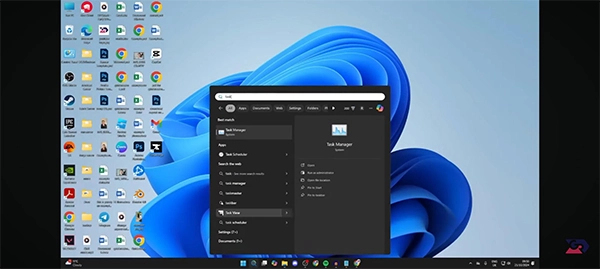
- Search Discord.
- Look, if there are any processes going on in Discord.
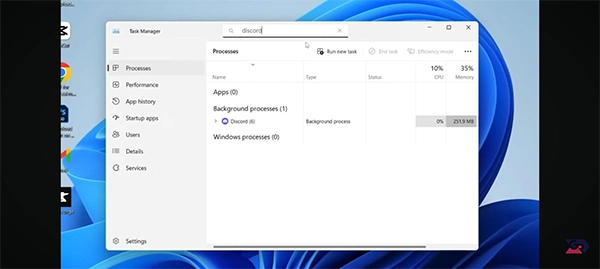
- Click “End Task” on the Discord process.
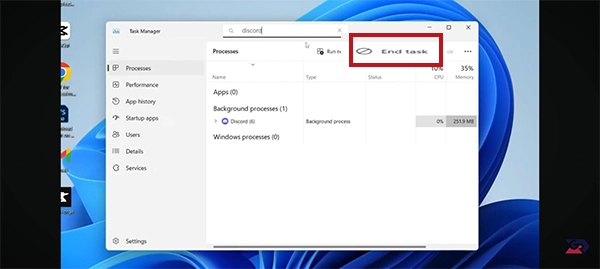
- Restart Discord.
Force-closing an application usually solves your issue immediately.
2. Clear Discord Cache Files in Windows
Corruption in cache files may cause discord not opening on pc. The following steps will help you remove the cache:
- Open Task Manager.
- Type in “%appdata%” and press Enter.
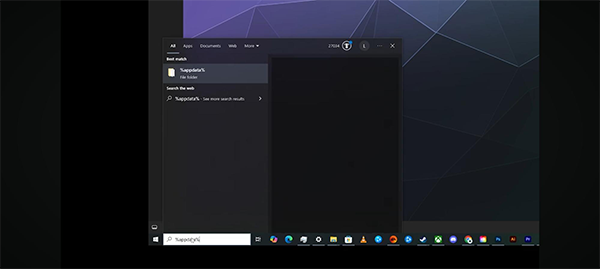
- Locate the Discord folder and delete Cache, Code Cache, and GPUCache.
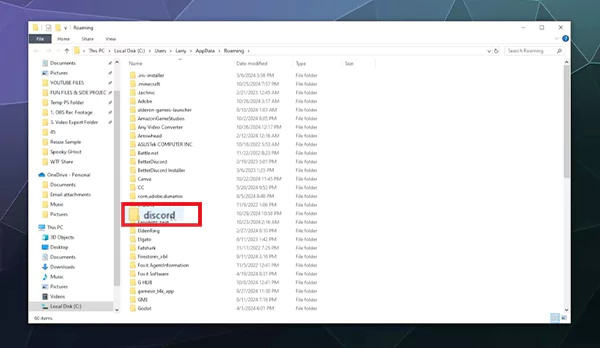

Now launch Discord after clearing those folders from your computer’s hard drive in order for Discord to operate properly again. By deleting and creating these folders, you have eliminated temporary files associated with Discord that may be corrupted.
3. Disable VPN or Proxy Settings
Discord can’t connect to its servers because you’re using a VPN or Proxy Server
To disable your Proxy Server:
- Go to Settings.
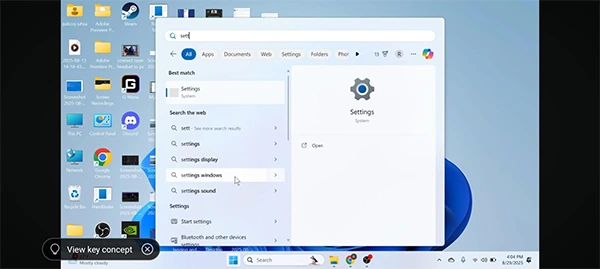
- Click on Network & Internet Options.

- Select Proxy.
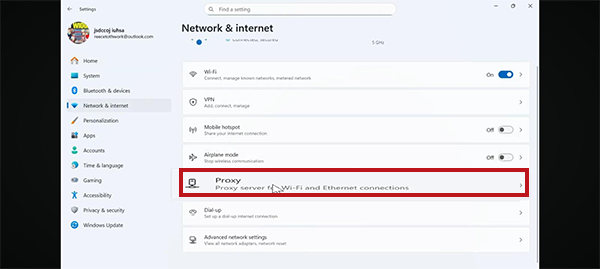
- Turn Off the Proxy.
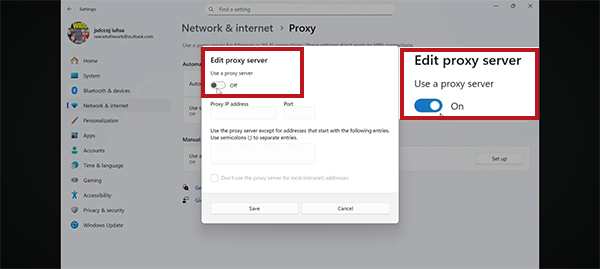
- Again, go to Network and Internet.

- Click on VPN.
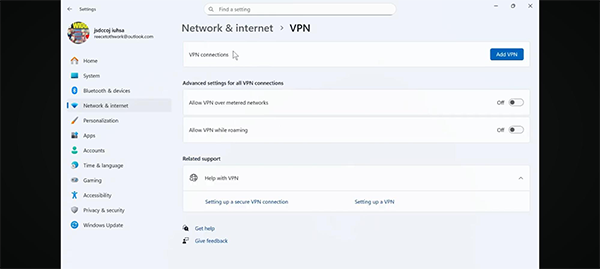
- Turn it off if you are connected to a VPN.
Your network configuration can impact Discord and prevent it from connecting properly to the internet.
4. Run Discord as Administrator
There are instances when Discord won’t open on PC because of Windows permissions issues.
You can resolve this by performing these steps:
- Right-click the Discord shortcut and select “Run as Administrator.“
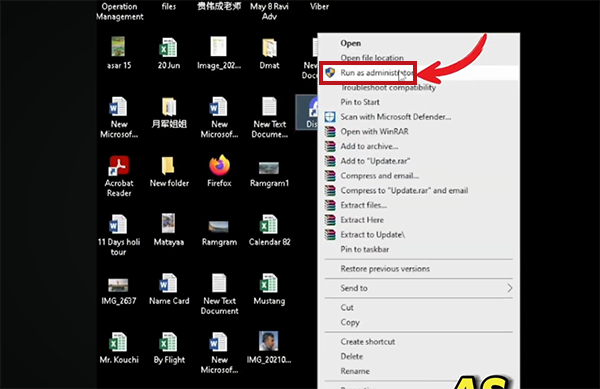
If applications don’t have permission to access their required files, the application may not be able to open properly.
5. Reinstall Discord on Your PC
Reinstall is usually the most effective fix when there are issues with Discord file corruption. The instructions on how to reinstall Discord are as follows:
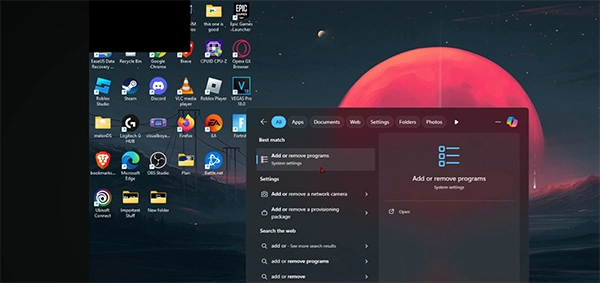
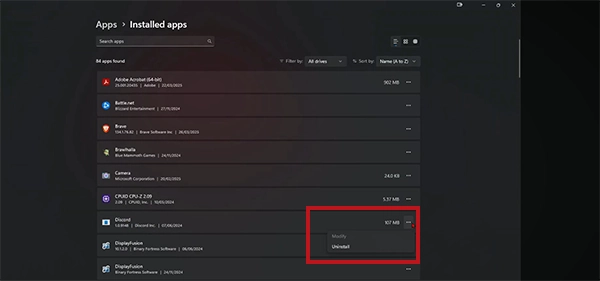
- Open Task Bar > Add or Remove Program > Uninstall Discord.
- Visit the official Discord website and Download Discord. Only download the most recent version.

- Reinstall the app and launch it.
The reinstall works by replacing any existing or corrupted (missing) files that might be present before trying to start Discord for the first time again.
6. Check Firewall and Antivirus Restrictions
If Discord won’t open on PC, it may get blocked by security software from time to time.
This can happen for a few reasons:
- Disable antivirus for a short period of time.
- Allow access through your firewall to Discord.
- Restart Discord.
It is possible that firewalls or antivirus software would block Discord in error from being able to access your system resources or the internet.
7. Reset DNS Settings to Fix Discord
If you are having trouble connecting to Discord on your computer, it may be caused by a network DNS error.
Follow these steps to resolve this issue:
- Open Command Prompt (As Admin).
- Type: ipconfig /flushdns.
- Press ENTER.
Flushing the DNS, which clears any corrupted entries in your network cache, will restore connectivity to Discord.
Conclusion
Discord won’t open on PC due to problems with corrupted temporary files, tasks running in the background that are not completing properly, or problems with the way the computer is connected to the internet.
Unfortunately, for some users, the only way to fix these issues may be through clearing Discord’s cache by shutting down any processes that are preventing proper startup, using no proxies to connect to the internet, and/or performing a fresh install of the application.
Following the troubleshooting steps below should provide you with an easy solution to the issue so that you can start using Discord again without requiring advanced technical skills.
Frequently Asked Questions
Why won’t Discord open on my pc?
Why’s my Discord not opening on my computer?
If Discord won’t open on your PC, try ending background processes, clearing AppData cache files, disabling proxies, or reinstalling the application.
After reinstalling, why doesn’t my Discord launch?
If, after you’ve reinstalled Discord, you still don’t see any signs of the program launching, you might have been affected by any restrictions set forth by firewalls. There may be DNS issues or the possibility of your operating system having corrupted files.
Can old drivers stop me from opening my Discord?
Yes, using GPU drivers that are out of date or incompatible with your system can lead to Discord crashing or simply not starting up at all.
Related Posts

8 Best AI Presentation Makers for Business-Ready Slides
Making a presentation doesn’t just mean designing slides. It’s about defining a clear structure, using defined logic, useful visuals, and…

Queue Management Software Troubleshooting Guide: 8 Common Faults and Fixes
The long wait times and ineffective management of customer queues can have a significant impact on customer satisfaction and business…

How to Use Similarweb Website Traffic Data for Competitor Research
Competitor research without traffic data is guesswork. You can guess who your rivals are, guess how big they are, guess…

Choosing the Right Hosting Model for Scalable Digital Platforms
The performance of digital business is directly related to website speed, uptime, and scalability. Slow page performance has a negative…

How Data-Driven Performance Tools Are Transforming Employee Recognition in Tech Companies
“People work for money but go the extra mile for recognition, praise, and rewards.” — Dale Carnegie (Writer & Teacher)…

Why Businesses Struggle to Collect Reliable Data from the Web
Almost every company that depends on data runs into the same problem: although they can find the data they need,…

Why Financial Data Recovery Matters for Businesses
Financial data supports every part of a business, directly affecting cash flow, payroll, tax reports, audits, customer billing, and daily…

CMMC Compliance Is Coming for Manufacturers. Here Is What You Need to Do
“Cybersecurity is much more than a matter of IT.” — Stephane Nappo (Cybersecurity Professional) For manufacturers working within the defense…

How Data-Based Tools Influence Learning Performance
Learning has transformed in the modern age with the integration of new technologies to help students and professionals prosper in…