
It is a Windows feature that allows the graphics card (GPU) to manage its own video memory and scheduling tasks directly, rather than relying on the operating system kernel/CPU to handle, batch, and queue tasks.
What is Hardware Accelerated GPU Scheduling and How to Enable It? (Windows 10 & 11)
 Mahima Dave
Updated on: Mar 23, 2026
Table of Contents
- What is Hardware Accelerated GPU Scheduling?
- What Does Hardware Accelerated GPU Scheduling Do?
- Should I Keep the Hardware Accelerated GPU Scheduling On or Off?
- How to Enable Hardware Accelerated GPU Scheduling? (Windows 11 & Windows 10)
- Is Hardware Accelerated GPU Scheduling Good for Gaming?
- Should I Enable Hardware Accelerated GPU Scheduling?
- Bottom Line
- Frequently Asked Questions
Hardware accelerated GPU Scheduling allows the user’s graphics card to run its own memory management and task queue, rather than Windows Modules Installer Worker high CPU usage. This was introduced as an optional feature for both Windows 10 and Windows 11 to help eliminate some of the latency associated with using a graphic application, such as a game.
It increases the overall graphics performance by enabling the graphics processor to handle its own workload. Learning how hardware accelerated GPU scheduling works will allow you to make your decision to use it or turn it off based on your specific needs.
Quick Answer: (How to Turn On Hardware Accelerated GPU Scheduling)
Windows 11: Settings > Display > Graphics > Advanced Graphic Settings > Toggle On
Windows 10: Settings > System Settings > Display > Graphics Settings > Toggle On
What is Hardware Accelerated GPU Scheduling?
Hardware-accelerated GPU Scheduling in Windows shifts the responsibility for scheduling of GPU-intensive applications to the GPU itself (instead of relying on the CPU), reducing CPU load.
The feature has been shown to reduce overhead and potentially enhance application performance in applications such as gaming, video editing, and 3D modelling.
Spotlight Area:
Hardware-accelerated GPU Scheduling achieves this by offloading the task of managing GPU memory directly to the GPU’s hardware, rather than the CPU. As an example, hardware-accelerated GPU Scheduling can:
- Reduce CPU workload
- Improve frame latency
- Deliver smoother graphics performance
- Optimize GPU resource allocation
Hardware-accelerated GPU Scheduling is available in all versions of Windows 10 (version 2004+) and Windows 11 as long as they are running a compatible GPU.
Insight Box: Why Was This Feature Introduced?
The modern graphics card has become strong enough that it does all the scheduling for its own workload. This allows the GPU to do all of its own queuing, so there isn’t an additional level of communication between the CPU and the GPU.
What Does Hardware Accelerated GPU Scheduling Do?
Hardware accelerated GPU scheduling will schedule graphics rendering commands from the CPU to the GPU, as opposed to sending each command directly to the CPU. This reduces the number of communications between different hardware components.
Functions:
- The GPU has its own rendering queue and memory scheduling, so it does not have to rely on the CPU for this process.
- The CPU no longer has to continuously organize graphics commands and data.
- The graphics workload will now be able to flow through the pipeline with fewer delays.
- This could cause systems to run smoother frame rates in GPU-heavy applications.
Practical Example That Even You Can Try:
Run multiple resource-intensive applications at the same time in your system, like:
- A game that is creating high resolution images.
- A video encoding application (streaming) that uses the GPU.
- Background programs operating within Windows.
With hardware GPU scheduling enabled, the GPU will handle these workloads directly rather than having to wait for the CPU to coordinate each action. And the processing time of these actions would have a significant difference in time with the hardware accelerated GPU scheduling on and off.
Should I Keep the Hardware Accelerated GPU Scheduling On or Off?
Whether to enable hardware accelerated GPU scheduling is based on your system’s hardware and whether you have compatible drivers.
Generally speaking, most modern computers will gain some sort of advantage by having the feature enabled; however, it is possible that results will differ from one machine to another.
Situations Where Enabling Hardware Accelerated GPU Scheduling Helps?
- You have a recent graphics card (NVIDIA RTX, AMD RX), which supports hardware GPU scheduling.
- Updated graphics drivers are installed on your system.
- The computer frequently runs graphics-intensive applications like games or editing software.
Situations Where Disabling Hardware Accelerated GPU Scheduling Helps?
- Older Graphics Cards do not provide enough capability to take full advantage of the hardware scheduling.
- Incompatibilities in driver versions may cause problems with stability and/or performance.
- Some applications may exhibit unpredictable behavior if this option is enabled.
Performance Tip:
The best way to determine whether or not to enable this option is to test it. Run your most demanding applications while this option is enabled. Compare those results to running those same applications with this option disabled.
How to Enable Hardware Accelerated GPU Scheduling? (Windows 11 & Windows 10)
Hardware Acceleration GPU Scheduling in Windows is a very simple task, which involves turning on an option within the Windows graphics settings. However, the process might be slightly different in Windows 11 and Windows 10. So, you must know which Windows system you have.
But before that, you must know the requirements and common troubleshooting points:
Requirements:
- Windows 10 (version 2004) or higher is required to be installed on your computer.
- A GPU that supports “GPU Scheduling” is needed.
- Your installed GPU needs to be compatible with this feature.
Troubleshooting Box:
If you do not see this as an option in the Windows settings:
- Go to the manufacturer’s website for the most current graphics driver update.
- Run the most recent Windows update.
- After the drivers have been updated, restart your computer.
- If the drivers are updated, try to reset the graphics drivers.
So, let’s check both versions out.
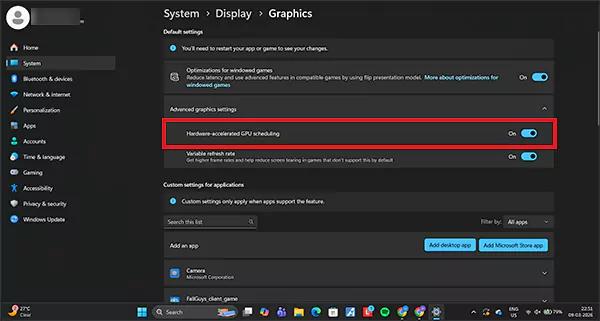
Hardware Accelerated GPU Scheduling Windows 11
- Go to the settings.
- Click on the Display.
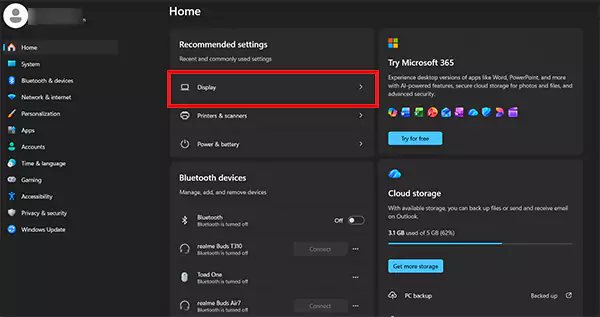
- Scroll down, navigate to the Graphics, and open it.
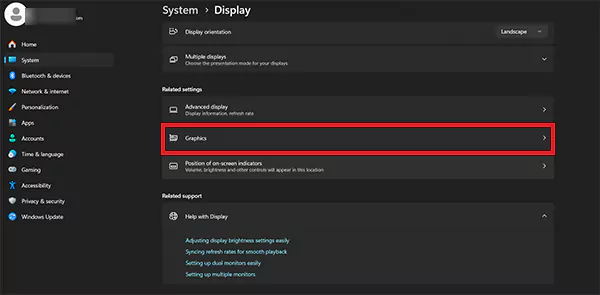
- Click on the Advanced Graphic Settings.
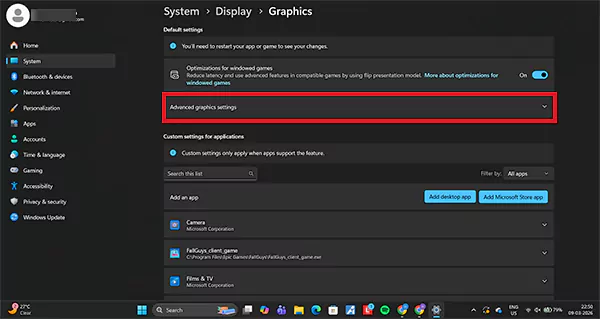
- The Hardware accelerated GPU Scheduling must be off. Hit the toggle and turn it on.
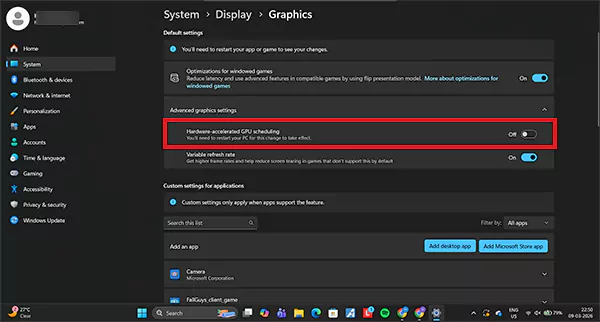
- Once the toggle is on, restart your system to apply the changes.
Improvements in Windows 11:
- Microsoft has made improvements to how Windows 11 distributes workloads across the GPU.
- Gaming performance will be improved through integration into a wider set of system graphics settings that were previously unavailable.
- Modern graphics application programming interfaces (APIs) are supported by the new version more efficiently than in prior versions.
| GPU Brand | Supported Hardware |
| NVIDIA | GTX 1000 series and newer |
| AMD | Radeon RX 5000 series and newer |
| Intel | Newer integrated GPUs |
Hardware Accelerated GPU Scheduling Windows 10
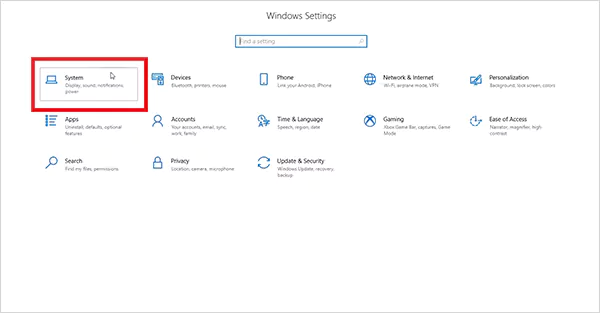
- Go to the settings.
- Open the System settings.
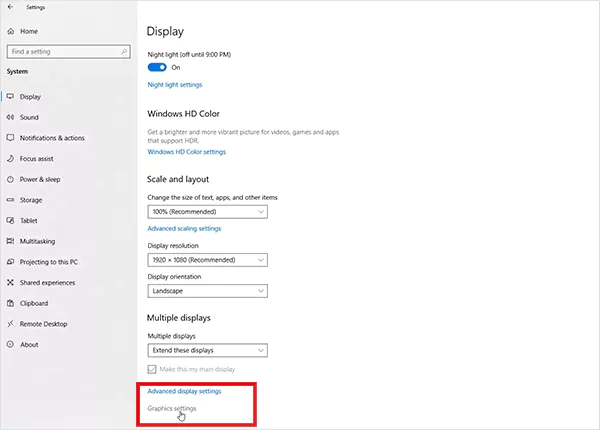
- Click on the Display option in the menu bar, scroll down to the bottom, and open graphic settings.
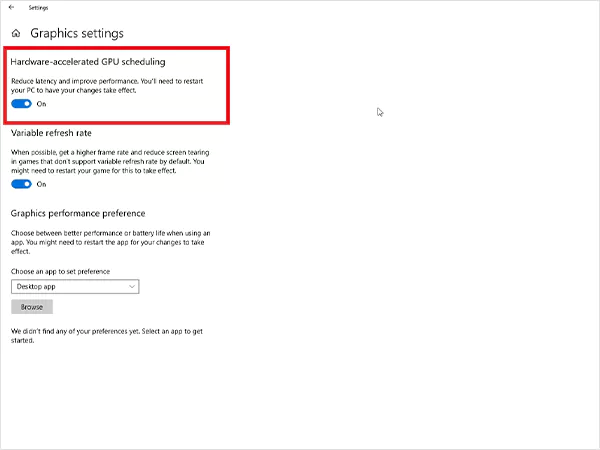
- Turn the hardware accelerated GPU scheduling toggle on.
Feature Changes:
| Year | Development |
| 2020 | Hardware accelerated GPU scheduling was introduced |
| 2021 | Expanded driver compatibility |
| 2022+ | Improved stability across hardware vendors |
Is Hardware Accelerated GPU Scheduling Good for Gaming?
Hardware accelerated GPU scheduling can provide a slight improvement in gaming responsiveness as it removes some of the graphics management from the CPU. While most gaming advantages will be slight, they can still help with specific gaming configurations.
Specific Gaming Advantages:
- Reduced input latency in fast-paced games.
- Smother frame pacing during gameplay.
- Additional resources are freed up on the CPU so it can process physics or other tasks in the background while a game is running.
- Some streaming and/or recording software may work better when running alongside games.
Situations Where Performance Gains are Low:
- Systems are already constrained by their GPU resources.
- Older graphics cards with drivers not optimized for the type of workload they generate.
- Any games that don’t take advantage of the lower CPU scheduling overhead.
Key Insight:
In most cases, gaming benchmarks have shown relatively minor performance gains as opposed to large increases in frames per second. The major improvement is typically a more consistent delivery of frames at the same or slightly faster rate than previously seen.
Should I Enable Hardware Accelerated GPU Scheduling?
Hardware Accelerated Scheduling of the GPU is usually a good option on most systems that have compatible and up-to-date GPU drivers. It is meant to help you be more efficient, but will generally provide no greater performance increase.
The recommended use cases for hardware accelerated GPU scheduling are the following:
- Any gamer who uses a current (modern) dedicated GPU.
- Any content creator who performs video rendering or does 3-D modeling.
- Any streamer who uses a GPU for video encoding.
- Any system that runs graphics-intensive applications all day.
Bottom Line
Hardware-accelerated GPU scheduling represents a pattern shift for how Windows manages graphics workloads. The operating system has shifted the responsibility of the GPU’s scheduling of graphic workloads from the CPU and simplified the rendering process.
For most modern computers that have the appropriate hardware, it is safe to enable this feature, which could potentially lead to better responsiveness in both gaming and other GPU-intensive applications.
Frequently Asked Questions
What is hardware accelerated GPU scheduling?
Should I enable hardware accelerated GPU scheduling on my system?
If you have a mid-to-low-end CPU paired with a powerful GPU, you should turn on your hardware accelerated GPU scheduling.
Is hardware accelerated GPU scheduling needed for DLSS 3?
Yes, the hardware accelerated GPU scheduling feature in Windows is a must for using NVIDIA DLSS 3 frame generation technologies.
Related Posts

8 Best AI Presentation Makers for Business-Ready Slides
Making a presentation doesn’t just mean designing slides. It’s about defining a clear structure, using defined logic, useful visuals, and…

Queue Management Software Troubleshooting Guide: 8 Common Faults and Fixes
The long wait times and ineffective management of customer queues can have a significant impact on customer satisfaction and business…

How to Use Similarweb Website Traffic Data for Competitor Research
Competitor research without traffic data is guesswork. You can guess who your rivals are, guess how big they are, guess…

Choosing the Right Hosting Model for Scalable Digital Platforms
The performance of digital business is directly related to website speed, uptime, and scalability. Slow page performance has a negative…

How Data-Driven Performance Tools Are Transforming Employee Recognition in Tech Companies
“People work for money but go the extra mile for recognition, praise, and rewards.” — Dale Carnegie (Writer & Teacher)…

Why Businesses Struggle to Collect Reliable Data from the Web
Almost every company that depends on data runs into the same problem: although they can find the data they need,…

Why Financial Data Recovery Matters for Businesses
Financial data supports every part of a business, directly affecting cash flow, payroll, tax reports, audits, customer billing, and daily…

CMMC Compliance Is Coming for Manufacturers. Here Is What You Need to Do
“Cybersecurity is much more than a matter of IT.” — Stephane Nappo (Cybersecurity Professional) For manufacturers working within the defense…

How Data-Based Tools Influence Learning Performance
Learning has transformed in the modern age with the integration of new technologies to help students and professionals prosper in…