
Third-party apps installed from the App Store are generally safe. But it is recommended to stay safe while sharing your personal information with such apps.
How to Schedule a Text Message on iPhone? (Simple Methods)
 Mahima Dave
Updated on: Apr 23, 2026
Knowing how to schedule a text on iPhone comes in handy whether you want to remind a colleague about the group assignment submission or send a birthday wish to your loved ones. The 2024 rollout of the Apple update has introduced a powerful set of advancements, which includes this masterpiece.
However, there are two ways that will answer the query “how to schedule a text message on iPhone”: using Message and Shortcut Apps. Check out the process of both ways in the article ahead.
Quick Answer
You can schedule a text message on an iPhone.
Go to Message >> Open an existing conversation or start a new one >> Type your message >> + icon on the left >> Send Later >> Choose the time and date >> Tap the upward arrow icon (⬆️) to confirm the scheduling.
Can you Schedule a Text on iPhone?
Yes, you can schedule a text on iPhone using the built-in Message app. The good thing is that there is a second way also using Shortcut apps, which you might find tricky at some point. One thing you need to remember is that you can schedule a text to be sent up to 14 days using the Send Later feature.
Another important thing to note is that the built-in text scheduling is available on iOS 18 and later only. Now comes the bonus point: you can reschedule, edit, or deleted the text message you have scheduled to send it later.
Note: You can schedule both iMessage and SMS text messages on an iPhone running iOS 18 or later within the Messages app.
iMessage: Apple’s internet-based service for encrypted messaging between Apple devices (identified as blue bubbles in conversation).
Text/SMS: The standard message sent over cellular networks (green bubbles).
How to Schedule a Text Message on iPhone?
There are two ways to schedule a message: the prime one is the Message app, and the second one is the Shortcuts app. I have elaborated on both ways of how can you schedule a text on iphone in the coming section, and trust me, I used them in my daily life.
Method 1: Using Message App
- Open the message app on your iPhone.
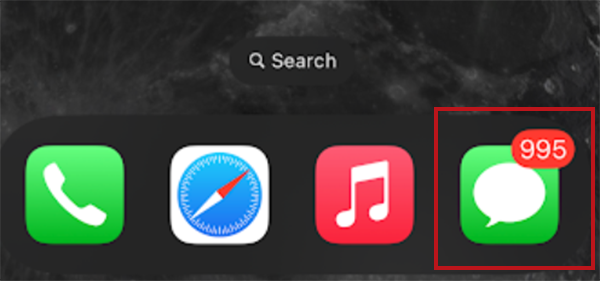
- Start a new one or open the existing conversation.
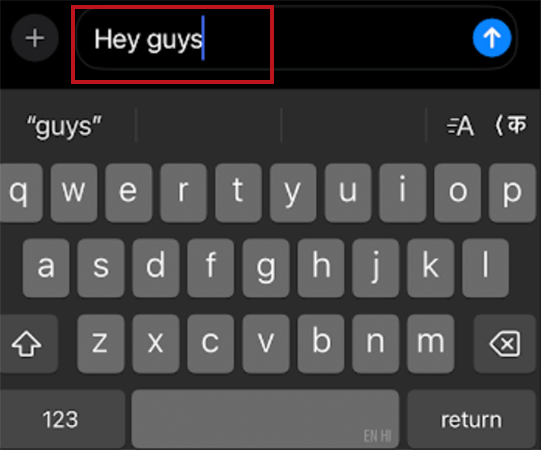
- Type your text in the message you want to send.
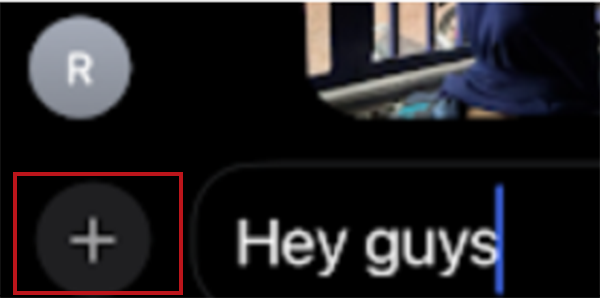
- Tap on the + icon located in the left corner.
- Choose Send Later from the list of options.
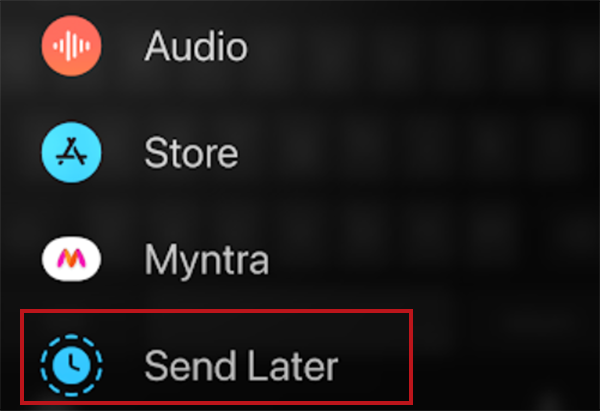
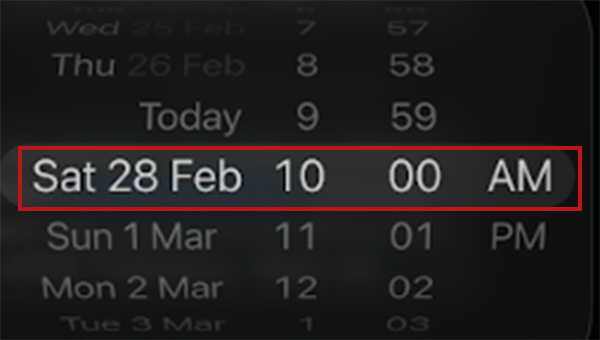
- Opt for the preferred time and date as per the requirements.
- Hit the up-like-arrow icon present on the right side of the text box to send the text.
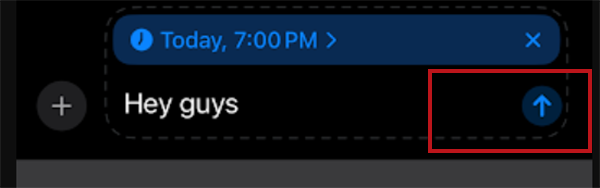
Things you should know before scheduling a text using Message:
- The message will appear with a dashed line until it’s sent as per the time and date.
- The dashed line will become a normal blue tick once the message is delivered.
- The text will be delivered even if your mobile is off or the networks are out of service.
Method 2: Using Shortcut App
The next method that can help you how to schedule text messages on iphone is using the automation capabilities of the Shortcut app. The process is elaborated below, check it out.
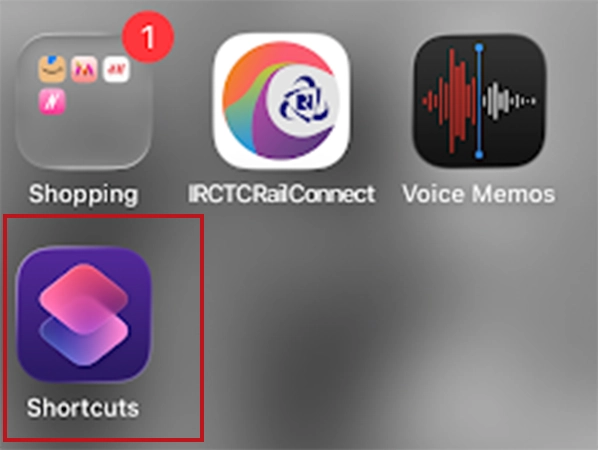
- Open the Shortcuts App on your iPhone.
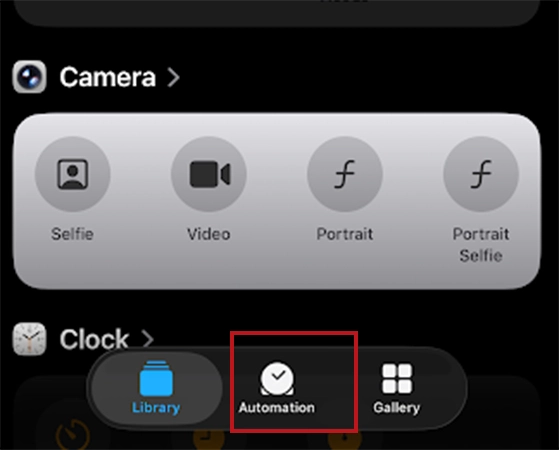
- Go ahead with Automation from the bottom options.
- Hit New Automation.
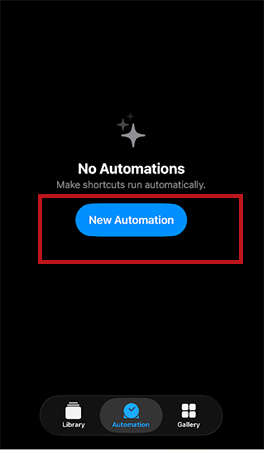
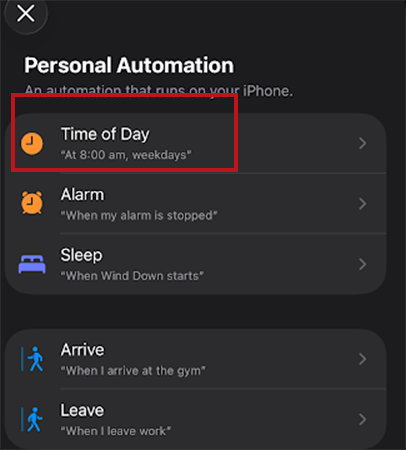
- Choose Time of Day from the list of options.
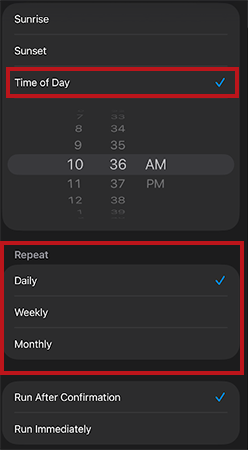
- Select the time and check one from Daily, Weekly, and Monthly and hit the tick present in the right corner.
- On the homepage of the Shortcuts app, look for the Send Message action.
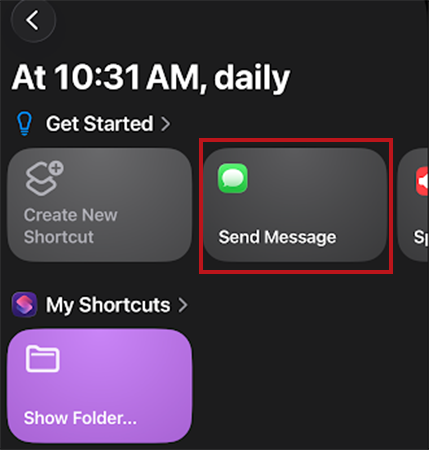
- Fill in the details as prompted, like “type the message” and select the Recipient of the message, and tap on tick to confirm the shortcut automation.
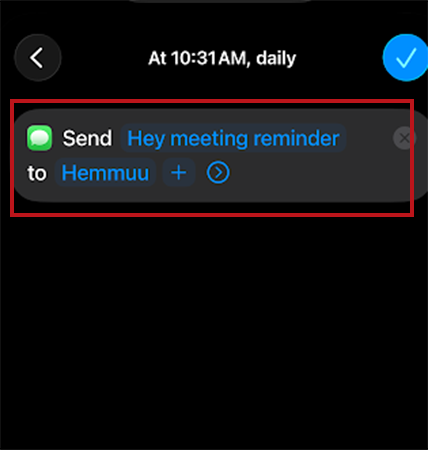
In case you wish to delete the Shortcut automation, here is the quick process:
Open the Automation App >> Find the automation that is generated to send the message >> Swipe Left >> Delete.
Can you Reschedule, Edit, or Delete a Scheduled Message on Message app?
Yes, you can reschedule, edit or delete a scheduled message from your Message app by using the simple process mentioned below.
Reschedule a Scheduled Message
- Go to the Message app.
- Scroll down to the conversation; you have scheduled a message.
- Tap Edit option highlighted in blue above the message.
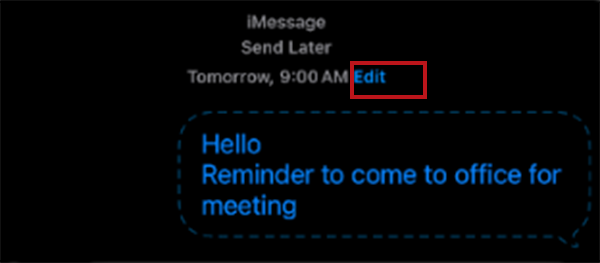
- Choose Edit time from the list of options.
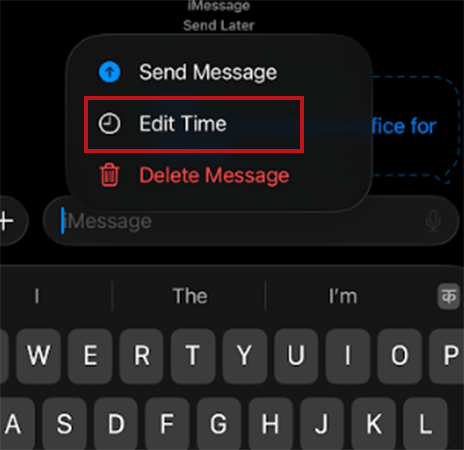
- Change the date and time as per your preferences, and you are done.
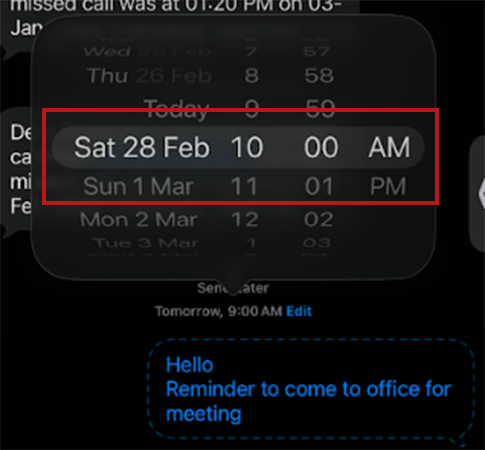
Edit a Scheduled Message
- Revisit the Message app and open the scheduled message you want to edit.
- Touch and hold the blue-bordered message bubble.

- Choose Edit from the list of options
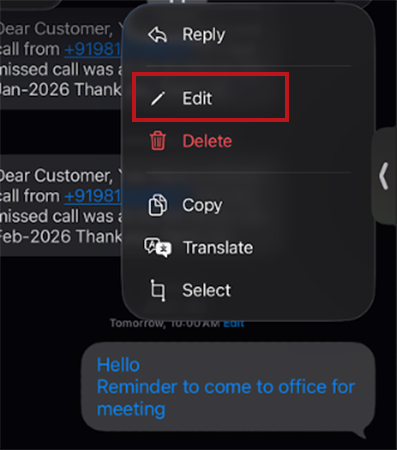
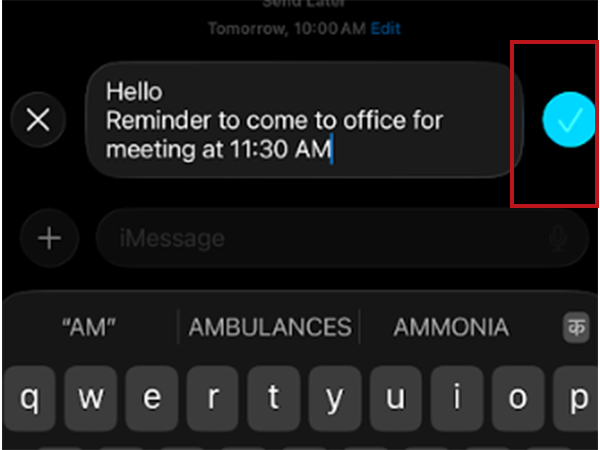
- Edit the message and tap on the tick icon, and you are done.
Delete a Scheduled Message
- Go to the conversation
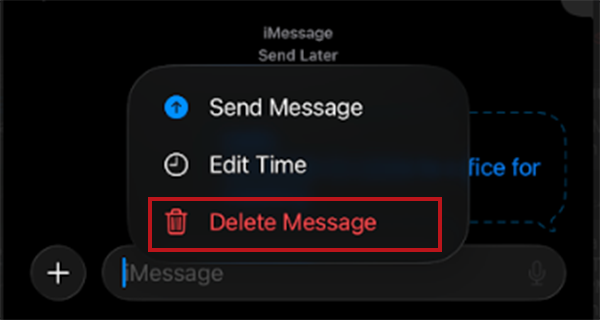
- Touch and hold the blue-bordered bubble.
- From the list of options, select Delete Message.
Conclusion
With the Send it Later feature, you can set a meeting reminder or never miss out on your loved one’s birthday. Remember, this feature can only schedule a
message up to 14 days in advance.
So this was how to schedule a text message on iphone. Schedule your messages now and never miss out on any important future updates.
Frequently Asked Questions
Are third-party apps safe to use for scheduling messages on iPhone?
Why don’t I see the Send Later option on my iPhone?
Your device might be running an early version of iOS 18. You need to upgrade the version, as this feature is available in iOS 18 and newer.
Why can’t I schedule text messages on Message?
Your iPhone requires iOS 18 or later to schedule a text message on Message. So consider checking your iOS version before reaching to any conclusion.
Related Posts

8 Best AI Presentation Makers for Business-Ready Slides
Making a presentation doesn’t just mean designing slides. It’s about defining a clear structure, using defined logic, useful visuals, and…

Queue Management Software Troubleshooting Guide: 8 Common Faults and Fixes
The long wait times and ineffective management of customer queues can have a significant impact on customer satisfaction and business…

How to Use Similarweb Website Traffic Data for Competitor Research
Competitor research without traffic data is guesswork. You can guess who your rivals are, guess how big they are, guess…

Choosing the Right Hosting Model for Scalable Digital Platforms
The performance of digital business is directly related to website speed, uptime, and scalability. Slow page performance has a negative…

How Data-Driven Performance Tools Are Transforming Employee Recognition in Tech Companies
“People work for money but go the extra mile for recognition, praise, and rewards.” — Dale Carnegie (Writer & Teacher)…

Why Businesses Struggle to Collect Reliable Data from the Web
Almost every company that depends on data runs into the same problem: although they can find the data they need,…

Why Financial Data Recovery Matters for Businesses
Financial data supports every part of a business, directly affecting cash flow, payroll, tax reports, audits, customer billing, and daily…

CMMC Compliance Is Coming for Manufacturers. Here Is What You Need to Do
“Cybersecurity is much more than a matter of IT.” — Stephane Nappo (Cybersecurity Professional) For manufacturers working within the defense…

How Data-Based Tools Influence Learning Performance
Learning has transformed in the modern age with the integration of new technologies to help students and professionals prosper in…