
In Outlook 365 for Windows, you can change the default browser to Chrome, by going to Files>>Options>>Advanced>>File and Browser Preferences>>Open Hyperlinks from Outlook>>Default Browser>>OK. In other versions and devices, you’ll have to change the browser in the device’s settings.
Complete Guide: Change Default Browser in Outlook
 Mahima Dave
Updated on: Jul 30, 2024
As an email client, Outlook allows users to make certain personalized changes on the basis of their preferences. Keeping this in mind, they launched a new feature where people can change the default browser in Outlook, AI Integration with Outlook, Change Outlook dark mode, Enhanced Search Capabilities, and change default font in Outlook.
Switching to and from different browsers makes users feel a sense of independence while allowing them to choose a browser they are most comfortable with. However, a non-tech-savvy individual might end up thinking, how do I change the default browser in Outlook?
To solve this issue, we have listed the quickest way to change the default browser in Outlook. So keep reading, to find out all about it!
How to Change Default Browser in Outlook?
Changing the default browser works only on Outlook 365, which means it’s not available for other devices like macOS, Android, iOS, etc. Moreover, this means that on all the other devices, the default browser will be the system’s browser.
To change default browser in Outlook 365 in your Windows system simply,
- Open Outlook, and navigate to Files.
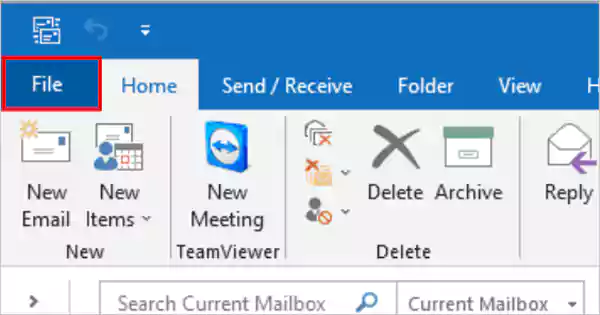
- At the bottom, click on Options.

- In the pop-up, tap on Advanced.

- Locate File and Browser Preferences.
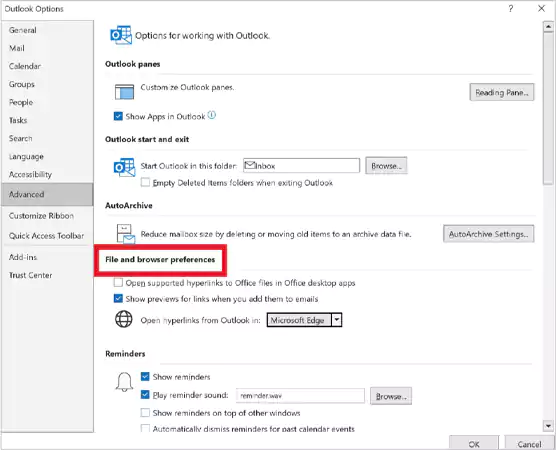
- Press on Open Hyperlinks From Outlook In, and choose Default Browser.

- At last, choose OK.

Using these steps, you can easily change Outlook default web browser. Although, remember, they only work for Outlook 365 on Windows. Read ahead to learn the various reasons why you should change the default web browser.
Reasons to Change Outlook Default Web Browser
There are a lot of reasons why you should switch the default web browser in the Outlook application. Such as,
- To accumulate the data in the same browsing history and cache.
- Changing the browser allows one to easily keep track of the activities.
- Gives the touch of personalization, as per the preferences of the user.
Wrapping Up
Changing the default browser in Outlook assists users to choose the browsing search engine they are most comfortable with. Moreover, the effortless and easy to perform steps provided by us, will allow you to switch the web browser.
However, ensure that you are trying this on Outlook 365 for Windows, otherwise it won’t work for you!
Frequently Asked Questions
How do I change the default browser to Chrome in Outlook?
Can you change the default from the browser in Outlook?
Yes, Outlook 365 on Windows allows you to change the default browser. To do this, Files>>Options>>Advanced>>File and Browser Preferences>>Open Hyperlinks from Outlook>>Default Browser>>OK.
How do I reset Outlook to the default browser?
To reset Outlook to the default browser, go to Files>>Options>>Advanced>>File and Browser Preferences>>Open Hyperlinks from Outlook>>Microsoft Edge/ Chrome>>Default Browser>>OK.
Related Posts

8 Best AI Presentation Makers for Business-Ready Slides
Making a presentation doesn’t just mean designing slides. It’s about defining a clear structure, using defined logic, useful visuals, and…

Queue Management Software Troubleshooting Guide: 8 Common Faults and Fixes
The long wait times and ineffective management of customer queues can have a significant impact on customer satisfaction and business…

How to Use Similarweb Website Traffic Data for Competitor Research
Competitor research without traffic data is guesswork. You can guess who your rivals are, guess how big they are, guess…

Choosing the Right Hosting Model for Scalable Digital Platforms
The performance of digital business is directly related to website speed, uptime, and scalability. Slow page performance has a negative…

How Data-Driven Performance Tools Are Transforming Employee Recognition in Tech Companies
“People work for money but go the extra mile for recognition, praise, and rewards.” — Dale Carnegie (Writer & Teacher)…

Why Businesses Struggle to Collect Reliable Data from the Web
Almost every company that depends on data runs into the same problem: although they can find the data they need,…

Why Financial Data Recovery Matters for Businesses
Financial data supports every part of a business, directly affecting cash flow, payroll, tax reports, audits, customer billing, and daily…

CMMC Compliance Is Coming for Manufacturers. Here Is What You Need to Do
“Cybersecurity is much more than a matter of IT.” — Stephane Nappo (Cybersecurity Professional) For manufacturers working within the defense…

How Data-Based Tools Influence Learning Performance
Learning has transformed in the modern age with the integration of new technologies to help students and professionals prosper in…