
Ans. It is a macOS storage category that includes cache files, logs, temporary files, backups, app support files, and other system-related resources.
How to Clear System Data on Mac: Safe Ways to Free Up Storage
 Reviewed By Mr Kumar
  Upasna Deewan
Updated on: Jun 30, 2026
System Data is one of the most confusing storage categories on a Mac. If you have checked your storage, noticed System Data taking up dozens of gigabytes, and wondered where all that space went, you are not alone.
The problem is that macOS does not store System Data in one folder that you can simply delete. Don’t worry, I will explain how to clear system data on Mac safely, what it means, and how to keep it under control without affecting your Mac’s performance.
TL;DR
- System Data includes caches, logs, backups, temporary files, and app support files.
- You can reduce System Data by clearing old backups. downloads, cache files, and unnecessary applications.
- Avoid deleting system files or folders you do not recognize, as they can affect macOS stability.
- Regular maintenance, such as emptying the Trash and reviewing Storage settings, helps keep System Data under control.
What is System Data on Mac?
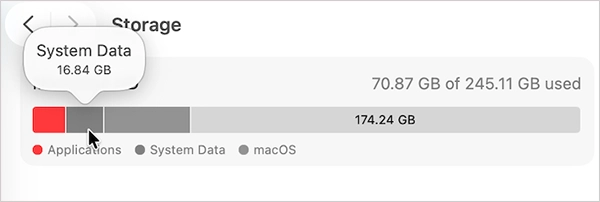
System Data Mac storage category contains files that do not fit into other categories, such as Applications, Documents, Photos, or Music. It usually includes:
- Cache files
- System logs
- Temporary files
- Virtual memory files
- App support files
- Fonts and plug-ins
- Local backups
- Disk image files
It is like a behind-the-scenes workspace that helps macOS and your apps run smoothly. Every time you browse the web, install software, update macOS, or use apps, your Mac creates temporary data. Over time, some of this data gets grouped under this category.
The reason it feels confusing is that System Data is not a single folder. It is a collection of files spread throughout macOS, which is why its size can change frequently without any action on your part.
How to Clear System Data on Mac?
There is no single button that completely clears System Data. Instead, you need to remove the files that are no longer useful while leaving important system resources untouched. Here’s how to free up system data on Mac computers:
1. Use Apple’s Storage Recommendations
The easiest place to start is with macOS storage management tools. Just go to: System Settings > General > Storage.
Here, Apple may recommend actions such as:
- “Optimize Storage” to remove watched Apple TV content and old email attachments.
- “Store in iCloud” to move older files to iCloud.
- “Empty Trash Automatically” to remove files that have been in the Trash for more than 30 days.
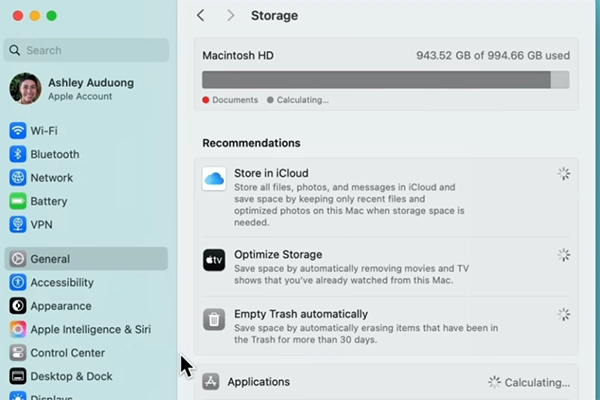
These recommendations are safe for most users and can free up disk space on Macs quickly.
2. Remove Unnecessary Downloads and Large Files
The Downloads folder often becomes a storage dumping ground. Here’s how to clean it up:
- Open Finder and go to Downloads.
- Sort files by Size, and delete anything you no longer need.
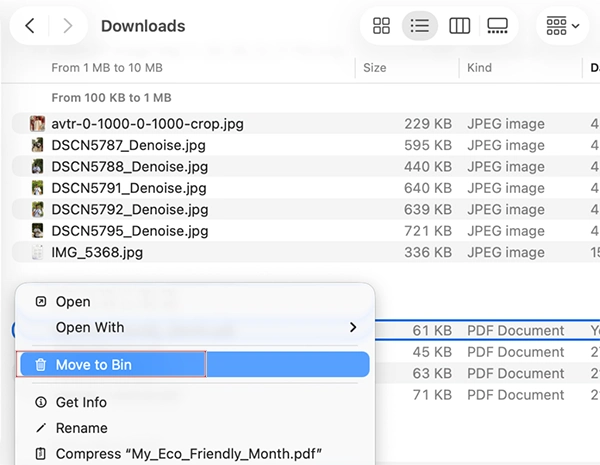
- Move important files to cloud storage or an external drive.
You should look for ZIP files, DMG installers, old videos, Duplicate documents, and large archives.
3. Delete Old iPhone and iPad Backups
Local backups can consume a surprising amount of storage. Here’s how to delete System Data on Mac by removing old backups:
- Open Finder on your system.
- Select your iPhone or iPad.
- Click on Manage Backups.
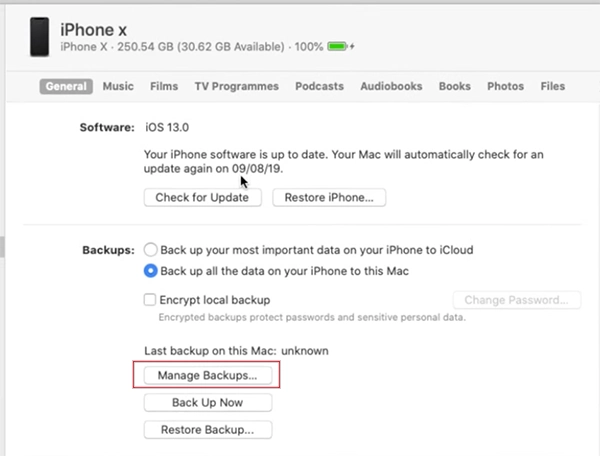
- Now, just delete backups you no longer need.
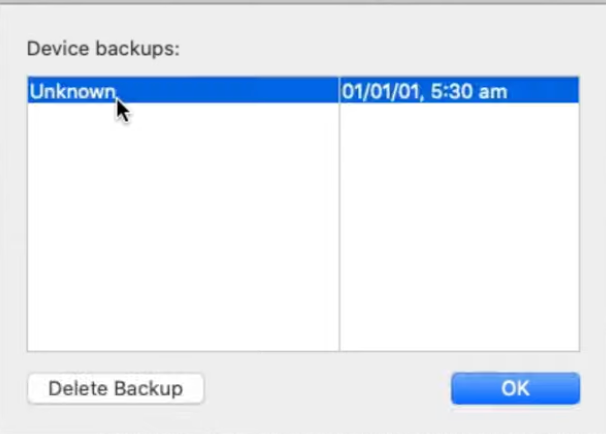
Before removing a backup, make sure you have a recent backup available in iCloud or elsewhere.
4. Clear Mail Attachments and Message Data
Large attachments from Mail and Messages often accumulate quietly in the background. You can free space by deleting emails with large attachments, removing unnecessary conversations, deleting downloaded media from Messages, and emptying the Mail Trash folder. This thing is especially useful if you frequently exchange photos, videos, or PDFs.
5. Manage Time Machine Local Snapshots
If your Time Machine drive is unavailable, macOS creates local snapshots to protect recent versions of your files. These snapshots can sometimes use several gigabytes of storage.
The easiest fix is to reconnect your Time Machine backup drive and allow a backup to complete. However, you can also remove snapshots manually:
- Open Terminal on Mac.
- Enter “tmutil listlocalsnapshotdates” and press Enter to see the list of backups.
- Now, to delete a snapshot, type: “tmutil deletelocalsnapshots <name of the backup>”.
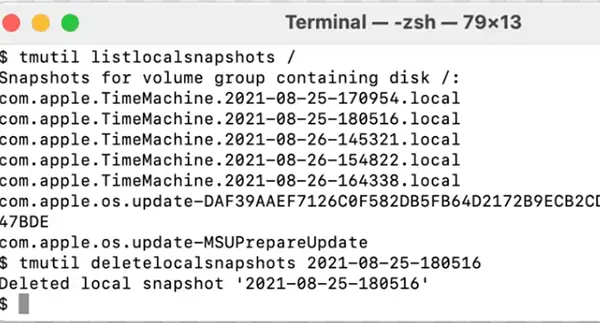
I would advise you to only use Terminal if you are comfortable working with system commands.
6. Clear Cache Files
Cache files help apps and websites load faster, but they can grow significantly over time. To review cache files:
- Open Finder and click on Go > Go to Folder.
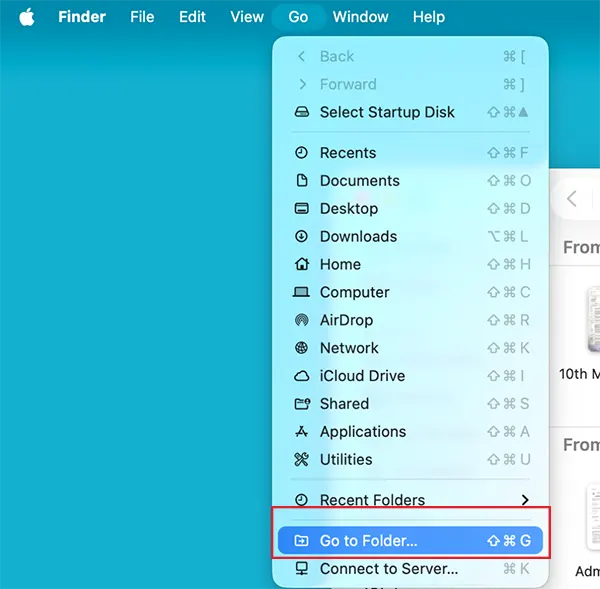
- Here, enter: ~/Library/Caches.
- Review cache folders and remove cache files from apps you no longer use.
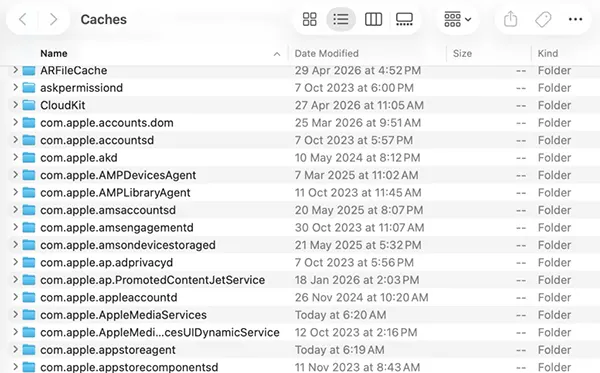
Avoid deleting caches for active applications unless necessary, as those files may need to be rebuilt.
7. Remove Unused Applications
Apps often leave behind support files, preferences, and logs, even when you rarely use them. To identify large apps:
- Open System Settings > General > Storage > Applications.
- Sort apps by size.
- Now, just delete apps you no longer need on your Mac.
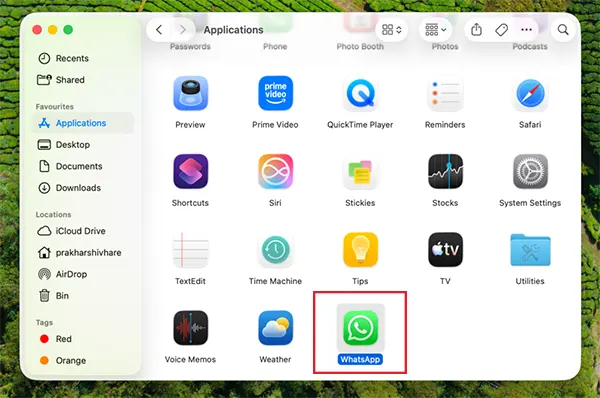
Uninstalling unused applications can significantly reduce storage consumption over time.
8. Empty the Trash
Deleting a file does not immediately free storage space. Files remain in the Trash until you permanently remove them. To empty the bin:
- Right-click the Trash icon.
- Select Empty Trash, and confirm the action.
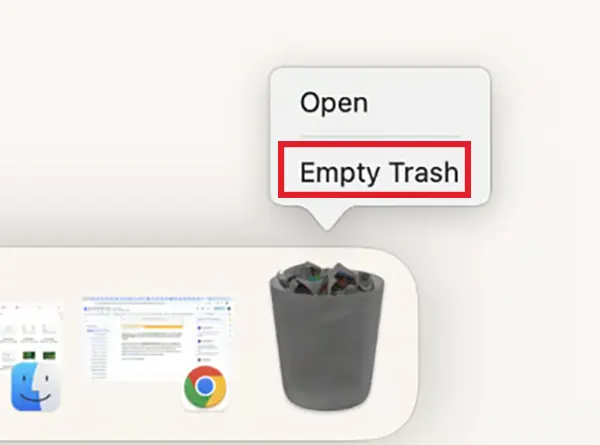
This simple System Data Mac storage cleaning method can instantly recover a surprising amount of storage.
9. Restart Your Mac
Restarting your Mac helps clear temporary files and refresh background processes. It can also force macOS to recalculate storage usage, giving you a more accurate view of how much space is actually available. While this will not dramatically reduce System Data, it can help reclaim temporary resources.
10. Keep macOS Updated
Last but not least, Apple regularly improves storage management through macOS updates. To check for updates:
- Open System Settings.
- Go to General > Software Update.
- Install any available updates.
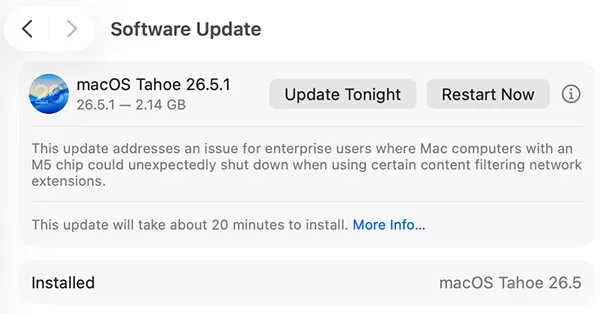
Running the latest version of macOS helps ensure storage tools and cleanup processes work properly.
What Should You Avoid Deleting While Cleaning Mac System Data?
When users see that their macOS System Data is huge and taking up a lot of space. The first instinct is often to delete random files from the Library folder. That is rarely a good idea. So, make sure you avoid deleting:
- System files you do not recognize.
- Files inside System folders.
- Virtual memory files.
- Apps support files used by active apps.
- Fonts and plug-ins required by macOS.
- Hidden folders unless you understand their purpose.
Removing the wrong files can cause apps to stop working or create system stability issues. The safer approach is to remove unnecessary data rather than core system resources.
How to Keep System Data Under Control?
You do not need to eliminate System Data. It is an essential part of macOS. Instead, focus on preventing unnecessary growth.
- Review your Storage settings every month to spot unusually large files before they become a problem.
- Delete old downloads, installers, and ZIP files once you no longer need them.
- Uninstall apps you rarely use to prevent unnecessary files from piling up over time.
- Empty the Trash regularly because deleted files continue to use storage until they are permanently removed.
- Store some files in iCloud to reduce the amount of local storage your Mac uses.
- Keep macOS updated to benefit from the latest storage management improvements and bug fixes.
These small habits can prevent storage issues even before they become a problem for you.
Wrapping Up
While System Data can sometimes take up a large amount of space, most of it consists of files that help macOS and your apps work properly.
The goal is to clear unnecessary files, manage backups, use Apple’s built-in storage tools, and maintain healthy storage habits. In most cases, that is all you need to keep your Mac running smoothly and free up valuable storage space.
Frequently Asked Questions
What is System Data in Mac?
Is it safe to delete System Data on a Mac?
Ans. You should not delete the entire System Data category. However, removing old backups, downloads, and temporary files is generally safe.
How to reduce System Data on Mac?
Ans. Use storage recommendations, clear unnecessary files, remove old backups, manage snapshots, and empty the Trash regularly to reduce System Data.
How to check system data on a Mac?
Ans. Go to System Settings > General > Storage to see how much space System Data is using.
Why does System Data take up so much storage?
Ans. System Data can grow because of caches, logs, temporary files, software updates, app support data, and Time Machine snapshots.
Related Posts

8 Best AI Presentation Makers for Business-Ready Slides
Making a presentation doesn’t just mean designing slides. It’s about defining a clear structure, using defined logic, useful visuals, and…

Queue Management Software Troubleshooting Guide: 8 Common Faults and Fixes
The long wait times and ineffective management of customer queues can have a significant impact on customer satisfaction and business…

How to Use Similarweb Website Traffic Data for Competitor Research
Competitor research without traffic data is guesswork. You can guess who your rivals are, guess how big they are, guess…

Choosing the Right Hosting Model for Scalable Digital Platforms
The performance of digital business is directly related to website speed, uptime, and scalability. Slow page performance has a negative…

How Data-Driven Performance Tools Are Transforming Employee Recognition in Tech Companies
“People work for money but go the extra mile for recognition, praise, and rewards.” — Dale Carnegie (Writer & Teacher)…

Why Businesses Struggle to Collect Reliable Data from the Web
Almost every company that depends on data runs into the same problem: although they can find the data they need,…

Why Financial Data Recovery Matters for Businesses
Financial data supports every part of a business, directly affecting cash flow, payroll, tax reports, audits, customer billing, and daily…

CMMC Compliance Is Coming for Manufacturers. Here Is What You Need to Do
“Cybersecurity is much more than a matter of IT.” — Stephane Nappo (Cybersecurity Professional) For manufacturers working within the defense…

How Data-Based Tools Influence Learning Performance
Learning has transformed in the modern age with the integration of new technologies to help students and professionals prosper in…