


Yes, but it is usually not recommended since it can reduce system stability, cause crashes, and hurt multitasking.
pagefile.sys Explained: Why It Gets Huge and How to Manage It Safely
Table of Contents
What is pagefile.sys and can I delete it? If you noticed a huge pagefile.sys file is taking up storage on your PC, you are likely asking the same thing.
This hidden Windows file often grows to several gigabytes. But it is not useless clutter; it plays a critical role as virtual memory, helping Windows maintain performance when RAM is under pressure or supporting system recovery.
Deleting or changing it carelessly can lead to stability issues. In this guide, I will explain why the pagefile.sys is too big, and how to safely reduce, move, or optimize it properly.
TL;DR: What is the pagefile.sys File?
- Pagefile.sys is the virtual memory backup in Windows that helps when RAM runs low.
- A large pagefile is normal and usually caused by heavy apps, multitasking, or system-managed settings.
- Deleting it is risky and can cause crashes, instability, or reduce performance.
- Safer options include reducing its size, moving it to another drive, or letting Windows manage it automatically.
- If the page file is constantly huge, upgrading RAM may be the best long-term fix.
What is pagefile.sys?
Pagefile.sys is a protected Windows system file that works as virtual memory. When your RAM starts filling up, Windows shifts less important data to this file so your system does not freeze or crash.
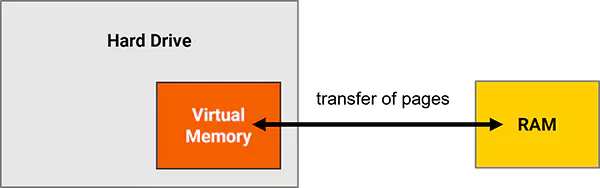
You can think of it as backup memory. It gives your system extra breathing space during heavy usage. It also has another important role. Microsoft uses it to store crash dump data, which helps diagnose serious issues like Windows Blue Screen errors. In simple terms, RAM is fast working memory, and the page file is a support system when RAM runs low.
So, is pagefile.sys needed? Even though it is hidden and can take space, it is not useless. It is a core stability feature in Windows.
Why is pagefile.sys So Big?
A huge pagefile.sys usually is not a problem. It just means your system is handling memory demands actively. Windows automatically adjusts its size based on RAM usage, peak workload, and crash dump settings.
So if you run heavy apps like video editing software, games, or virtual machines, you will see that your pagefile.sys is huge. Also, some apps do not release memory properly, which slowly increases the pagefile size over time.
So, the main reasons it increases in size are:
- High resource usage.
- Automatic system settings.
- Memory Leaks
The important thing to understand is that a big file means your system is doing its job under pressure. But if your system feels slow despite having unused RAM, then it’s worth reviewing the settings.
Where is pagefile.sys Located on Your Computer?
By default, pagefile.sys is stored in the root directory of your primary Windows drive. The most usual location is: “C:\pagefile.sys”.

However, it is hidden by default because it is a protected operating system file. To view it, you need to enable both hidden files and protected system files in File Explorer settings.
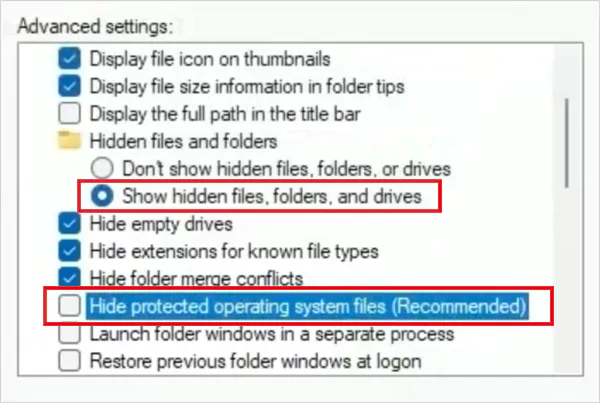
Windows can also move it to another drive if you manually change the Virtual Memory settings. Even though you don’t see it often, it is one of the most important files behind Windows memory management. And, it should not be modified casually without understanding its role.
Is pagefile.sys Safe to Delete?
Can I delete pagefile.sys? Yes, you can delete or disable it. But for most users, that is a bad decision. As I already mentioned, it helps your system handle memory spikes. Without it, you may face app crashes, system instability, poor multitasking, and memory errors.
It also stores system state and crash data. Removing it means losing that safety layer. A lot of people delete it just to save space. That’s short-sighted. A smarter approach is to reduce its size, move it to another drive, or let Windows manage it automatically.
For most setups, automatic management is still the safest option. You should be clear that the pagefile.sys deletion means removing a critical backup system.
How Does pagesys.file Impact System Performance?
The page file directly affects how your system performs under pressure. It works as an overflow when RAM is full. But since it uses storage (like HDD and SSD), it is much slower than RAM. So, its impact goes both ways:
Positive Impact
- Prevents Crashes: It stops your system from running out of memory completely.
- Better Multitasking: It allows more apps to run at the same time without failure.
- Improves Stability: It keeps the system responsive during heavy tasks like gaming or editing.
Negative Impact
- Slower Performance: Accessing data from disk is slower than from RAM. That’s why frequent usage can make your system feel laggy.
- High Disk Usage: It can take up significant storage space, especially on smaller drives.
- Fragmentation Issues: If it keeps resizing, it can become fragmented, which slightly reduces efficiency.
The problem is not a large page file. The problem is over-dependence on it. If your system constantly uses pagefile.sys, it usually means that your RAM is insufficient or your workload is too heavy. The real goal should be optimization, not elimination.
How to Manage a Large pagefile.sys?
Usually, Windows manages this well automatically. But if the page file is taking up too much storage, you can optimize it by following one of the following methods. Here’s how you can try to balance storage, performance, and stability:
How to Reduce pagefile.sys Safely?
If storage is limited, manually reducing pagefile.sys can help reclaim disk space while keeping virtual memory active.
- Search “sysdm.cpl” and run it as administrator.
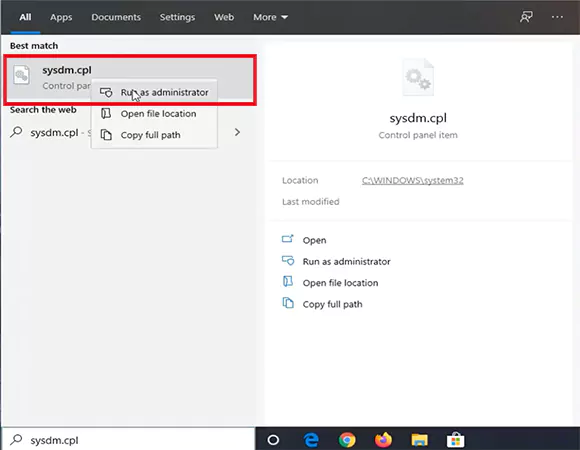
- Click on Yes to allow changes to your device. Then, go to the Advanced tab and under Performance, click on Settings.
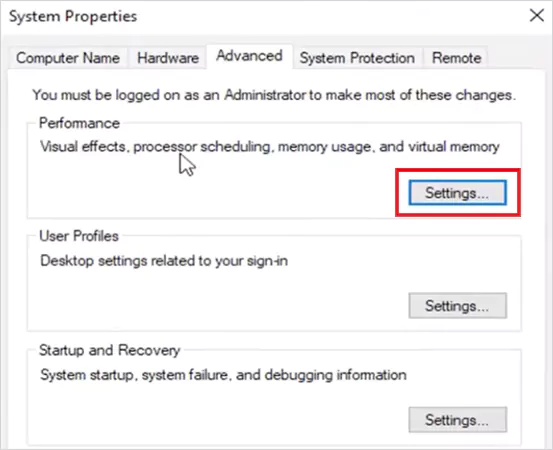
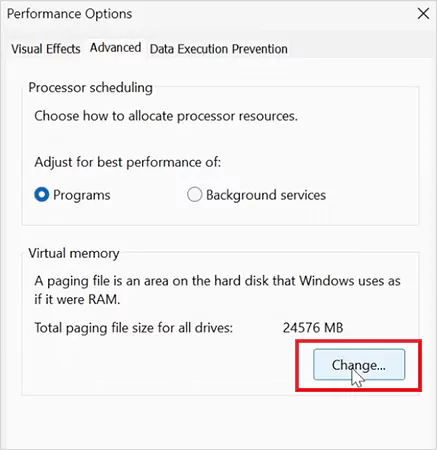
- Next, go to the Advanced tab, and under Virtual Memory, click Change.
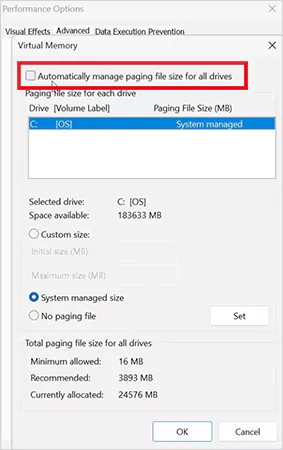
- Here, uncheck Automatically manage paging file size for all drives.
- Select Custom size, and enter smaller Initial and Maximum values.
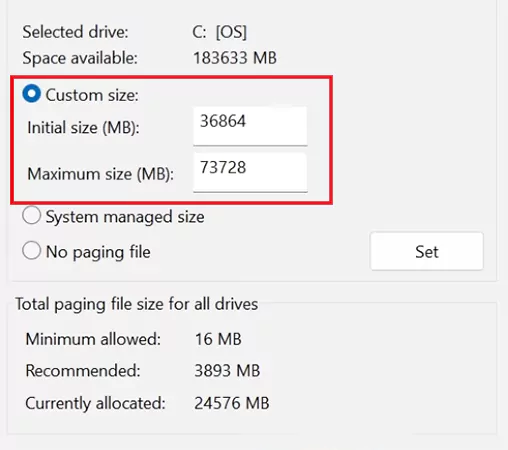
- Now, click Set, and then OK.
- Finally, just restart your computer.
Expert Tip: Make sure you reduce it carefully. Setting it too low can hurt performance if RAM usage spikes. If you are unsure, system-managed settings are usually the safest choice.
How to Move or Disable pagefile.sys?
Now, if your main drive is low on storage, moving pagefile.sys is often smarter than reducing it too aggressively. To move the page file:
- Once again, access Virtual Memory settings and disable automatic management.
- Then, select your current driver and choose No paging file.
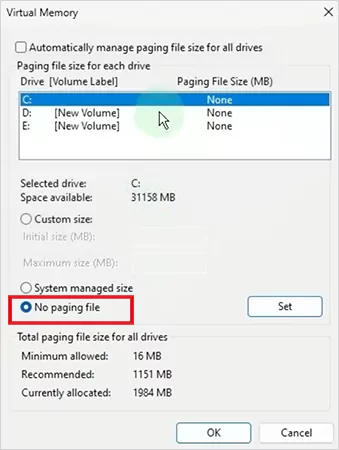
- Next, select another drive.
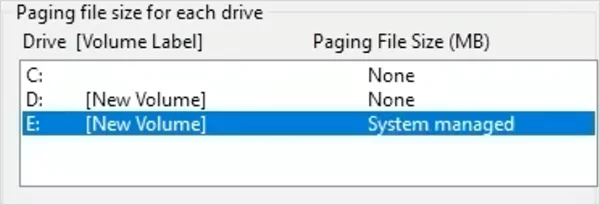
- Assign System managed size or Custom size.
- Restart your computer, and you will find the file in the new drive.
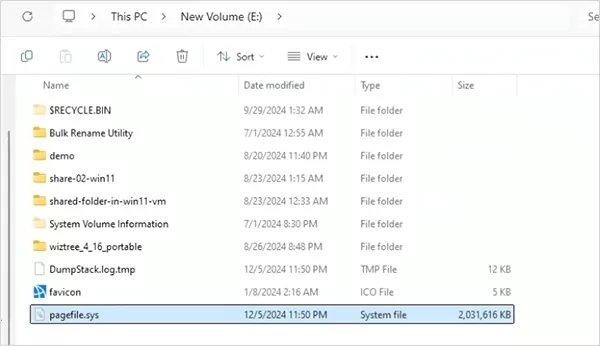
This can free up space on your primary drive while maintaining system performance.
How to Delete pagefile.sys (Not Recommended)?
Windows protects pagefile.sys, so you cannot simply delete it like a normal file. The only way to remove it is by disabling paging.
To delete, disable, or turn off the page file completely, just set “No paging file” on all drives and restart your PC.

However, it is important to know that disabling is risky unless you have substantial RAM and understand the consequences. Deleting may free space, but it can also reduce performance, increase crash risk, and remove diagnostic tools.
In my opinion, for most users, the pagefile.sys deletion is a poor long-term strategy. Reducing or moving it is safer than disabling it. And even if you manually delete the visible file, Windows often recreates it after a reboot because it is essential for system operation.
Tips to Keep the pagefile.sys Under Control
Managing pagefile.sys effectively is more about system optimization than constant tweaking. Here are some best practices that can actually help:
- Allow Windows to manage it by default unless you have a specific reason not to. Microsoft’s system-managed mode remains the safest and most balanced setup for most systems.
- Upgrade RAM if the page file usage stays consistently high. A constantly large pagefile often means your physical memory is insufficient.
- Reduce startup apps and background processes because less RAM pressure will lead to less virtual memory demand.
- Move pagefile.sys to another drive if your main SSD is cramped. This can free valuable primary storage while not compromising system stability.
- Avoid disabling it entirely unless necessary. Stability is more important than saving a few gigabytes of storage.
- Monitor free disk space regularly. Low free space can increase virtual memory issues and affect Windows ability to manage resources properly.
More RAM, fewer unnecessary apps, system-managed settings, and better storage planning are the most important pillars of optimizing the page file.
Final Takeaway
Pagefile.sys may look oversized or unnecessary, but it plays a critical role in keeping Windows stable. It is often misunderstood, but it is not a useless or dangerous file. It helps prevent crashes and supports stability.
Deleting it is not the best or recommended solution. The smarter approach is to reduce it carefully, move it if needed, and let Windows manage it when possible. Pagefile.sys is not the problem. Understanding how it works gives you better control over storage, performance, and long-term system stability.
Frequently Asked Questions
Can I delete the pagefile.sys file?
What is pagefile.sys and why is it important?
The pagefile is Windows’ virtual memory backup that helps your PC manage low RAM situations and prevents system crashes.
How do I reduce pagefile.sys?
You can safely reduce it through Virtual Memory settings by choosing a custom size instead of fully disabling it.
Does pagefile.sys slow down my computer?
Not directly, but heavy reliance on it can slow performance because storage is much slower than RAM.
What is the best way to manage pagefile.sys?
For most users, Automatic management is the safest option for balanced performance, stability, and crash protection.
Related Posts
macOS Bootable USB: How to Create a Bootable Installer for Mac
A macOS bootable USB is not something every Mac user needs regularly. Apple says most upgrades and reinstalls can usually…
How to Manage Mac Startup Apps and Stop Apps Opening Automatically?
Mac startup apps are useful, but some startup items on Mac quietly slow down your system every time you log…
How to Stop Mac from Sleeping? Tried and Tested Methods
If you are wondering how to stop Mac from sleeping during a movie or a heavy download/upload, the answer is…
Zsh: Permission Denied: How to Fix the Error on Mac?
Did you run into a “zsh: permission denied:” error while trying to run a command or script in Terminal on…

8 Best B2B eCommerce Review Platforms in 2026
With the ever-changing world of B2B commerce, reviews from customers are more than just a nice-to-have addition. They’re a vital…
Undoing Changes Made to Your Computer Error: Why It Happens and How to Fix…
Imagine you are expecting a smooth update, but instead, you see the “Undoing changes made to your computer” message. You…
WindowServer Mac: What It Means and How to Fix High CPU Usage
If your Mac computer is freezing, feels slow, overheats, or shows high CPU usage in Activity Monitor, WindowServer Mac could…
How to Fix Error 0x800f081f on Windows 11: Complete Update Repair Guide
You are here because you may have encountered install error – 0x800f081f. This error code appears after something interrupts updates,…