


Ans: This is a popular shortcut used for moving focus to the next window or the active window, which is being controlled by the user.
How to Right click on a Mac? Learn the 7 Tried and Tested Methods
Being a first-time MacBook user can be a bit challenging at times because you might
be just practising new sets of keys. Using the Mac system for your daily task routine may require you to learn new shortcuts and commands that are different from the Windows ecosystem, and right click on a Mac comes under that.
Well, there are seven shortcuts elaborated in the blog below that will help you learn how to right click on a Mac, and many of them don’t require restarting your MacBook.
How to Right Click on a Mac: 7 Methods to Right Click Using Trackpad and Mouse
Right click on Mac is one of the most common trigger movements for navigation and accessibility, that is why it can be done using seven varied methods. Let’s take a look at them one by one.
Method 1: Using Conventional Trackpad
The first method is the most basic one, which is the conventional trackpad. To enable it
- Open settings on your Mac
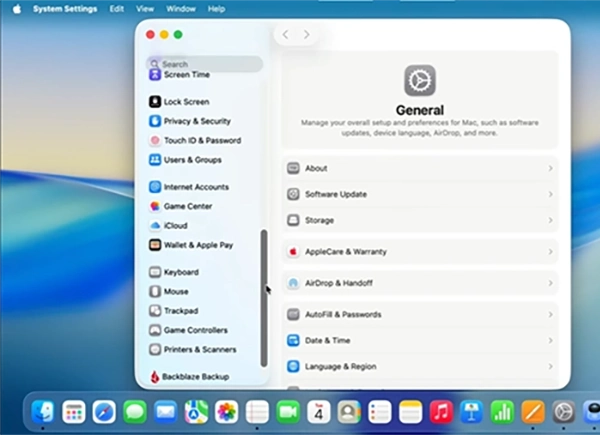
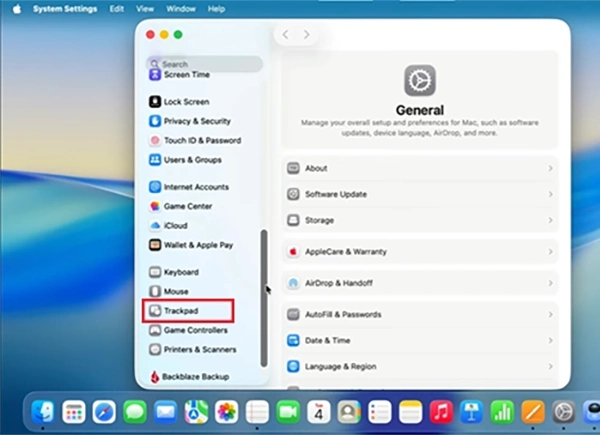
- Go to Trackpad settings.
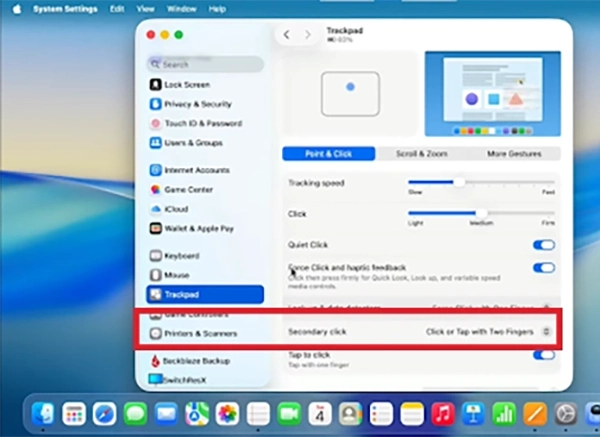
- Click on Secondary Click.
- Choose Click or Tap with Two Fingers.
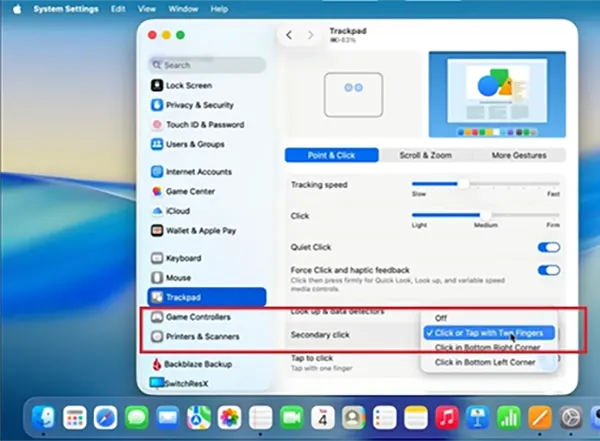
Method 2: With the help of the Apple Mouse Right Click
If you have an accessory called Apple Magic Mouse, then you can right-click uniquely.
- Go to the Mouse Settings
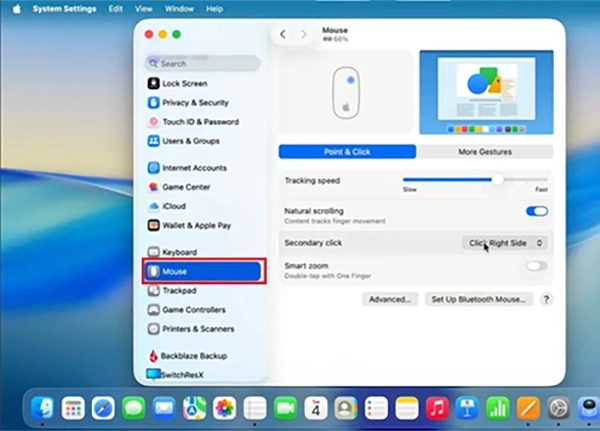
- Then Click on Secondary Click.
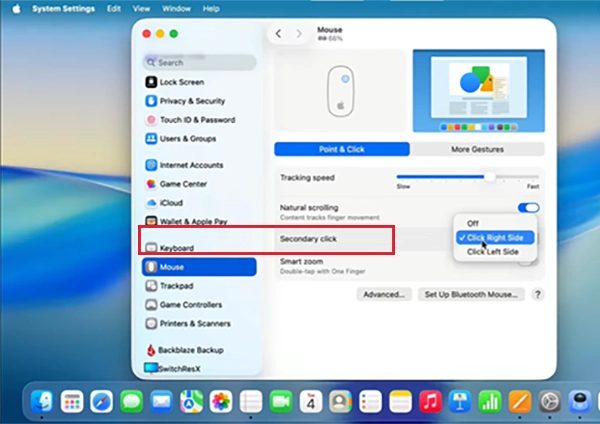
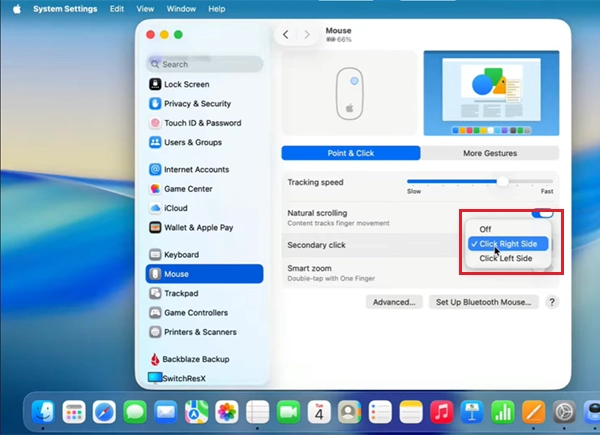
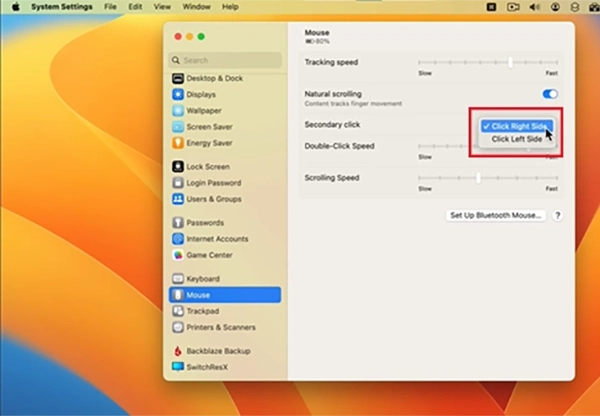
- Then select Click Right Side.
Method 3: Using Safari Technique
Using right-click while reading something on Safari has become more convenient than ever.
- Press any button + hold the control key.
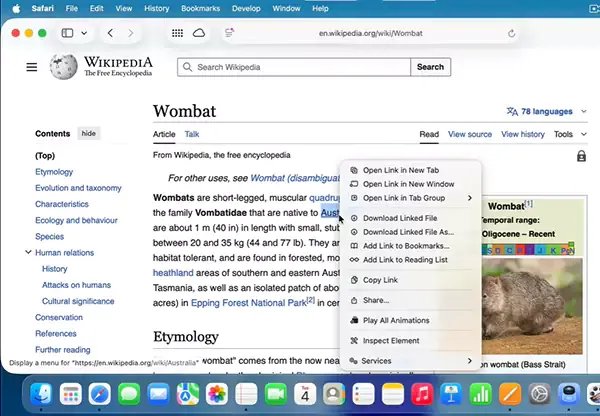
- After pressing those keys, all the right-click options will appear on screen.
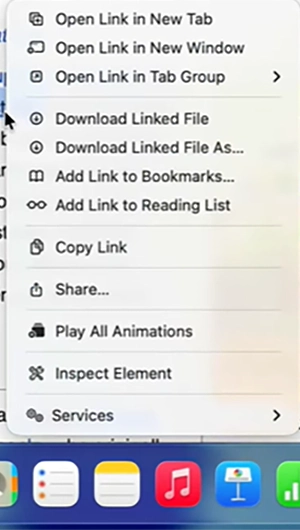
Corner Touchpad Control
The corner touchpad control is a gesture-based solution used for enhancing the experience of MacBook users. Using it is very simple:
- Open Trackpad settings again.
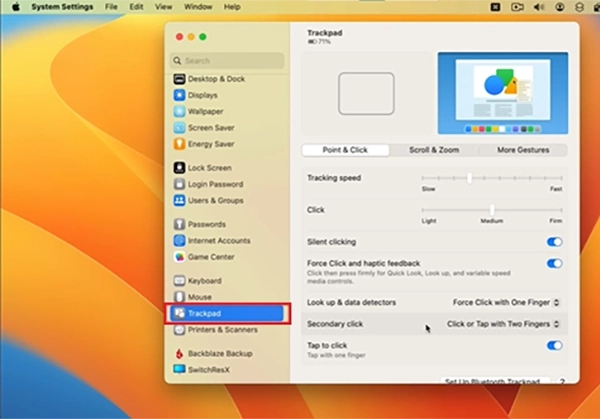
- Then select Secondary Click.
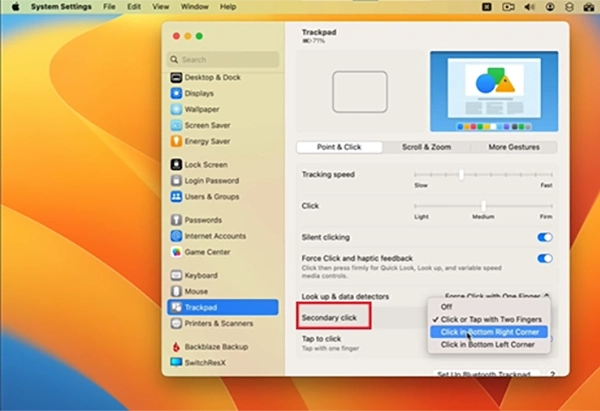
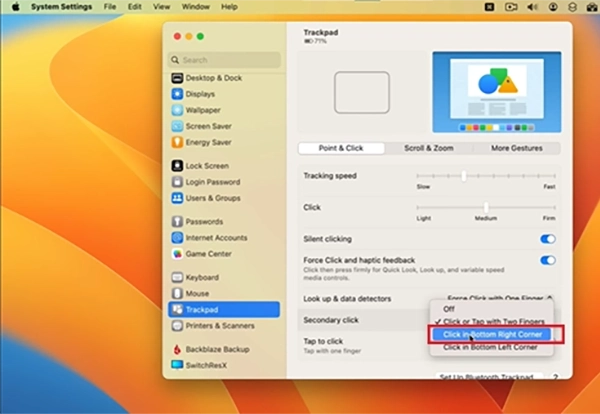
- Select the option “ Click in Bottom Right Corner”.
Method 4: Control + Click on Home screen
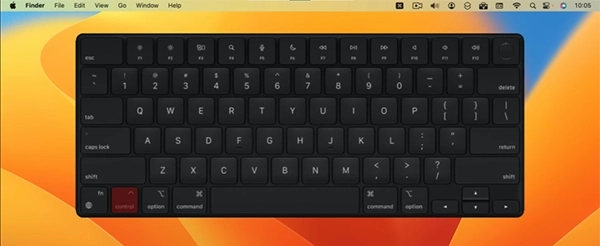
Without opening any settings, opening the right-click panel is also very easy.
- Press Command and click any part of the screen.
Method 5: Right-Click Using a Third-Party Mouse
Using a third-party mouse on Apple Devices can be a bit tricky, but if you do some settings, then it will become a lot easier.
- Come again to the mouse settings
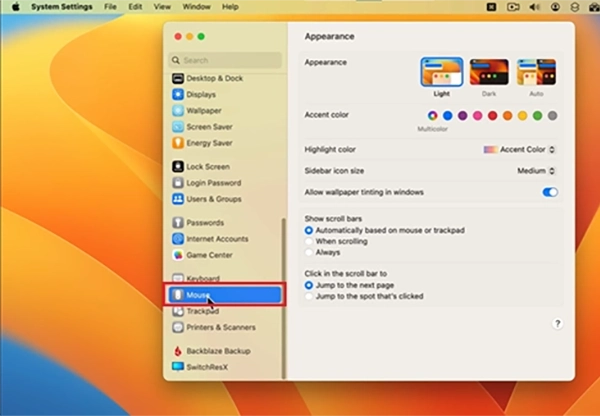
- Then press Secondary Click.
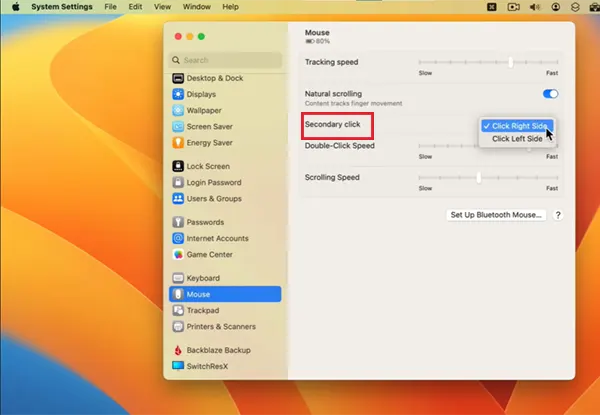
- Select the Option “Click the right side.”
Method 5: With Mouse Keys
Sometimes your mouse or trackpad isn’t working, so you need to enable mouse keys.
- Go to the Accessibility option.
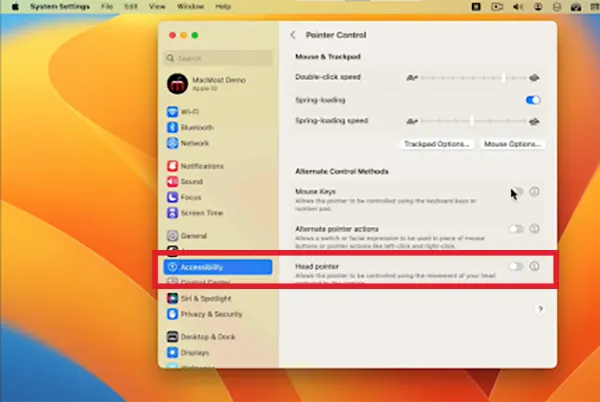
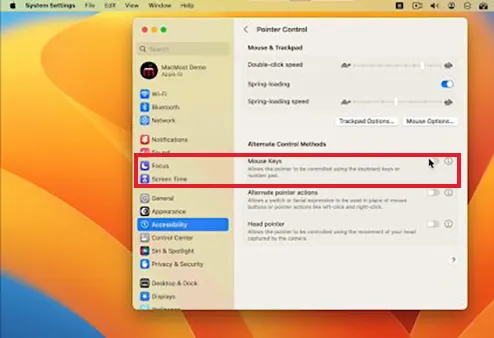
- Then, click on to enable Mouse Keys.
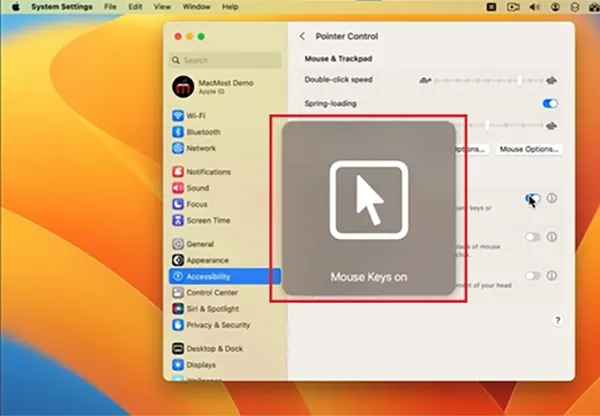
- When the setting is enabled, this icon will pop up.
Method 7: Accessibility Keyboard
At times when the keyboard fails, MacBook’s accessibility options come into play for right click Mac.
- Open Accessibility options.
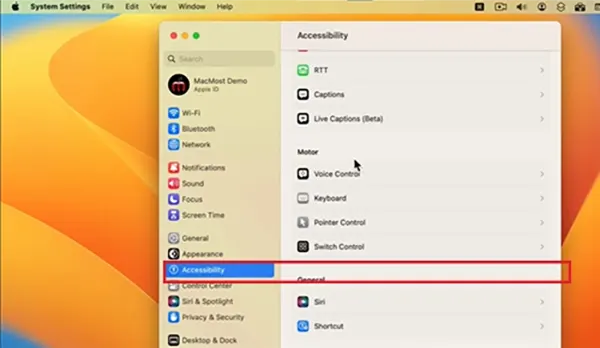
- Slide the cursor to the Keyboard option.
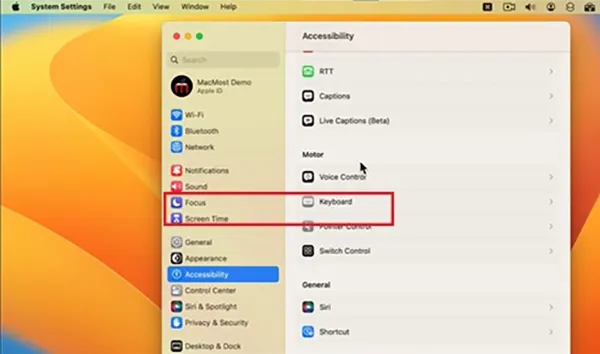
- Then enable the toggle of Accessibility Keyboard.
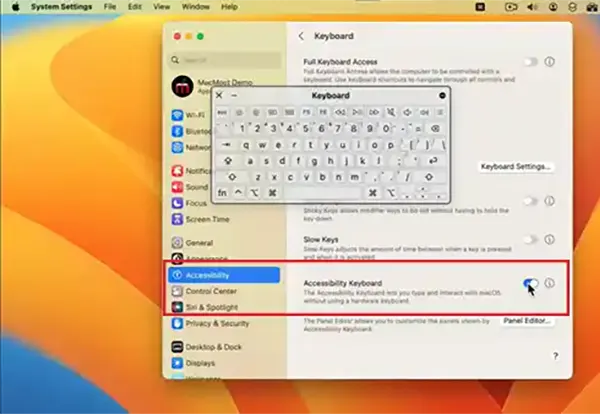
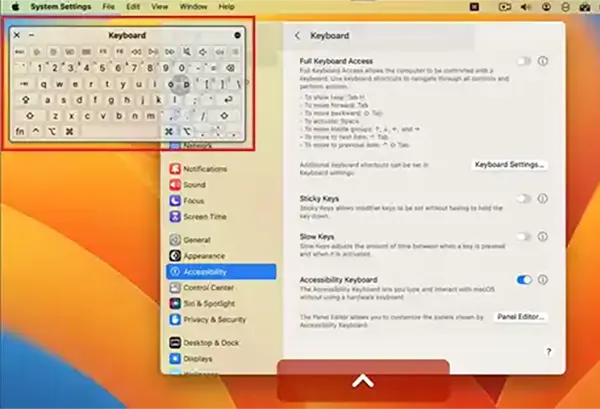
- Now you can access a Virtual Keyboard.
Conclusion
In simplification, right-clicking on a Mac is undoubtedly the most flexible option, as there are so many ways and gestures available. These custom gestures can be activated through systems, and you don’t require any sort of third-party solutions.
Features like Two-Finger and Three-Finger Clicks provide rapid response to people working on a strict deadline, while products like Apple Magic Mouse bring some premium accessibility options to the table. You can choose and apply the method according to your preference and keep coming back to Datarecovee for more such blogs.
Frequently Asked Questions
What is Ctrl +F4 on a Mac?
How to force start a dead MacBook?
Ans: To turn on a MacBook after the battery dies, plug it into an Apple-recommended power adapter for at least 10–15 minutes, as it may not turn on immediately.
How to fix right-click not clicking?
Ans: To fix this issue, first restart your system, check the hard drives and USB ports, or make sure that the battery is properly working. If the problem persists, then go to your nearest Apple Care center.
Related Posts
How to Open EXE Files on Mac: 5 Ways to Run Windows Apps
If you have downloaded a Windows .exe file on your Mac, double-clicking it won’t make it run. macOS does not…
How to Sign Out of iMessage on Mac?
Your Mac can quietly become another place where your private conversations appear. That’s convenient until you are using a shared…
What is Windows Fast Startup and How Does It Work?
Fast Startup can make your PC boot noticeably faster after a shutdown. Instead of completely rebuilding the Windows kernel state…
How to Unzip Files on Mac: 3 Easy Ways to Extract ZIP Files
A ZIP file has a funny way of making a simple task feel more complicated than it is. On a…
How to Delete Files Completely in Mac Terminal?
Finder makes deleting files simple, but sometimes you need Terminal to remove a file or folder by its exact path…
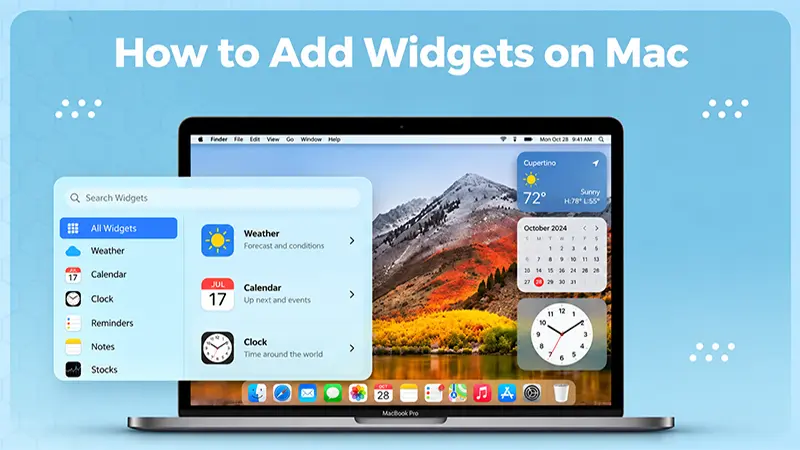
How to Add Widget in Mac: A Step-by-Step Guide
Your Mac desktop can give you useful information without turning into another dashboard to manage. A weather update, calendar reminder,…
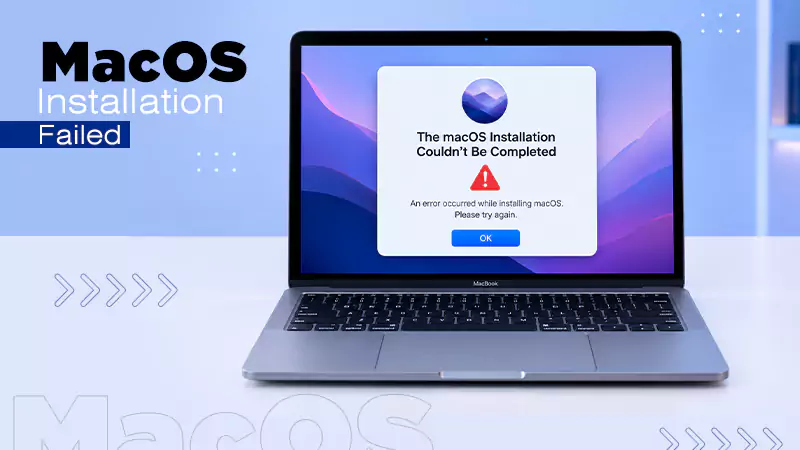
The macOS Installation Couldn’t Be Completed? Learn How to Fix It
You are halfway through a macOS update when the progress bar stops, and a message says the macOS installation couldn’t…
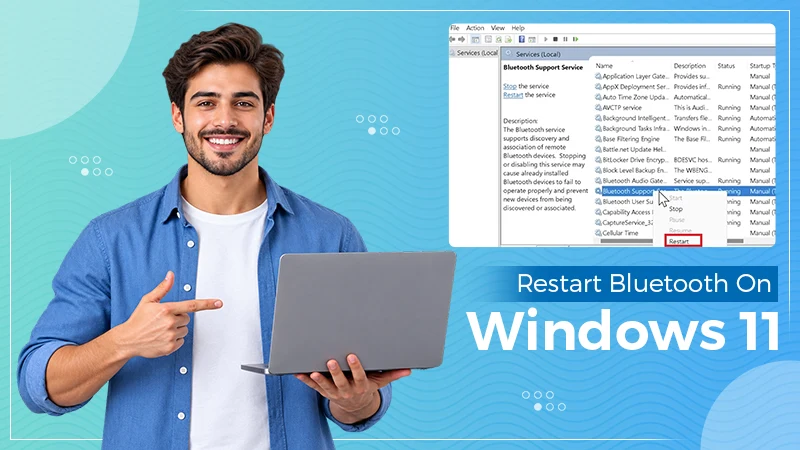
How to Restart Bluetooth Service Windows 11? (Fix Bluetooth Issues)
Bluetooth stopped working in Windows 11? It can suddenly stop working even when your headphones, mouse, or keyboard work perfectly…
How to Fix External Hard Drive Not Showing Up in Windows?
You plug in your external hard drive, wait for Windows to recognize it, and then… nothing pops up. The drive…