


Common causes include a drained battery, faulty charger, power issues, corrupted BIOS, or hardware failure. Start by checking the charger and performing a hard reset.
How to Turn On Lenovo Laptop (When It Won’t Start)
Pressing the power button on your Lenovo laptop and getting no response can be worrying. Sometimes the screen stays black, while in other cases, the power light turns on but Windows never loads.
The good news is that many startup issues are caused by simple power or software problems that you can fix yourself. In this guide, I will explain how to turn on Lenovo laptops that won’t turn on normally and when it’s time to seek professional help.
Quick Answer
If your Lenovo laptop won’t turn on:
- Check that the charger and power outlet are working.
- Disconnect all external devices.
- Perform a hard reset by holding the Power button for 10 seconds.
- Use the emergency reset hole or Novo button if your laptop has one.
- If the laptop still does not start, contact Lenovo Support
Why is My Lenovo Laptop Not Turning On?
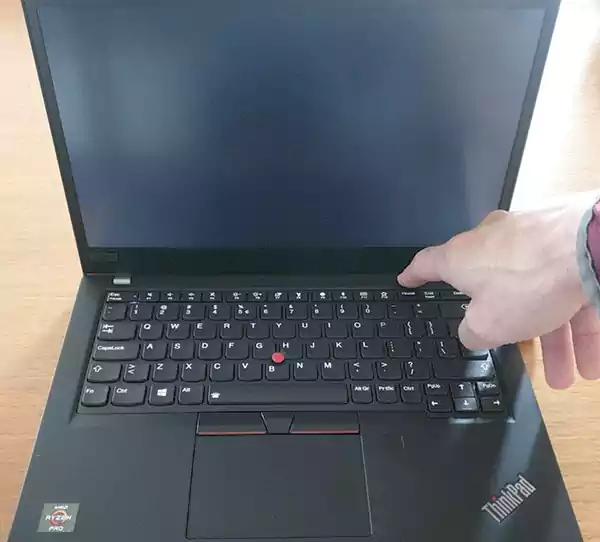
A Lenovo laptop won’t turn on because of several reasons, from a drained battery to a hardware fault. The first clue is what happens when you press the power button.
- No lights or sounds: The problem is usually related to power, the battery, or the charger.
- Power light is on, but the screen stays black: The laptop may be running, but the display or Windows is not responding.
- Fans spin but Windows does not load: The issue could be related to Windows, the BIOS, or startup files.
According to Lenovo, startup problems can also be caused by external devices, an interrupted BIOS update, or the laptop getting stuck in a power state.
Identifying the symptoms first makes troubleshooting the Lenovo laptop not starting issue much easier and helps you avoid unnecessary repairs.
How to Turn On Lenovo Laptop That Won’t Start?
If your Lenovo Yoga won’t turn on, try these solutions in order. After each step, press the Power button to check whether the laptop starts before moving on to the next one.
1. Check the Power Source
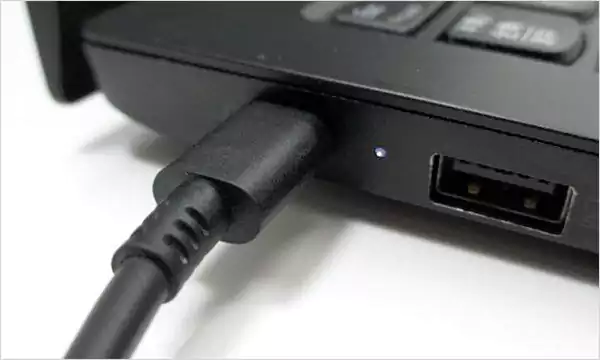
A faulty charger or power outlet is one of the most common reasons a laptop won’t start. Here’s how to turn on a Lenovo laptop:
- Plug the charger directly into a working wall outlet.
- Check the charging cable and adapter for visible damage.
- Make sure you are using the correct Lenovo charger for your laptop.
- Let the battery charge for 5 to 10 minutes, then try running the laptop again.
2. Disconnect External Devices
External accessories can sometimes interfere with the startup process. Disconnect all connected devices, including USB drives, external monitors, docking stations, memory cards, printers, and external keyboards and mice. Once everything is disconnected, try turning on the laptop again.
3. Perform a Hard Reset
A hard reset clears any residual electrical charge that may prevent the laptop from starting.
- Disconnect the charger and all accessories.
- Remove the battery if your laptop has a removable one.
- Press and hold the Power button for at least 10 seconds.
- Reconnect the charger and turn the laptop back on.
4. Use the Emergency Reset Hole
Many Lenovo laptops with built-in batteries include a small Emergency Reset Hole on the bottom or side of the device. Here’s how you can use it to fix the Lenovo computer not turning on.
- Disconnect the charger and insert a straightened paperclip into the reset hole for a few seconds.
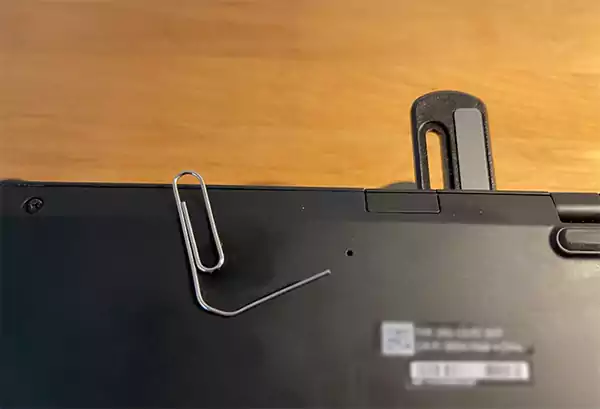
- Reconnect the charger.
- And press the Power button again.
5. Try the Novo Button (Ideapad and Yoga Models)
If you are facing the Lenovo Thinkpad not turning on or the Lenovo Yoga not turning on issue, you can use the Novo Button. It opens recovery and startup options when Windows won’t load.
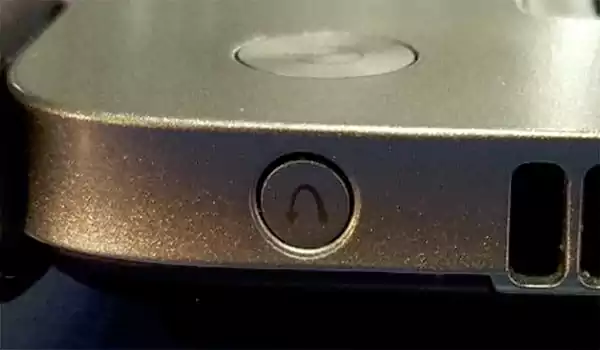
With the laptop powered off, press the Novo button and choose Normal Startup if available. You can also use the Novo menu to access the BIOS or recovery options.
6. Check for a Display Issue
If the power light is on or you hear the fan spinning but the screen stays black, the laptop may already be running. Connect it to an external monitor. If the external display works, the problem is likely with your laptop’s screen. If nothing appears on either display, try some other troubleshooting method or contact professionals.
When to Contact Lenovo Support?
If your Lenovo won’t turn on even after trying the solutions above, it’s best to get professional help. Continuing to force restarts or opening the laptop yourself could make the problem worse.
Contact Lenovo support if:
- The laptop shows no signs of power, even with a working charger.
- The charging port is loose, damaged, or overheating.
- You notice a burning smell, unusual noises, or a swollen battery.
- The laptop repeatedly shuts down after turning on.
- The issue started after liquid damage or a physical drop.
- The emergency reset hole or Novo button does not resolve the problem.
If your laptop is still under warranty, avoid disassembling it yourself, as this could affect your warranty coverage.
Best Practices to Prevent Lenovo Startup Problems
While some hardware failures can’t be avoided, these simple habits can reduce the chances of startup issues.
- Use the original Lenovo charger or a certified replacement.
- Keep Windows, BIOS, and drivers updated using Lenovo Vantage.
- Shut down Windows properly instead of forcing power-offs.
- Avoid letting the battery drain completely on a regular basis.
- Keep the charging port clean and free from dust.
- Protect your laptop from moisture, extreme heat, and accidental drops.
- Disconnect unnecessary accessories before shutting down the laptop.
Following these practices can help improve your laptop’s long-term reliability and reduce unexpected startup problems.
Final Thoughts
A Lenovo laptop that won’t turn on does not always mean there is a serious hardware problem. In many cases, simple fixes like checking the charger, performing a hard reset. Or using the Novo button are enough to get it working again.
If your laptop still won’t start after trying these solutions, contact Lenovo Support or an authorized service center for further assistance.
Frequently Asked Questions
Why won’t my Lenovo laptop turn on?
Where is the power button on a Lenovo laptop?
On most Lenovo laptops, the power button is above the keyboard or near the top-right corner. Some Yoga models place it on the side.
How do I turn on a Lenovo laptop that is completely dead?
Charge it for 5 to 10 minutes, perform a hard reset, and use the Emergency Reset Hole or Novo Button if your model includes one.
What should I do if my Lenovo ThinkPad won’t turn on?
Check the charger, disconnect external devices, perform a hard reset, and use the emergency reset feature if available. If the problem continues, contact Lenovo Support.
How to restart Lenovo laptops?
If Windows is responding, select Start > Power > Restart. If the laptop is frozen, press and hold the Power button until it turns off, then press it again to restart.
Related Posts

8 Best Online Tools to Identify Unknown Callers
When a call comes on your screen with no name or context, you just zone out, thinking you should pick…
How to Fix Black Shadow on Laptop Screens?
A black shadow on laptop screens can look like a Windows glitch, but the shape and location of the dark…

Fixing Broken IP Allowlists With a Dedicated Static Address
IP allowlisting is one of the easiest security controls available. Tell a service to accept connections only from addresses you…

What is DumpStack.log and Can You Delete It in Windows?
If you have noticed a file named DumpStack.log in the root of your Windows drive, you may wonder why it…

How eSIM Fits Into Your Global Travel Itineraries
Multi-country trips can be exciting, but sometimes mobile device data makes it concerning. Whenever you cross a border, there will…

How to Pick the Right Data Structure Before You Build Your Database
Every application that stores information depends on a structure chosen long before the first row of data arrives. That structure…

Standardizing React Component Iconography Across Distributed Product Teams
Creating a common React component library is essentially a losing battle. During a cross-team review, I shared my screen. I…
Antimalware Service Executable: What It Is and How to Fix High CPU Usage
You open Task Manager and notice Antimalware Service Executable using a surprising amount of CPU or memory. It may keep…

Keeping Your Website Healthy: A Practical Guide to Long Term Success
Introduction The website may appear to be finished once it is launched; however, making sure that the site remains reliable…