


Yes, many Mac backup tools like Time Machine, Backblaze, Carbon Copy Cloner, and ChronoSync support connected external drives.
Best macOS External Drive Backup Software for Reliable Mac Backups in 2026
A failed macOS update, a damaged SSD, accidental deletion, or an external drive issue can wipe out years of work within seconds. That is exactly why choosing the right macOS external drive backup software is so important.
Apple’s built-in Time Machine still works well for basic backups. But many Mac users now want faster recovery, bootable backups, cloud syncing, and better automation. If you are also one of them, this guide will help you pick the best backup software for Mac in 2026.
TL;DR
- Time Machine is the easiest backup solution for everyday Mac users.
- Carbon Copy Cloner is one of the best tools for bootable recovery and advanced backups.
- Backblaze is excellent for cloud backups and external drive protection.
- Tools like ChronoSync and Arq backup offer advanced automation, encryption, and multi-drive workflows for power users.
- The safest option combines local, external, and cloud backups together.
10 Best macOS External Drive Backup Software
Choosing backup software for Mac is no longer just about saving files. Modern backup tools now focus on advanced features and faster data recovery for Mac.
Here are the best backup programs for Mac worth considering in today’s time.
1. Time Machine
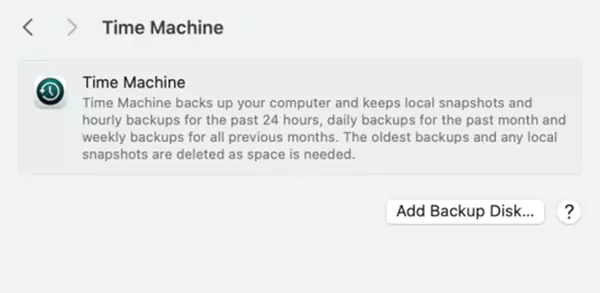
Time Machine is still the easiest backup starting point for most Mac users because it is built directly into macOS. Once enabled, it automatically creates hourly, daily, and weekly backups using an external drive.
The biggest advantage here is simplicity. Plug in an SSD or HDD, select the backup disk, and macOS handles the rest automatically in the background. It works especially well for documents, photos, office work, student use, and basic system recovery.
However, Time Machine is primarily designed to recover files on Mac and to restore historical backups. It is not ideal for fast disaster recovery or bootable backups, which is why many professionals pair it with clone-based tools.
Best For: Everyday Mac users who want automatic backups without extra setup.
Pros
- Free with macOS
- Extremely beginner-friendly
- Automatic background backups
- Excellent file restore experience
- Works seamlessly with Migration Assistant
Cons
- No true bootable clone support
- Limited advanced customization
- Slower full-system recovery
- Mostly local backup-focused
- Not ideal as the only backup layer
2. Carbon Copy Cloner
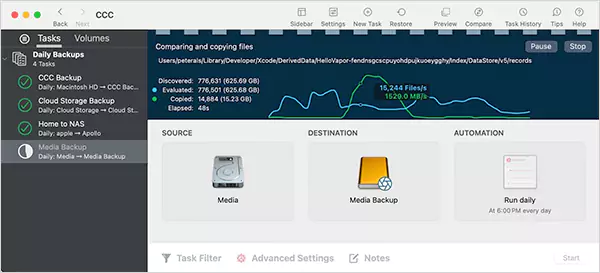
Carbon Copy Cloner remains one of the most trusted Mac backup tools because of its recovery-focused design. Unlike Time Machine, it creates clone-style backups that closely mirror your system drive.
That matters during emergencies. If your Mac suddenly fails during an important project, Carbon Copy Cloner helps you recover much faster compared to traditional restore-based backups.
It is especially popular among editors, developers, designers, and creative professionals. The software also includes:
- Smart scheduling.
- Backup verification.
- Incremental cloning.
- Snapshot management.
- External drive automation.
The only downside is that it has a slightly steeper learning curve than Time Machine.
Best For: Bootable backups and professional recovery workflows.
Pros
- Excellent disaster recovery workflows
- Advanced scheduling and automation
- Reliable incremental cloning
- Great for professionals and creators
Cons
- Paid software
- Learning curve for beginners
- Bootable clone limitations on newer Macs
- Overkill for casual users
3. Backblaze
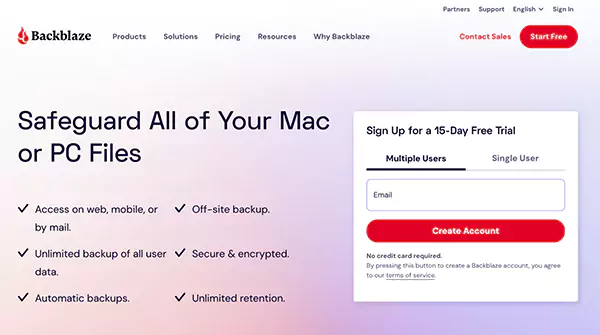
Backblaze is one of the simplest cloud-based macOS external drive backup software. Instead of relying only on local drives, it continuously uploads files securely to the cloud in the background.
This becomes extremely valuable during SSD data recovery, theft, water damage, ransomware attacks, accidental deletion, etc. Unlike many cloud platforms, it also supports connected external drives, making it especially useful for creators and photographers with large media libraries.
Its biggest strength is simplicity. However, keep in mind that it is not designed for bootable recovery or instant large restores.
Best For: Off-site cloud backup with external drive support.
Pros
- Excellent off-site protection
- Supports external drives
- Very easy to use
- Unlimited cloud backup plans
- Great for creators with large media files
Cons
- No full clone-style recovery
- Restore speeds depend on the internet
- Less control than advanced Macintosh backup software
- Subscription-based pricing
4. ChronoSync
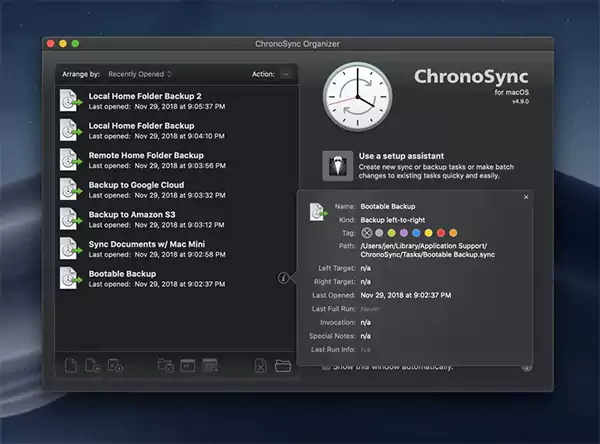
ChronoSync is built for users who want deeper control over synchronization and backup behavior. It is especially useful for advanced workflows involving multiple drives, NAS storage, shared project folders, and hybrid backups (local plus cloud).
The biggest advantage here is customization. You can create detailed automation rules, scheduled sync tasks, and folder mirroring workflows with far more flexibility than mainstream backup apps. However, beginners may initially find the interface more technical than Time Machine or Backblaze.
Best For: Advanced backup automation and multi-drive workflows.
Pros
- Flexible workflows
- Excellent for NAS and multi-drive setups
- Powerful scheduling tools
- Great sync customization
- Strong professional workflows support
Cons
- Steeper learning curve
- Interface feels too technical
- More setup time required
- Overkill features for casual users
5. SuperDuper!
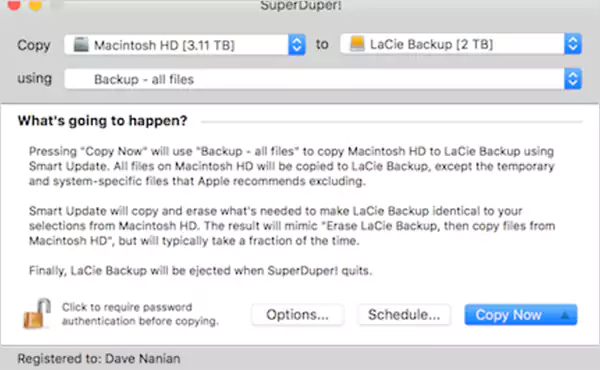
SuperDuper! has remained popular because it focuses heavily on dependable cloning instead of trying to become an all-in-one platform. The workflow is simple: just choose a source drive, choose a destination, and create a clone backup.
That makes it useful for users who want an additional recovery layer alongside Time Machine. The interface feels slightly outdated compared to modern Mac apps, but many long-time users still appreciate the simplicity of the software.
Best For: Simple clone-based backups without unnecessary complexity.
Pros
- Easy clone-based backups
- Beginner-friendly workflow
- Reliable recovery workflows
- Works well with external drives
- Great secondary backup layer
Cons
- Outdated interface
- Fewer advanced features
- Limited cloud integration
- Not ideal for enterprise workflows
6. Arq Backup
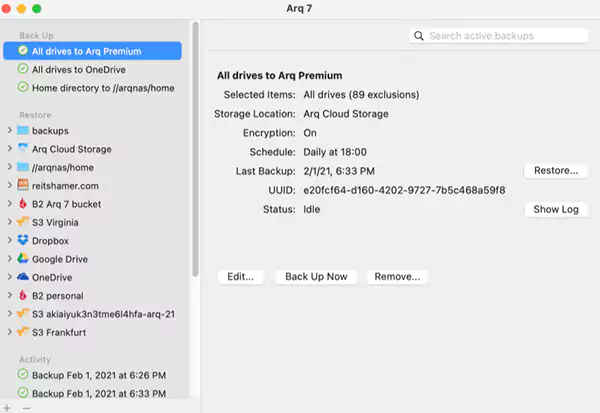
Arq Backup is one of the strongest Mac system backup software for privacy-focused users because it allows you to decide where your backups are stored.
It supports external drives, NAS systems, Google Drive, Dropbox, OneDrive, Backblaze B2, and more. Another major advantage is strong client-side encryption, which helps protect sensitive files before they leave your Mac.
The setup process is obviously a bit more technical than simpler tools like Backblaze, but once configured properly, Arq becomes a very reliable long-term backup solution.
Best For: Encrypted backups across multiple storage destinations.
Pros
- Excellent privacy and encryption
- Works with multiple cloud providers
- Great storage flexibility
- Supports NAS and external drives
- Strong long-term backup control
Cons
- Slight learning curve
- Interface feels technical and not beginner-friendly
- Requires manual setup decisions
- No built-in cloud ecosystem
7. Get Backup Pro
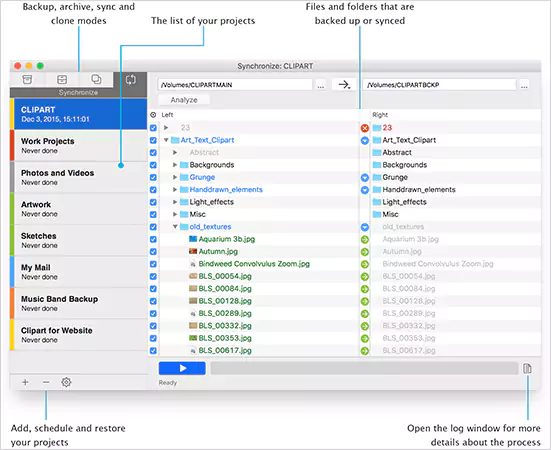
Get Backup Pro is the best backup utility for Mac because of how well it balances simplicity and flexibility. It supports incremental backups, cloning, folder synchronization, scheduling, and archiving without becoming overly complicated.
The interface stays relatively clean while still offering users enough control over back behavior. It works wonderfully for user handling secondary drives, external SSDs, and eMMCs regularly.
Best For: Flexible backups without overwhelming complexity.
Pros
- Clean and simple interface
- Good balance of features and usability
- Supports cloning and sync workflows
- External drive friendly
- Easier than many advanced Mac backup tools
Cons
- Smaller ecosystem
- Fewer advanced enterprise tools
- Less well-known than larger competitors
- Limited cloud integrations
- Fewer automation options
8. Acronis Cyber Protect Home Office
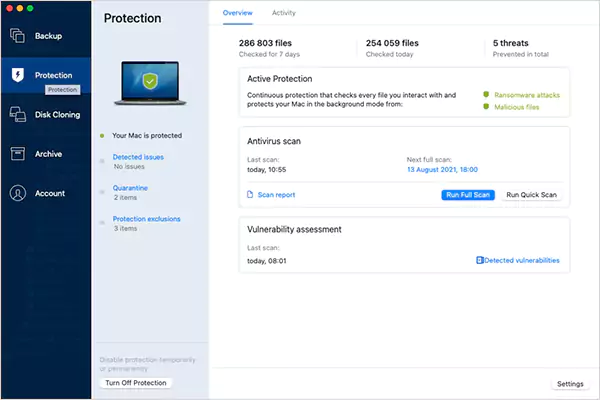
Acronis combines local backups, cloud backups, disk imaging, malware protection, ransomware defense, and recovery tools inside a single platform.
It is a security-focused backup management tool. In 2026, backups are no longer only about hardware failure. Ransomware and malicious encryption attacks are becoming real concerns even for everyday users.
Acronis is powerful, but also heavier than simpler backup tools. So, some users may find the interface crowded during large backup operations.
Best For: Backup and cybersecurity protection together in one place.
Pros
- Excellent security integration
- Strong cloud and local backup combination
- Good ransomware protection
- Full-system imaging support
- Strong disaster recovery features
Cons
- Resource-heavy compared to simpler tools
- Higher pricing
- The interface can feel crowded to some users
- More features than casual users need
- Subscription-focused ecosystem
9. IDrive
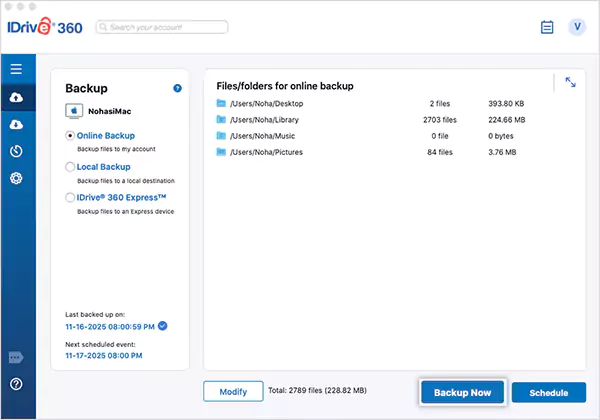
IDrive is one of the best choices for users managing multiple devices under one account. It supports Macs, PCs, mobile devices, external drives, and NAS systems while keeping pricing relatively affordable.
Another major advantage is its hybrid backup support, allowing users to maintain both local and cloud backups simultaneously. The interface is not as polished, but the overall value is excellent for multi-device users.
Best For: Multi-device cloud backup at a reasonable price.
Pros
- Strong value for multiple devices
- Good external drive support
- Hybrid backup flexibility
- NAS and cloud support
- Affordable long-term plans
Cons
- Interface feels less polished
- Slightly more technical setup
- Upload speeds vary by region
- Less beginner-focused
- Can feel feature-heavy initially
10. EaseUS Todo Backup for Mac
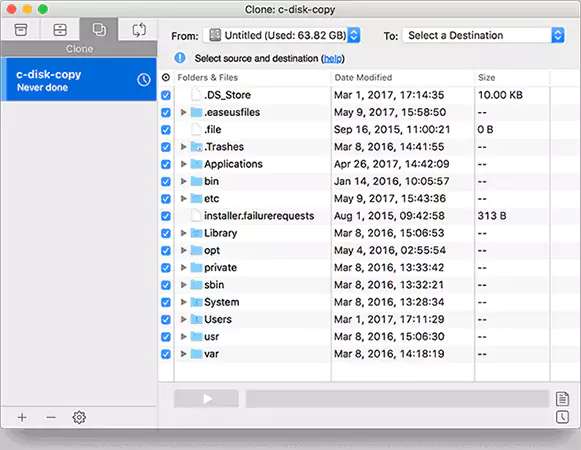
EaseUS Todo Backup for Mac combines backup automation, cloning, disk imaging, encryption, and cloud support. The good part is that it is not too expensive.
It supports file backups, full-system backups, SSD cloning, scheduled automation, and AES-256 encryption. The interface is slightly more cluttered than minimalist tools like Backblaze or SuperDuper!, but overall, it is a great value for money for budget-conscious users.
Best For: Budget-friendly backup and cloning features.
Pros
- Strong backup features for the price
- Supports cloning and imaging
- Good encryption support
- Flexible scheduling options
- Great value for budget-conscious users
Cons
- Restore speeds can feel slow
- The interface is slightly cluttered
- Some advanced tools are locked behind paid plans
- Less polished than premium competitors
Quick Comparison: Best Mac Backup Software
Selecting Mac backup software becomes easier when you compare the things that actually matter in daily use. One important thing we noticed while testing is that there is no single perfect backup solution for every Mac user.
So, here’s a quick side-by-side comparison table to help you in the decision-making:
| Software | Best for | External Drive Support | Cloud Backup | Bootable Clone | Ease of Use | Pricing |
| Time Machine | Basic automatic backups | Yes | No | No | Very easy | Free with macOS |
| Carbon Copy Cloner | Clone-based recovery | Yes | Limited | Yes | Moderate | $49.99 one-time |
| Backblaze | Cloud backup | Yes | Yes | No | Very easy | $9/month or $99/year |
| ChronoSync | Advanced automation | Yes | Yes | Partial | Moderate to advanced | $49.99 one-time |
| SuperDuper! | Lightweight cloning | Yes | No | Yes | Easy | Free version available; paid version starts at $27.95 |
| Arq Backup | Encrypted backups | Yes | Yes | No | Moderate | Around $49.99 one-time |
| Get Backup Pro | Flexible local backups | Yes | Limited | Yes | Easy | $19.99 |
| Acronis | Backup plus security | Yes | Yes | Yes | Moderate | $49.99 /year |
| IDrive | Multi-device backups | Yes | Yes | No | Moderate | Starts at $69.65 for the first year |
| EaseUS Todo | Budget-friendly backups | Yes | Limited | Yes | Easy to moderate | Free version available; paid plans start from $39.95 |
How We Tested Backup Software for macOS?
Most Mac backup software reviews only compare features. But that alone is not enough. For this guide, we focused on real-world Mac usage and tested each tool on the following factors:
- Backup speed on SSDs and HDDs.
- Restore reliability.
- External drive compatibility.
- NAS support.
- Scheduling performance and encryption features.
- Bootable recovery support.
- Cloud backup flexibility.
- Ease of use for beginners.
We also evaluated how these tools support modern backup strategies like the 3-2-1 rule, where users maintain multiple copies across local and off-site storage.
How to Choose the Right Backup Software for Mac?
Selecting macOS backup software becomes much easier once you understand what actually matters for your workflow. Here are the most important things to consider:
- Backup Type: Different backup tools focus on different goals, like full-system backup, file-level backups, clone-based recovery, and cloud syncing. For example, if you want faster disaster recovery, clone-based tools are usually better.
- External Drive and Cloud Support: Check whether the software supports external SSDs, HDDs, NAS storage, and cloud platforms.
- Scheduling and Automation: Good backup software should support automatic and incremental backups, real-time syncing, and flexible scheduling.
- Encryption and Security: If your backup contains sensitive data, look for AES encryption, password protection, ransomware protection, and secure cloud uploads. Security features matter a lot more now than they did a few years ago.
- Ease of Use: Some backup tools are built for beginners, while others target advanced users.
So just sort your priorities first, and then pick the right tool according to your requirements and technical know-how.
Final Verdict: Which Mac Backup Software is Best for You?
If you want the simple setup, Time Machine is still the easiest starting point because it is built directly into macOS.
However, for serious recovery protection, Carbon Copy Cloner remains one of the strongest macOS external drive backup software overall solutions. Meanwhile, Backblaze is one of the best choices for users who want cloud-based protection for both Macs and external drives.
The smartest backup setup for Mac usually does not rely on a single tool alone. You should combine local backups, external drive backups, and off-site cloud backups. This is what gives you real protection.
Frequently Asked Questions
Can I back up an external drive with backup programs for Mac?
What is the best Mac backup software for an external drive?
Carbon Copy Cloner is one of the best options for external drive backups because of its cloning and recovery features. Time Machine is better for simple automatic backups.
Is Time Machine enough for Mac backup?
For basic local backups, yes. But many advanced users combine it with clone-based or cloud backup software for stronger protection.
What format should I use for a Time Machine disk?
Apple says APFS or APFS Encrypted is the preferred format for a Time Machine backup disk.
Which Mac backup software supports bootable backups?
Carbon Copy Cloner, SuperDuper!, and Acronis are some software that support clone-style or bootable recovery workflows on Mac.
Related Posts
Best Tools for Recovering Deleted Files on a Mac
A wrong click can leave you sinking in grief and sorrow, just because that accidental click has deleted an important…

What to Back Up Before Migrating Your Business to New Software
Software migration hardly results in data loss during migration. It’s possible that you lose the data after a week or…

How Modern Enterprises Are Scaling Infrastructure with Custom AI
For many businesses, AI works as a collection of tiny experiments such as a chatbot, a coding assistant, or sometimes…
VMware vs. Sangfor aSV vs. Nutanix: Which Hypervisor Actually Saves You Money?
Selecting the right hypervisor isn’t simply an issue of technology; it could end up having a significant effect on your…

SD Card Corruption in IoT Devices: Why It Happens So Often and How to…
IoT devices can have good sensors, robust software, and an excellent housing, but all it takes is one small thing…

5 Best SaaS Platforms for Financial Services and Growing Businesses in 2026
In 2026, SaaS platforms have become essential for businesses that want to build smooth processes, automate routine tasks and clarify…

How Digital Records Support Workplace Injury Claims
An injury in the workplace does not necessarily mean that you have just a physical problem to overcome. It could…

What Happens When Your Office Emergency Plan Is a Drawer?
An office emergency plan should not end with the first aid box sitting in the last drawer. All employees should…

How Data Recovery and Recordkeeping Failures Cost Businesses More Than They Realize
Most businesses file data recovery issues and recordkeeping gaps under different headings, treating one as an IT problem and the…