


This happens when Windows cannot find the files needed for updates or repairs, usually due to corrupted system files, broken update cache, or missing repair sources.
How to Fix Error 0x800f081f on Windows 11: Complete Update Repair Guide
You are here because you may have encountered install error – 0x800f081f. This error code appears after something interrupts updates, triggers failed installations, and causes DISM or missing file errors in both Windows 10 and Windows 11.
Windows update error 0x800f081f usually happens when important system files are corrupted, update components are damaged, or Windows cannot find the required repair source file.
The good thing is that you can fix it without resetting your PC. With the right troubleshooting steps, including built-in tools and repair methods like SFC and DISM scans, you can resolve the error and restore update functionality.
Quick Answer: How to Fix Windows Update Error 0x800f081f?
- Run Windows Update Troubleshooter
- Reinstall .NET Framework 3.5
- Run SFC and DISM Scans
- Reset Windows Update Components
- Perform an In-Place Upgrade Repair
- Try to Install the Update Manually
What is Error 0x800f081f?
Install or DISM error 0x800f081f is a common Windows update issue that happens when Windows cannot find the files it needs to complete an update, install features like .NET Framework 3.5, or repair damaged system files.
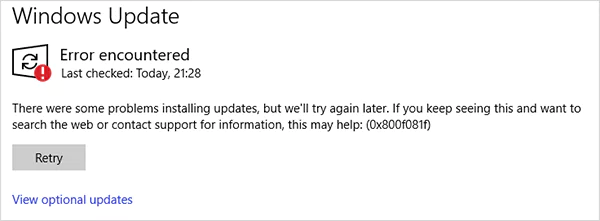
In simple terms, Windows detects a problem but cannot access the correct repair source. Common causes include:
- Missing or corrupted Windows update files.
- Damaged system image or component store.
- Broken .NET Framework installation.
- Invalid Windows ISO or repair source.
- Incorrect Group Policy or update settings.
You may find different messages appearing on your screen for this error, such as:
- Install error – 0x800f081f windows 11 24h2
- Windows 11 version 25H2 install error
- Security updates KB5072033 for Windows 11 fail to install 0x800f0991
- KB5065426 0x800f081f
In most cases, this error is not hardware-related. It usually points to corrupted system files or missing repair components.
How to Fix Windows Install Error 0x800f081f?
To fix Windows update errors 0x800f081f properly, focus on repairing the source of the problems instead of repeatedly retrying updates.
1. Run Windows Update Troubleshooter
Windows Update Troubleshooter is Microsoft’s built-in repair tool that can automatically detect and fix common update failures, like DISM 0x800f081f, install error 0x80070002, and update error 0x80070643.
Here are the steps to run the troubleshooter:
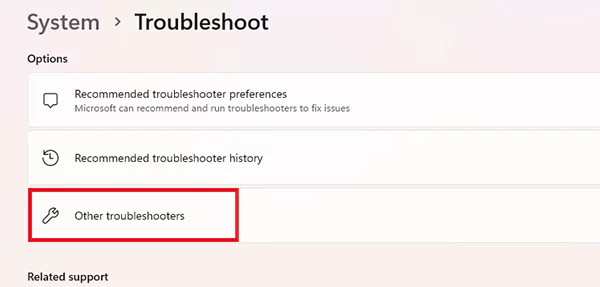
- Open Settings, and go to System > Troubleshoot > Other troubleshooters.
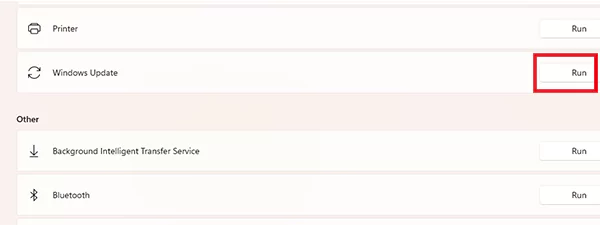
- Now, find Windows Update, and click on Run.
- Restart your PC after completion and try updating again.
This tool checks update services, corrupted files, and incorrect configurations. This is the first-line solution and often resolves basic update issues without advanced troubleshooting.
2. Reinstall .NET Framework 3.5
Since this error is frequently linked to missing .NET files, reinstalling it can help. Here’s how you can do that:
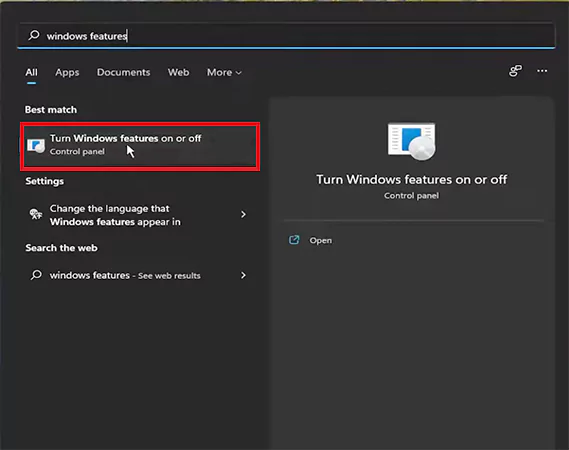
- Press Windows + S and search for Windows Features.
- Next, open Turn Windows features on or off.
- Locate .NET Framework 3.5. If enabled, uncheck it to disable.
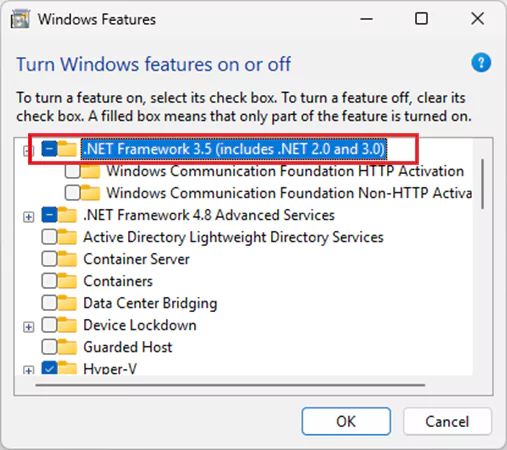
- Restart your PC, return to Windows Features, and re-enable .NET Framework 3.5.
- Finally, choose “Let Windows Update download the files for you”.
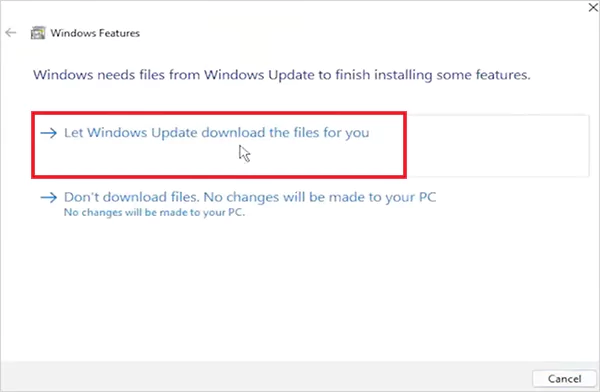
If it was already installed, disabling and reinstalling it refreshes corrupted files and often resolves installation conflicts.
3. Run SFC and DISM Scans
If system corruption is the real cause, SFC and DISM commands are essential. These tools can repair damaged system files and repair the Windows image.
- Open Command Prompt as Administrator.
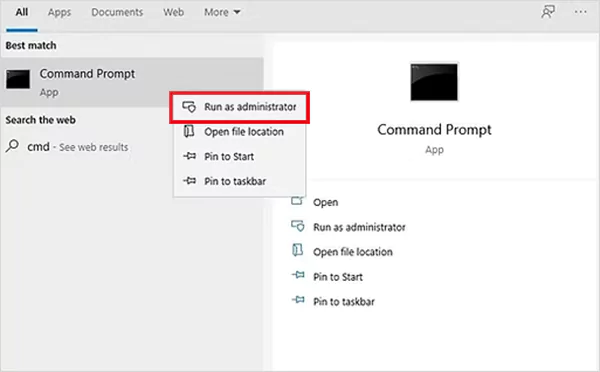
- Run sfc /scannow.
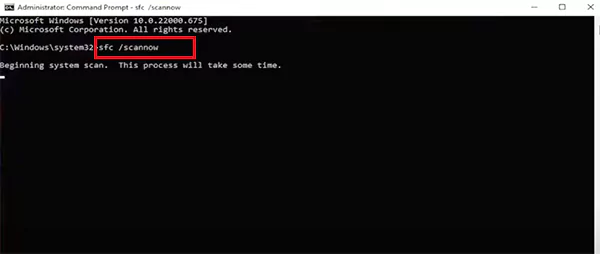
- Once complete, run: DISM /Online /Cleanup-Image /RestoreHealth
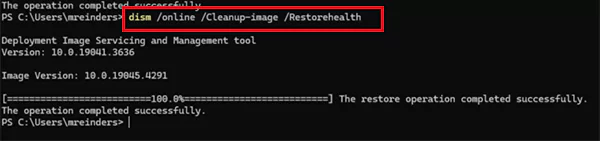
This combination of Windows command prompt commands fixes most software corruption behind 0x800f081f.
4. Reset Windows Update Components
If your update cache is damaged, Windows may repeatedly fail even when repair files are available. Resetting update components clears corrupted cache folders like SoftwareDistribution and Catroot2.
- Run Command Prompt as administrator.
- First, stop update services by running the following commands:
net stop wuauserv
net stop cryptSvc
net stop bits
net stop msisever
- Next, rename corrupted update cache folders:
ren C:\Windows\SoftwareDistribution SoftwareDistribution.old
ren C:\Windows\System32\catroot2 catroot2.old
- Then, just restart update services:
net start wuauserv
net start cryptSvc
net start bits
net start msisever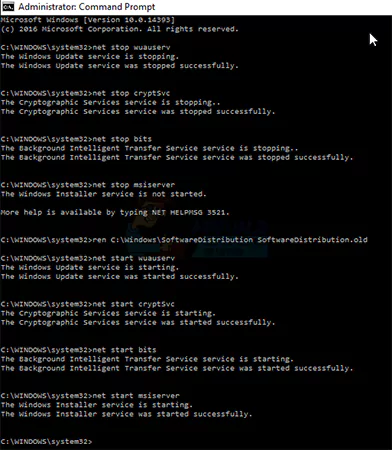
This forces Windows to rebuild update files instead of relying on potential corrupted cache.
5. Perform an In-Place Upgrade Repair
If the “error: 0x800f081f the source files could not be found” continues, repairing Windows using the latest official ISO is often the fastest solution.
An in-place repair installs Windows over your existing installation while keeping personal files, installed apps, and settings.
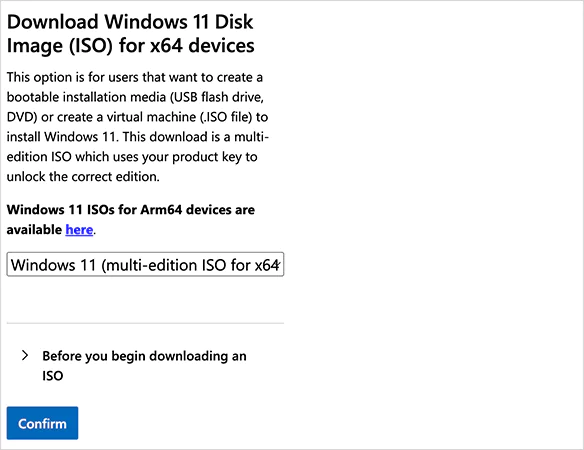
- Download the latest Windows 11 ISO from Microsoft.
- Next, mount the ISO file by double-clicking on it.
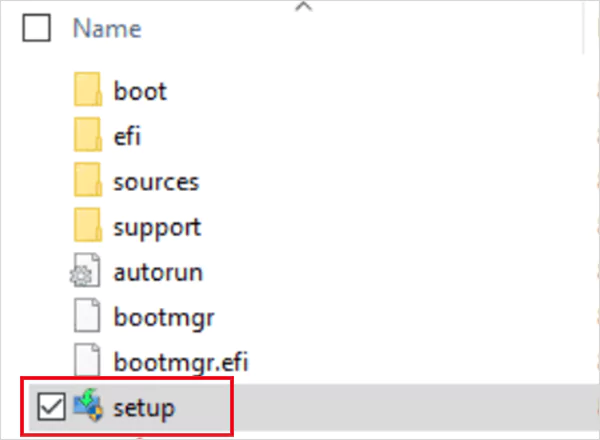
- Now, just open the setup file and follow the on-screen instructions to install the latest Windows 11 version.
- Make sure you select the Keep personal files and apps option.
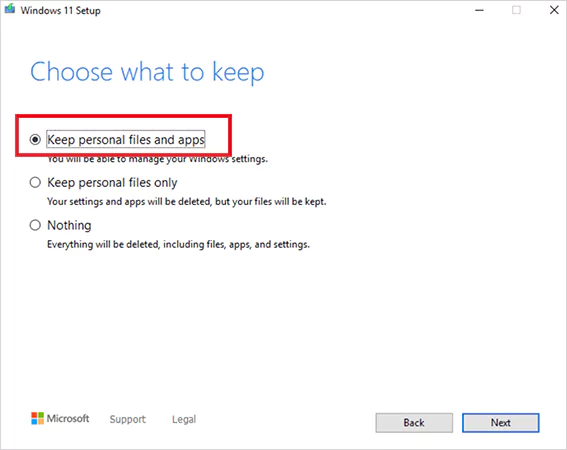
This is one of the most reliable solutions when DISM and SFC fail repeatedly. It repairs deep system corruption without deleting your data.
6. Try to Install the Update Manually
If one specific KB update keeps failing, manual installation can bypass broken update services completely.
- Open Windows Update Settings.
- Note the failing KB number.
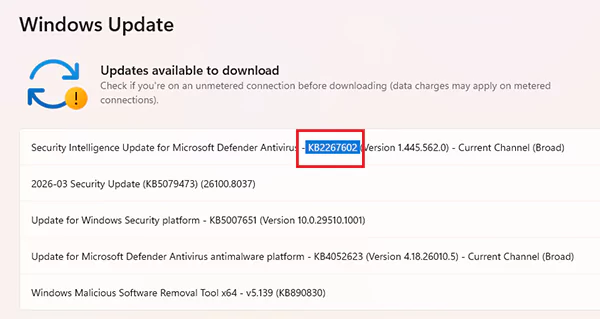
- Next, visit Microsoft Update Catalog and search for the same KB update.
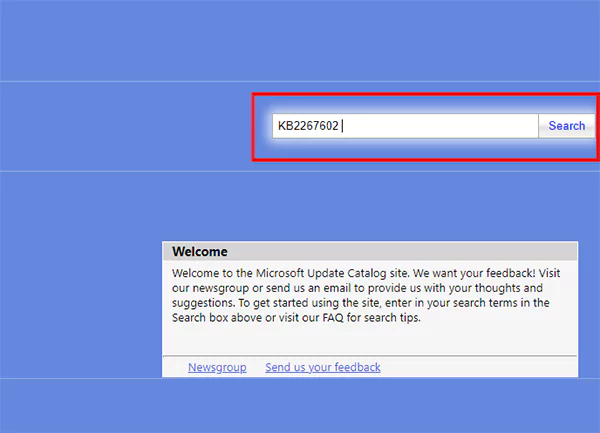
- Download the correct version and install it manually.
These six methods are the most reliable and practical solutions you can try to fix the 0x800f081f error. The key is to restore valid Windows repair sources and fix system corruption properly.
Tips to Prevent 0x800f081f Error in the Future
Preventing this error is largely about keeping your Windows image healthy. Here are a few smart prevention tips you should follow:
- Keep Windows updated regularly instead of delaying major updates for months.
- Maintain at least 20 GB of free storage for updates.
- Avoid forced shutdowns during updates and use only official Microsoft ISOs.
- Run the SFC command occasionally, and do not forget to create restore points before major updates.
- Keep .NET Framework and optional features stable.
- Avoid aggressive third-party registry cleaners or system optimizers.
Most recurring 0x800f081f errors happen because of poor maintenance or broken update sources.
Wrapping Up
Error 0x800f081f may seem serious, but it is usually repairable with the help of a few simple methods. A systematic repair approach saves time, prevents unnecessary frustration, and often restores Windows without data loss.
So, follow the insights of this guide, and remember that proper maintenance and verified repair sources are the real keys to avoiding future update failures.
Frequently Asked Questions
Why is my Windows showing error 0x800f081f?
What is the Windows 11 25H2 install error?
It is a feature update failure often caused by compatibility issues and damaged update files. Error Code 0x800f081f is a common example of this failure.
How do I fix Windows error 0x800f081f?
Start with Windows Troubleshooter, then run SFC and DISM scans, reset .NET Framework, and use an in-place upgrade if needed.
Can DISM cause error 0x800f081f?
Yes, DISM shows this error when it cannot access valid repair files, usually because the Windows image or repair source is damaged.
What is the 0x800f0983 Windows 11 update error?
It is a Windows 11 update failure usually caused by corrupted system components, damaged update files, or servicing issues that block cumulative or feature updates from installing properly.
Related Posts
The macOS Installation Couldn’t Be Completed? Learn How to Fix It
You are halfway through a macOS update when the progress bar stops, and a message says the macOS installation couldn’t…
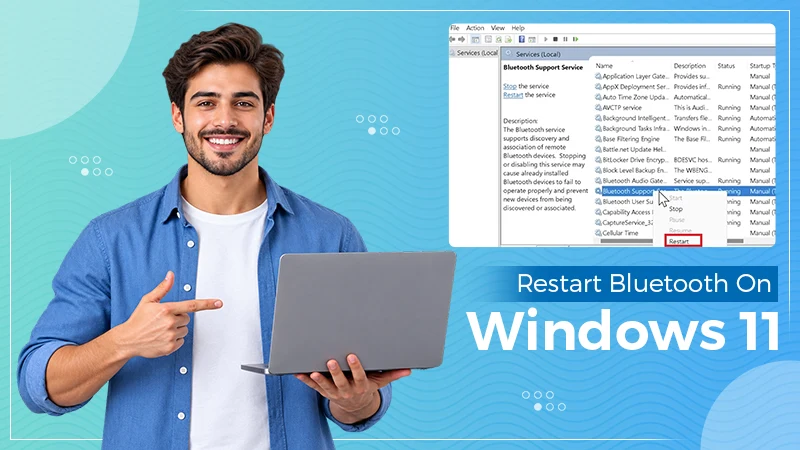
How to Restart Bluetooth Service Windows 11? (Fix Bluetooth Issues)
Bluetooth stopped working in Windows 11? It can suddenly stop working even when your headphones, mouse, or keyboard work perfectly…
How to Fix External Hard Drive Not Showing Up in Windows?
You plug in your external hard drive, wait for Windows to recognize it, and then… nothing pops up. The drive…
How to Fix the System Service Exception BSOD Error in Windows
A sudden Windows blue screen can bring everything to a stop, and the System Service Exception error does not tell…
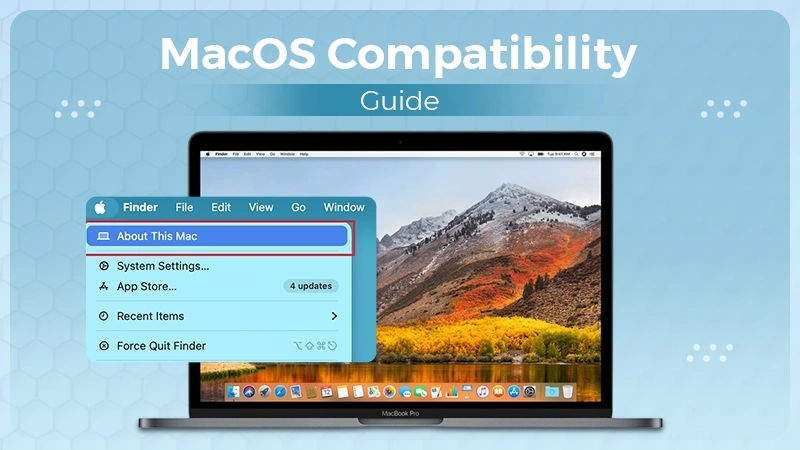
macOS Compatibility Guide: What macOS Can My Mac Run?
Trying to update an older Mac can leave you with one simple question: what version of macOS can my Mac…
How to Check How Much RAM You Have on Windows and Mac?
How much RAM do I have? Not sure whether your computer has 4 GB, 8GB, 16GB, or more RAM? You…
VCRUNTIME140.dll Not Found: How to Fix the Error in Windows
You open an app expecting it to work, only to see a cryptic message saying: VCRUNTIME140.dll not found. In most…
How to Split Screen on Windows Laptops?
Working with two apps at once is much easier when you don’t have to keep switching between them. Windows has…
How to Fix “This App Has Been Blocked for Your Protection” in Windows?
You open an app, and Windows stops you with a red warning: This app has been blocked for your protection.…