


On macOS Tahoe and later, the clipboard history is available inside Spotlight. It shows a list of previously copied items on the Mac.
Clipboard History Mac: How to See and Manage Copied Items
Correct me if I am wrong, but most users do not think about the Mac clipboard until something important disappears. You copy a link, note, image, or file, then accidentally copy something else. Finding or copying again can sometimes become frustrating.
Clipboard History Mac solves this issue by keeping track of recently copied content in one place. With macOS Tahoe and later, Apple includes a built-in feature that allows you to quickly find, search, and reuse copied items without relying on third-party clipboard solutions.
Quick Answer: How to check Clipboard History on Mac?
- If you are using macOS Tahoe or later, open Spotlight with Command + Space > Press Command + 4 to access Clipboard History.
- You can also view the clipboard by clicking on the clipboard icon after opening Spotlight.
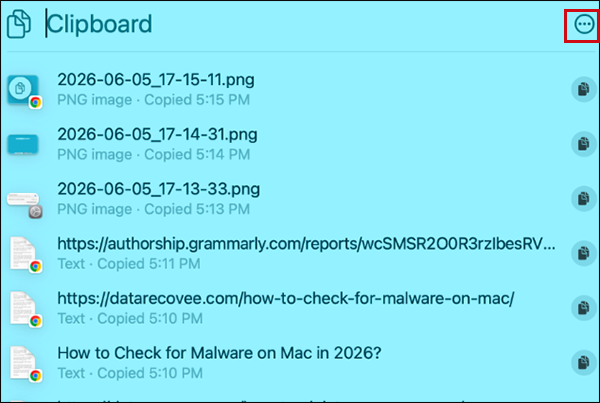
- You can browse your recently copied text, links, images, files, etc., and use the search bar to find a specific item.
What is Clipboard History on Mac?
Clipboard Mac is a feature that lets you view and reuse items you have copied recently on your system. Traditionally, it could only store one copied item at a time. If you copied something new, the previous item was replaced immediately.
Clipboard History on Mac changes that by keeping a list of recently copied items, making it easier to retrieve something you copied earlier. Depending on what you have copied, the history may include texts, links, images, documents, and files.
Apple introduced this feature through Spotlight in macOS Tahoe. This means you no longer need a third-party clipboard manager for basic clipboard tracking.
I am really happy with this inclusion. And for people who regularly switch between emails, documents, websites, and apps, this feature can make everyday work much smoother.
How to See Clipboard History on Mac?
If your Mac is running macOS Tahoe or later, checking clipboard history takes only a few seconds. Here‘s how to open the clipboard on a Mac:
- Press Command + Space to open Spotlight on your Mac.
- Now, click on the clipboard button or press Command + 4 (Clipboard History Mac Shortcut).

- Here, you can browse through recently copied items.
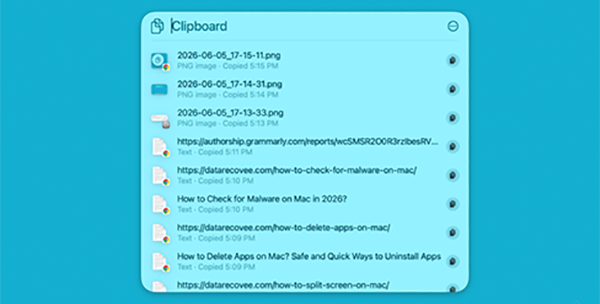
The first time you open the clipboard history, macOS may ask you to enable the feature from Settings. Once enabled, Spotlight automatically keeps track of recently copied content and displays it in a searchable list.
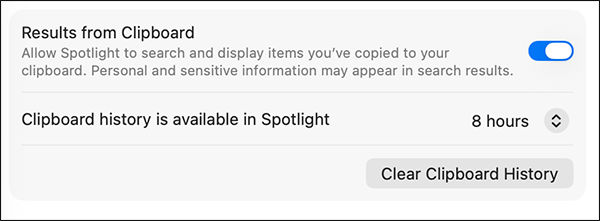
You can also search entries using keywords, copy and older items again with a single click, and clear your history when needed.
How to Manage Mac Clipboard History?
Now, of course, viewing the clipboard history is only part of the features. You can also manage copied items directly from Spotlight. Here’s how:
1. Copy an Item Again
If you need something you copied a few minutes or even a few hours ago, just open the clipboard, find the item you need, and click the copy icon next to it. You can then paste it anywhere.
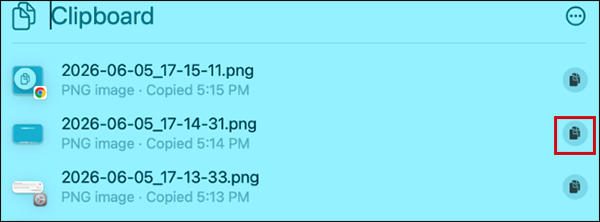
This is useful when you want to reuse links while researching, copying media, and retrieving information that was accidentally overwritten by a newer copy action.
2. Search for Older Entries
If you have copied multiple items throughout the day, scrolling through the list can take time. You can use the Spotlight search bar to quickly locate:
- Specific words or phrases.
- Website URLs.
- File names.
- Recently copied notes.
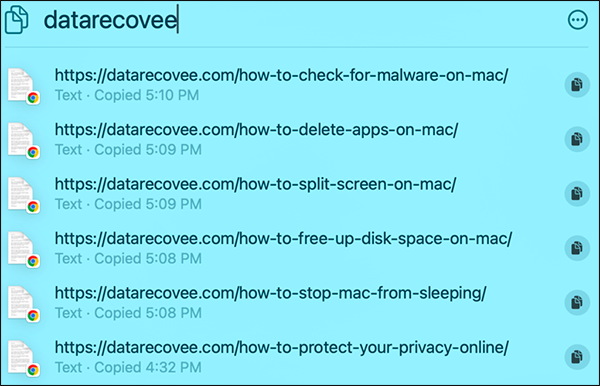
Searching is often faster than manually browsing a long clipboard history.
3. Delete Clipboard History
If you have copied passwords, personal information, financial details, or other sensitive data, clearing your history is a good security habit. To remove stored items:
- Click on the three-dot menu at the top-right corner.
- Select Clear History.
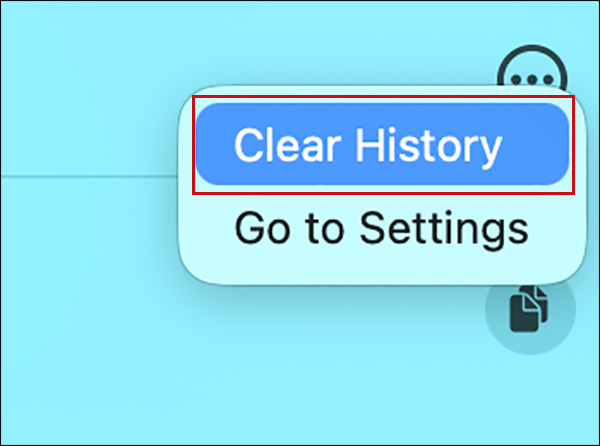
Keep in mind that clearing the history removes all saved clipboard entries, so make sure you no longer need them before proceeding. Regularly clearing sensitive data can help protect your online privacy.
Clipboard History vs Universal Clipboard: What’s the Difference?
Clipboard History and Universal Clipboard may sound similar, but they serve different purposes. Let’s take a look at their key differentiation:
| Basis | Clipboard History | Universal Clipboard |
| Purpose | Stores recently copied items | Transfers copied content between Apple devices using the same Apple ID |
| Works on | Mac | Mac, iPhone, and iPad |
| Searchable | Yes | No |
| Supports Multiple Items | Yes | Only the latest copied item |
| Best for | Recovering previous copies | Moving content between devices |
In simple terms, Clipboard history on Mac helps you find something you copied earlier. Universal Clipboard allows you to copy on one Apple device and paste on another.
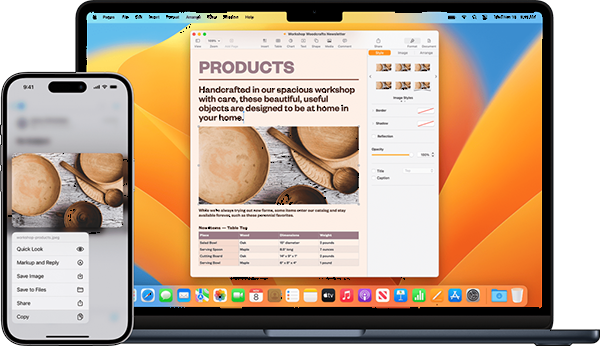
For example, you can copy an image on your iPhone and immediately paste it on your Mac without sending it manually. But those devices should be near each other, and their Bluetooth, Wi-Fi, and Handoff settings should be enabled.
Tips to Use macOS Clipboard History More Efficiently
Once you start using Clipboard History on macOS regularly, a few simple habits can make it even more useful.
- Learn the Shortcut: Press Command + Space, then Command + 4 to open the clipboard instantly.
- Search Instead of Scrolling: If your clipboard contains numerous entries, searching for a keyword will save you a lot of time.
- Clear Sensitive Data Regularly: If you frequently copy confidential or personal information, clear your clipboard history from time to time, and especially before handing your device to someone else.
- Use It For Research and Writing: It is especially beneficial while gathering information from multiple sources. Instead of switching tabs and copying the same content again, you can get it directly from your clipboard list.
These small time-saving tips can add up quickly during your daily work and make you more efficient.
Wrapping Up
Clipboard History Mac may seem like a small feature, but it solves one of the most common frustrations on Mac, i.e., losing something you copied moments ago.
With this integration to Spotlight, finding previously copied text, links, images, and files is much easier than before. Once you start using it regularly, it quickly becomes one of the most used features on Mac computers.
Frequently Asked Questions
Where is the clipboard on a Mac?
How to access the clipboard in Mac?
Open Spotlight on your Mac by pressing Command + Space. Then, click on the clipboard icon when you hover over the spotlight search bar. You can browse, search, and reuse recently copied items.
What is the clipboard history Mac shortcut?
The quickest shortcut is Command + Space (to open Spotlight on Mac), followed by Command + 4.
How long does Mac keep Clipboard History?
Clipboard items are stored temporarily and are automatically removed after a certain period. You can choose the duration of 30 minutes, 8 hours, or 7 days from the System Settings.
How to see clipboard history on iPhone?
iPhone does not currently provide a built-in clipboard history tool. You would need to use a third-party clipboard manager app.
Related Posts

How to Fix DISM Error 87 in Windows?
DISM Error 87 usually appears when Windows cannot understand a DISM command or one of its parameters. You may see…
How to Restart Explorer.exe in Windows?
A frozen taskbar, missing desktop icons, or an unresponsive File Explorer can make Windows feel stuck even when your computer…
How to Reopen Closed Tabs on Mac [Easy Ways to Restore Tabs]
Accidentally closing the wrong tab can be super annoying, especially when you were in the middle of something important. You…
What Is a .BAT file and How Do You Create One?
You may have seen a file ending in .bat and wondered why opening it brings up a Command Prompt window…
How to Disable Microsoft Edge in Windows? 4 Quick Methods
Microsoft Edge can feel difficult to “turn off” because several Windows and Edge settings control when it starts and what…
How to Open EXE Files on Mac: 5 Ways to Run Windows Apps
If you have downloaded a Windows .exe file on your Mac, double-clicking it won’t make it run. macOS does not…
How to Sign Out of iMessage on Mac?
Your Mac can quietly become another place where your private conversations appear. That’s convenient until you are using a shared…
What is Windows Fast Startup and How Does It Work?
Fast Startup can make your PC boot noticeably faster after a shutdown. Instead of completely rebuilding the Windows kernel state…
How to Unzip Files on Mac: 3 Easy Ways to Extract ZIP Files
A ZIP file has a funny way of making a simple task feel more complicated than it is. On a…