


Ans. Use the rm command followed by the file path: rm “/path/to/file”. For confirmation before deletion, use rm -i.
How to Delete Files Completely in Mac Terminal?
Finder makes deleting files simple, but sometimes you need Terminal to remove a file or folder by its exact path on Mac. The Mac Terminal delete file command can remove data directly without moving it to the Trash, which makes it fast but also less forgiving.
A wrong path can remove something you intended to keep. This guide explains how to delete files and remove directories in Terminal, what the common rm options do, and how to avoid mistakes when using them.
Quick Answer
- How to Delete Files in Mac Terminal?
Use the rm command followed by the file path, such as rm ~/Desktop/example.txt. Use rm -i if you want Terminal to ask for confirmation before deleting the file.
- How to Delete a Directory in Terminal?
Use rmdir for an empty directory. To delete a directory and everything inside it, use rm -r. For example, rm -r ~/Desktop/OldFolder.
Why Use Terminal to Delete Files on Mac?
For most everyday deletions, Finder is the safer choice. Select a file, press Command + Delete, and macOS moves it to the Trash. You can recover the file from the Trash until you empty it.
Terminal takes a more direct approach. The rm command removes a file from its location instead of sending it to the Trash. This can be useful when you are working with files by their exact path, managing large directory structures, or prefer using the command line.
The trade-off is that deleting a folder with Terminal gives you less room for mistakes. Always check the path before pressing Return, especially when using commands such as “rm -r” or “rm -rf”.
How to Delete Files and Folders Completely Using Mac Terminal?
To delete a file or remove a folder from Terminal, you need to open Terminal from Applications > Utilities, or search for it using Spotlight. Then you need to run different commands for different situations.
1. Delete a File
The rm command is used to remove individual files. The basic syntax for deleting a file is: “rm /path/to/file”.
For example:
rm ~/Desktop/example.txt
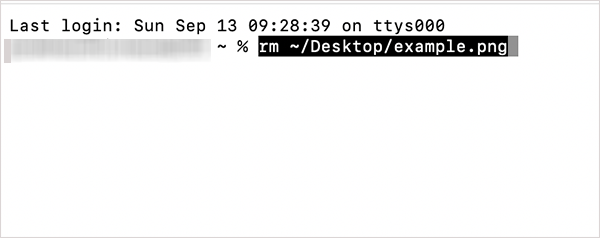
You can also use an absolute path:
rm “/Users/yourname/Documents/example.txt”
The “~” symbol represents your home folder, so it can make paths shorter. If the command succeeds, the file is removed from its location rather than moved to the Trash.
If you want Terminal to ask for confirmation before deleting the file, use -i:
rm -i ~/Desktop/example.txt
This is a useful option when you want an extra check before deleting completely with Mac Terminal.
2. Delete an Empty Folder
Now let’s see how to delete a directory in Terminal on a Mac. To remove an empty directory, use rmdir:
rmdir ~/Desktop/OldFolder

Unlike rm -r, rmdir only removes empty directories. If the folder contains files or other folders, the command fails instead of deleting its contents.
That makes rmdir a useful option when you want an additional safeguard against accidentally removing everything inside a folder.
3. Delete a Folder and Its Contents
To remove a directory in Mac Terminal along with its files and subfolders, use the recursive option:
rm -r ~/Desktop/OldFolder
The -r option tells rm to work through the directory and its contents before removing the directory itself. Because the rm command in Mac Terminal can remove an entire directory tree, verify the folder path carefully before running it.
4. Force Delete Files and Folders
The -f option tells rm to force removal and suppress certain errors, including errors for files that don’t exist.
For an individual file:
rm -f ~/Desktop/example.txt
To delete a folder in Terminal and everything inside it:
rm -rf ~/Desktop/OldFolder
Here. -r means recursive, while -f means force. You may see rm -rf described as a force-delete command, but it isn’t a universal way to bypass every macOS restriction. Permissions and system protection can still prevent some operations.
More importantly, don’t use rm -rf on an unfamiliar path just because you want to remove a stubborn file or folder.
5. Delete Files With Spaces in Their Names
If a file or folder name contains spaces, enclose the path in quotation marks:
rm “Project Notes.pdf”
You can also escape each space with a backslash:
rm Project\ Notes.pdf
For longer paths, quotation marks are usually easier to read:
rm “/Users/yourname/Documents/Project Files/Project Notes.pdf”
Another convenient option is to drag a file or folder from Finder into the Terminal window. macOS can insert its path automatically, reducing the chance of typing it incorrectly.
6. Delete Files When Permission is Denied
If Terminal reports that you do not have permission to delete a file, do not immediately switch to rm -rf.
First, check the file’s permissions and ownership:
ls -l “/path/to/file”
If you have a legitimate reason to remove the file and your account does not have the required privileges, you may need administrator privileges:
sudo rm “/path/to/file”
macOS will ask for your administrator password. Nothing appears on screen while you type the password. So, just press Return when you finish.
Use sudo carefully because it gives the command elevated privileges. An incorrect path can therefore cause a more serious mistake.
Avoid using elevated commands to remove macOS system files or folders. The System folder contains essential operating system components and should not be renamed, moved, or removed.
Final Thoughts
Terminal provides a quick way to remove files and folders completely without using Finder or the Trash. Use rm for individual files, rmdir for empty directories, and rm -r when you need to remove a directory and its contents.
The most important step is checking the path before running the command. If you are unsure, use rm -i for a confirmation prompt and avoid rm -rf unless you have verified exactly what it will remove.
Frequently Asked Questions
What command deletes a file in Mac Terminal?
How do I delete a directory in Terminal on Mac?
Ans. Use rmdir for an empty directory: rmdir “/path/to/folder/”. To remove a directory and its contents, use rm -r.
What does the rm -rf command do on Mac?
Ans. rm -rf combines recursive deletion with force. It can remove a folder and everything inside it without the usual confirmation prompts. Always verify the path before running it.
Can I delete files from Mac Terminal without using the Trash?
Ans. Yes, the rm command removes files directly from their location instead of moving them to the Trash.
Does deleting a file with Terminal permanently erase it?
Ans. Not necessarily, because rm removes the file from the filesystem, but it is not a secure erasure method designed to make the underlying data unrecoverable. If you are preparing an entire Mac for sale or transfer, use Apple’s supported erase process rather than manually deleting files.
Related Posts

What Is a .BAT file and How Do You Create One?
You may have seen a file ending in .bat and wondered why opening it brings up a Command Prompt window…

How to Disable Microsoft Edge in Windows? 4 Quick Methods
Microsoft Edge can feel difficult to “turn off” because several Windows and Edge settings control when it starts and what…

How to Open EXE Files on Mac: 5 Ways to Run Windows Apps
If you have downloaded a Windows .exe file on your Mac, double-clicking it won’t make it run. macOS does not…

How to Sign Out of iMessage on Mac?
Your Mac can quietly become another place where your private conversations appear. That’s convenient until you are using a shared…

What is Windows Fast Startup and How Does It Work?
Fast Startup can make your PC boot noticeably faster after a shutdown. Instead of completely rebuilding the Windows kernel state…

How to Unzip Files on Mac: 3 Easy Ways to Extract ZIP Files
A ZIP file has a funny way of making a simple task feel more complicated than it is. On a…
How to Add Widget in Mac: A Step-by-Step Guide
Your Mac desktop can give you useful information without turning into another dashboard to manage. A weather update, calendar reminder,…
The macOS Installation Couldn’t Be Completed? Learn How to Fix It
You are halfway through a macOS update when the progress bar stops, and a message says the macOS installation couldn’t…

How to Restart Bluetooth Service Windows 11? (Fix Bluetooth Issues)
Bluetooth stopped working in Windows 11? It can suddenly stop working even when your headphones, mouse, or keyboard work perfectly…