


Ans. Yes, you can add Apple widgets, compatible app widgets, and supported iPhone widgets on your Mac. macOS does not provide a built-in tool for creating custom widgets from any information.
How to Add Widget in Mac: A Step-by-Step Guide
Your Mac desktop can give you useful information without turning into another dashboard to manage. A weather update, calendar reminder, or battery status can save you from opening another app just to check one thing.
macOS allows you to add widgets to the desktop, keep them inside Notification Centre, and even use compatible widgets from your iPhone. In this guide, I will show you how to add widget in Mac, and how to edit and choose the widgets that are actually useful.
How to Add Widget in MacBook?
If you want information visible without opening an app, learning how to add widget in Mac desktop is essential. You can place them wherever you want and rearrange them later.
- Right-click anywhere on your desktop.
- Select Edit Widgets.
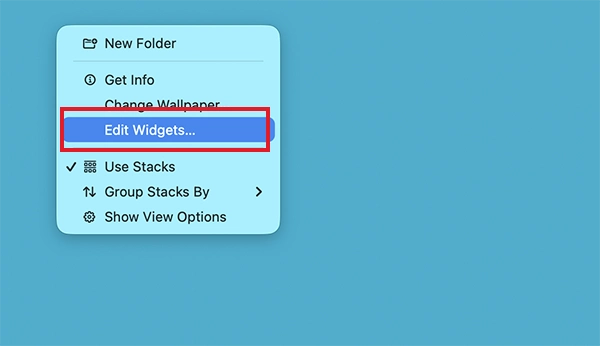
- Browse the available categories or search for a specific widget for MacBooks.
- Click a widget to add it, or drag it to the position where you want it.
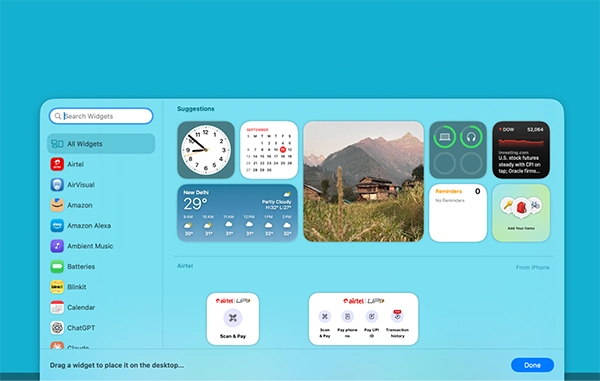
- Click on Done when you are finished.
You can move a widget later by dragging it to another position on the desktop. If open windows are covering your widgets, click the desktop wallpaper to reveal them. macOS also includes settings that control how widgets behave when you click the desktop.
How to Add Widgets on MacBook Notification Centre?
If you prefer a cleaner desktop, you can keep your Mac widgets in Notification Centre instead. This lets you access useful information without leaving widgets visible throughout your workspace.
Here’s how to add widgets to MacBook Notification Centre:
- Click the date and time in the menu bar to open Notification Centre.
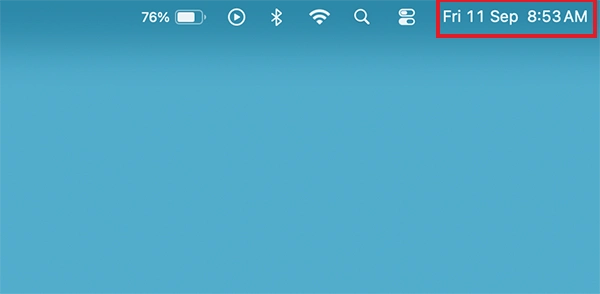
- Scroll to the bottom and select Edit Widgets.
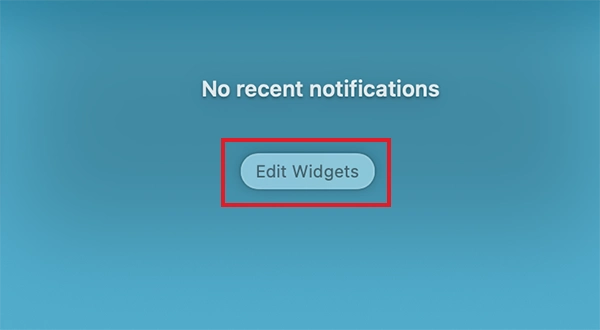
- Browse the available categories or search for a widget.
- Click the widget to add it, or drag it into Notification Centre.
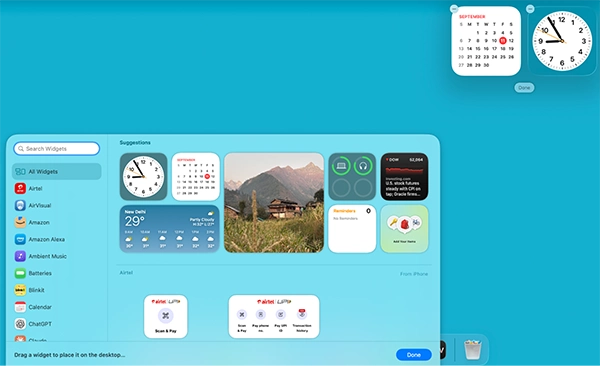
- Drag the widget up or down to change its position, and click Done.
This is useful for information you want nearby but don’t need to see all the time. For example, you can keep Weather or Calendar in Notification Centre and check them whenever needed.
How to Edit Widgets on MacBook?
One of the most asked questions is: How to adjust widgets on Mac computers? Well, after adding a widget, you can change its size, position, and, for supported widgets, the information it displays.
Right-click or Control-click the widget you want to modify. Depending on the widget, you may see options such as:
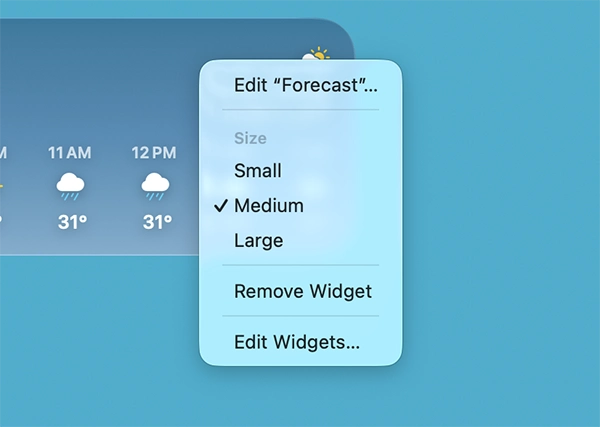
- Edit [Widget Name]: Changes the information displayed by the widget.
- Size: Switches between the available widget sizes.
- Remove Widget: Removes the widget from the desktop of Notification Centre.
A Reminder widget may allow you to choose which reminder list it displays. Not every widget supports editing, so don’t worry if Edit does not appear in its menu.
Furthermore, you can also change how macOS widgets look on your desktop:
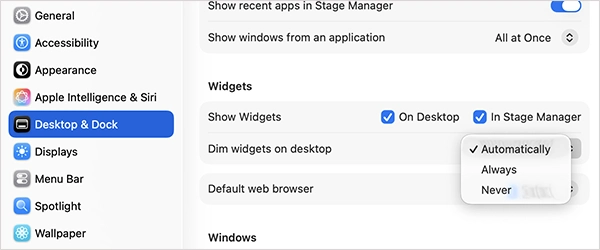
- Go to Apple Menu > System Settings > Desktop & Dock > Widgets.
- Under Dim widgets on desktop, you can choose:
- Automatically: macOS switches between a monochrome and full-color appearance depending on the situation.
- Always: Widgets remain monochrome.
- Never: Widgets always use full color.
Current versions of macOS also include an Icon & widget style option under System Settings > Appearance, which lets you adjust the overall appearance of icons and widgets.
How to Use iPhone Widgets on Your Mac?
You don’t have to limit your Mac to widgets from Mac apps. macOS can also display compatible widgets from apps installed on your iPhone.
Before using iPhone widgets, make sure:
- Your iPhone is running iOS 17 or later.
- Your iPhone and Mac are signed in to the same Apple Account.
- Your iPhone is near your Mac or connected to the same Wi-Fi network.
Once these requirements are met:
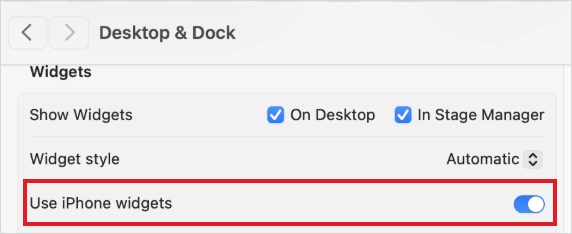
- Open System Settings on your Mac and select Desktop & Dock.
- Scroll down to Widgets.
- Turn on Use iPhone Widgets.
- Now open the widget gallery from the desktop or Notification Centre.
- Find the available iPhone widget and add it where you want.
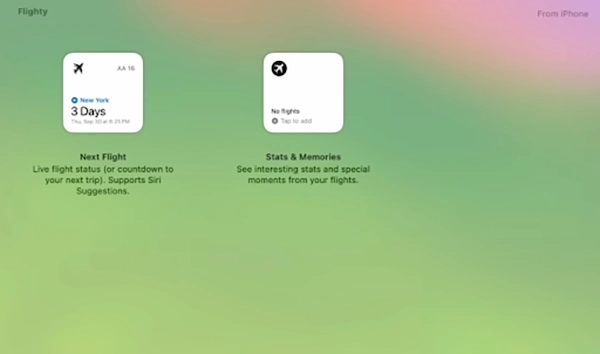
Keep in mind that an iPhone widget does not necessarily mean the corresponding app has a Mac version. If macOS asks you to open the app on your iPhone, the app is not installed on your Mac, and the widget relies on the iPhone app for interaction.
This can be useful when an iPhone app provides a helpful widget but does not have a dedicated Mac app, or you want to save disk space on Mac.
Best MacBook Widgets You Should Consider Adding
The most useful widgets are the ones that save you from opening an app for a quick piece of information or action. You don’t need to fill your desktop with them.
Here are some practical options to consider:
1. Calendar
The Calendar widget keeps upcoming appointments and events visible. It is useful if you regularly switch between meetings, classes, appointments, or other scheduled events.
2. Reminders
If you use Reminders for tasks, its widget gives you a quick view of your to-do list. Supported versions can also let you interact with items directly.
3. Weather
This is useful if you regularly check conditions before leaving home. You can also add multiple Weather widgets for different locations and choose different sizes.
4. Battery
The Battery macOS widget is helpful if you regularly use AirPods, an iPhone, Apple Watch, or other connected Apple devices. It allows you to check available battery information without checking each device separately.
5. Shortcuts
This one is useful for repetitive tasks. You can run shortcuts directly from the widget without opening the Shortcuts app and choose which shortcut or shortcut collection appears.
6. Home
If you use Apple Home, its widgets can give you quick access to compatible smart-home accessories. Depending on the accessory and widget, you can monitor or control devices from your desktop or Notification Centre.
A good starting point is three or four widgets. Add the information you check most often to your desktop and keep less frequently used widgets in Notification Centre.
Conclusion
MacBook widgets are most useful when they remove small interruptions from your day. Instead of opening Calendar to check one appointment or another app to check the weather, you can keep that information a glance away.
You don’t need dozens of widgets to make your Mac more useful. Start with the ones that genuinely save your time and build your setup around how you actually use your Mac.
Frequently Asked Questions
Can I create a widget for my MacBook screen?
How to change widgets on MacBook?
Ans. Right-click the widget and select Edit [Widget Name] to change its content. You can also choose another available size or drag the widget to a new position.
How to remove widgets from Mac?
Ans. Right-click the widget and select Remove Widget. You can also select Edit Widgets from the desktop or Notification Centre.
How to change widget settings on Mac?
Ans. Go to the Apple menu > System Settings > Desktop & Dock > Widgets. From there, you can change widget appearance, control where widgets appear, and enable or disable iPhone widgets.
Can I use the same widget on my Mac and iPhone?
Ans. Yes, if the app supports widgets on both devices. You can also enable Use iPhone Widgets on your Mac to use compatible widgets from apps installed on your iPhone.
Related Posts

What Is a .BAT file and How Do You Create One?
You may have seen a file ending in .bat and wondered why opening it brings up a Command Prompt window…

How to Disable Microsoft Edge in Windows? 4 Quick Methods
Microsoft Edge can feel difficult to “turn off” because several Windows and Edge settings control when it starts and what…

How to Open EXE Files on Mac: 5 Ways to Run Windows Apps
If you have downloaded a Windows .exe file on your Mac, double-clicking it won’t make it run. macOS does not…

How to Sign Out of iMessage on Mac?
Your Mac can quietly become another place where your private conversations appear. That’s convenient until you are using a shared…

What is Windows Fast Startup and How Does It Work?
Fast Startup can make your PC boot noticeably faster after a shutdown. Instead of completely rebuilding the Windows kernel state…

How to Unzip Files on Mac: 3 Easy Ways to Extract ZIP Files
A ZIP file has a funny way of making a simple task feel more complicated than it is. On a…
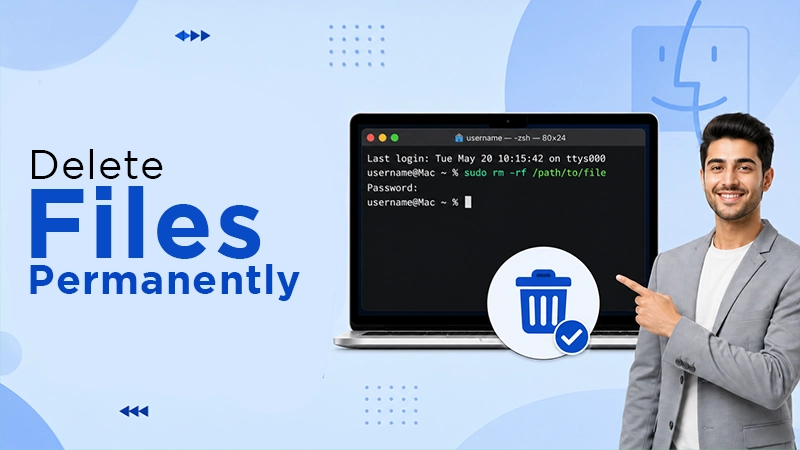
How to Delete Files Completely in Mac Terminal?
Finder makes deleting files simple, but sometimes you need Terminal to remove a file or folder by its exact path…

The macOS Installation Couldn’t Be Completed? Learn How to Fix It
You are halfway through a macOS update when the progress bar stops, and a message says the macOS installation couldn’t…
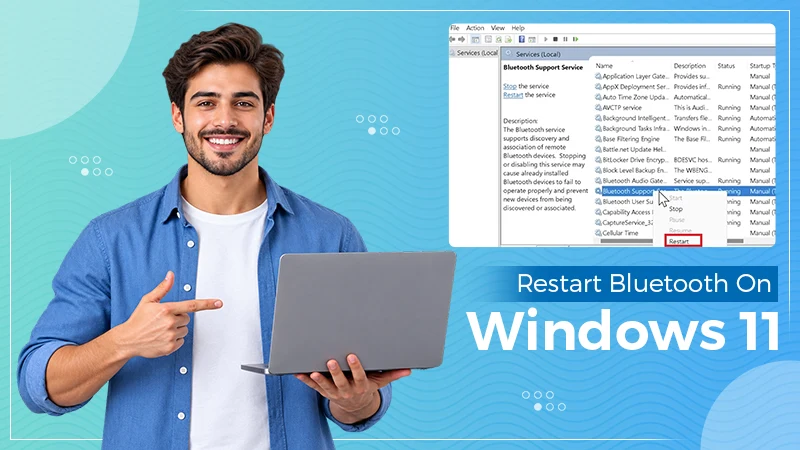
How to Restart Bluetooth Service Windows 11? (Fix Bluetooth Issues)
Bluetooth stopped working in Windows 11? It can suddenly stop working even when your headphones, mouse, or keyboard work perfectly…