


Ans. Drag a window to the left or right edge of the screen until the Snap preview appears, then select another window for the remaining space.
How to Split Screen on Windows Laptops?
Working with two apps at once is much easier when you don’t have to keep switching between them. Windows has a built-in Snap feature that allows you to place windows side-by-side or arrange several apps on the same screen.
You can use your mouse, keyboard shortcuts, or Snap Layouts to split windows. In this guide, I will show you how to split screen on Windows 11, create custom layouts, and fix it when it stops working.
What is Split Screen on PC?
Split screen in Windows 11 allows you to arrange two or more app Windows on the same display so you can use them at the same time. Windows provides this through Snap, which automatically resizes windows when you place them along the sides or corners of your screen.
For example, you can keep a browser open on one side while taking notes in Word on the other. You can also use it to compare documents, follow instructions, or work across multiple apps without constantly switching windows.
Similar to split screen on Mac, you don’t need a separate app for basic functionality. Windows includes everything you need through Snap.
How to Split Screen in Windows?
For two apps, dragging a window to the side or using a keyboard shortcut is usually the quickest option. Windows 11 also includes Snap Layouts and the Snap Bar, while Microsoft PowerToys FancyZones is useful when you want more control over layout.
Here are five methods to learn how to do a split screen on Windows:
1. Split Screen Using Your Mouse
This is the simplest way to place two windows side by side. Here’s how to split screens:
- Open the windows you want to use.
- Click and hold the title bar of the first window.
- Drag it toward the left or right edge of the screen.
- When the Snap preview appears, release the window.
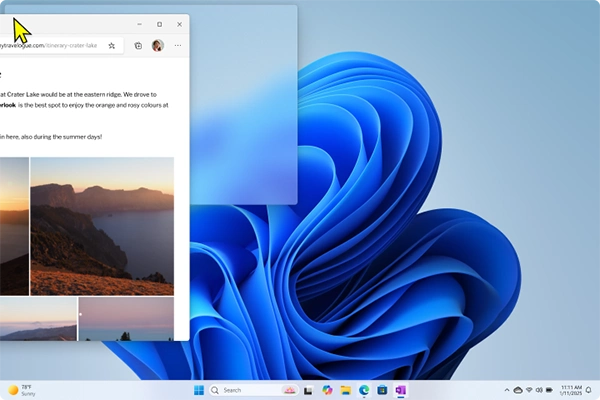
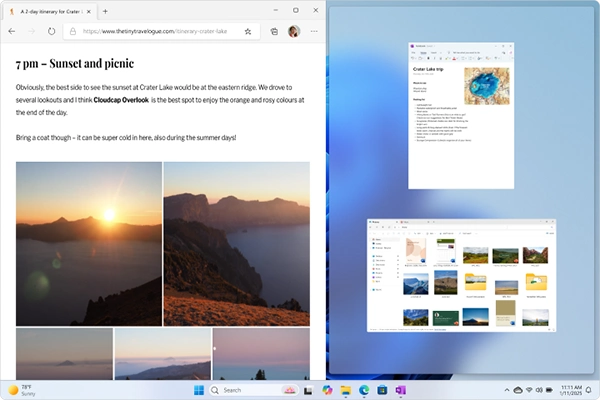
- Now just select another open window from Snap Assist to fill the remaining space.
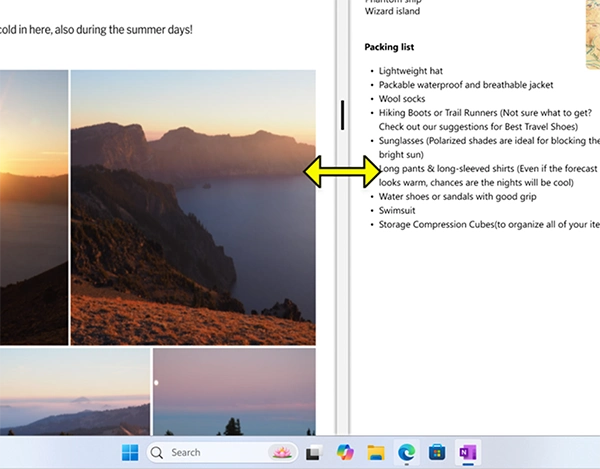
- You can even resize the split windows by adjusting the separator bar.
You can also drag a window toward a corner to place it in a quarter of the screen. This is useful when you want four windows visible at once.
2. Split Screen Using Keyboard Shortcuts
If you don’t want to drag windows around, keyboard shortcuts are faster. Here’s how to do split screen on laptops using shortcuts:
- Windows + Left Arrow: Snap the active window to the left.
- Windows + Right Arrow: Snap it to the right.
- Windows + Up Arrow: Move it toward the upper position.
- Windows + Down Arrow: Move it toward the lower position.
After you snap the first window, Snap Assist will show you other open windows so you can quickly choose what to place beside it.
3. Use Snap Layouts in Windows 11
Windows 11 makes it easier to arrange three or four apps with Snap Layouts.
- Open the windows you want to arrange.
- Hover over the Maximize button.
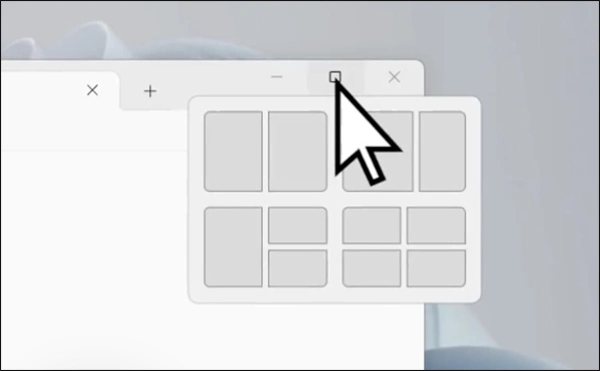
- Choose the layout you want.
- Select your other open Windows to fill the remaining spaces.
You can also press Windows + Z to open the Snap Layouts menu. The layouts available can vary depending on your display size.
For just two windows, the left and right Snap shortcuts are usually faster. Snap Layouts become more useful when you are working with several apps at once.
4. Use the Snap Bar in Windows 11
The Snap Bar is another good feature that is easy to overlook. Here’s another way to learn how to use split screen on Windows 11:
- Drag an open window toward the top of the screen.
- When the Snap Bar appears, choose your preferred layout.
- Finally, use Snap Assist to fill the remaining spaces.
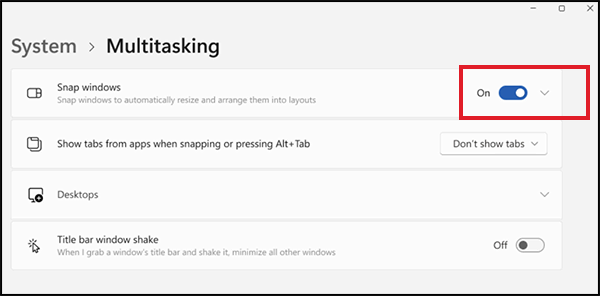
If the Snap Bar does not appear, check Settings > System > Multitasking > Snap windows to make sure the option to show Snap Layouts when dragging a window to the top of the screen is enabled.
5. Create Custom Split Screen Layouts With PowerToys
Windows’ built-in Snap tools are enough for most users. But if you regularly arrange windows in a specific way, Microsoft PowerToys FancyZones gives you more control. To get started:
- Install Microsoft PowerToys.
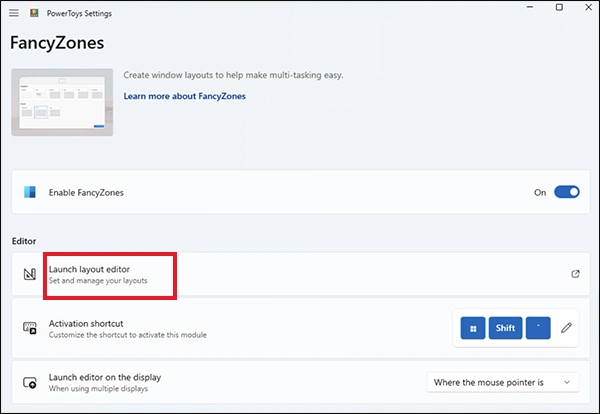
- Open PowerToys Settings > FancyZones, and open the layout editor.
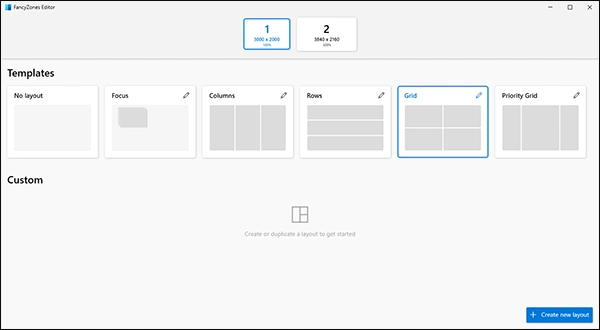
- Choose an existing layout or create your own.
- Now, you can drag your application into the zones you have created.
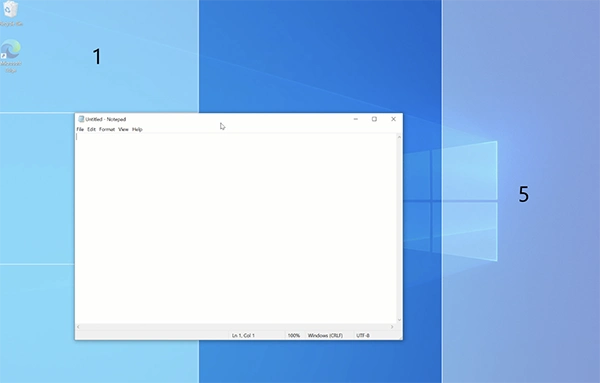
FancyZones allows you to create custom zones and snap applications into them. You can build layouts with custom grids, uneven sections, or other arrangements that are not available through Snap Layouts.
How to Fix Windows Split Screen Not Working?
If Windows is not snapping windows when you drag them to the edge of the screen, start by checking whether Snap windows is enabled.
- Turn on Snap: Open Settings > System > Multitasking, and make sure the Snap windows is turned on. Expand the Snap settings if you want ot adjust Snap Assist, Snap Layouts, or other snapping behavior.
- Try the Keyboard Shortcut: If dragging a window does not work, select it and press Windows + Left or Right Arrow. If the shortcut works but dragging doesn’t, the issue is likely related to your Snap settings or how the window is being moved.
- Check Whether the App Supports Windows Snapping: Some apps don’t behave like standard resizable windows. If Snap works normally with other apps but fails with one particular program, that app may restrict how its window can be resized or positioned.
One more thing to keep in mind: Windows 10 reached end of support on October 14, 2025. Snap still works on existing Windows 10 installations, but Microsoft no longer provides any updates or technical support for the OS.
Final Thoughts
Windows makes split-screen multitasking simple without requiring extra software. Whether you are comparing files, watching a tutorial while working, or managing different tasks, a well-arranged desktop can save time and reduce distractions.
Start with the layout that matches your current task, then resize the sections by dragging the divider between them. When your work is finished, maximize any window normally to return to a single-screen view.
Frequently Asked Questions
How do I split my screen on my laptop?
How to split screen in Windows 10?
Ans. You can drag a window to the left or right edge or use the Windows + Left or Right Arrow keyboard shortcut.
Can I split my screen into four windows?
Ans. Yes, drag windows towards the four corners of your screen to create a four-window arrangement. On Windows 11, you can also use Snap Layouts by hovering over the Maximize button or pressing Windows + Z.
What is the shortcut for split screen windows?
Ans. Use Windows + Left or Right Arrow to snap the active window to either side. On Windows 11, Windows + Z also opens Snap Layouts.
How to do a split screen across monitors?
Ans. Move the window to the monitor you want and use Windows + Shift + Left or Right Arrow to move the active window between monitors. You can then use Snap to position it on the desired side of that display.
Related Posts

How to Fix DISM Error 87 in Windows?
DISM Error 87 usually appears when Windows cannot understand a DISM command or one of its parameters. You may see…

How to Restart Explorer.exe in Windows?
A frozen taskbar, missing desktop icons, or an unresponsive File Explorer can make Windows feel stuck even when your computer…
![How to Reopen Closed Tabs on Mac [Easy Ways to Restore Tabs]](https://datarecovee.com/knowledge-base/wp-content/uploads/2026/10/how-to-reopen-closed-tabs-ftd-img.webp)
How to Reopen Closed Tabs on Mac [Easy Ways to Restore Tabs]
Accidentally closing the wrong tab can be super annoying, especially when you were in the middle of something important. You…

What Is a .BAT file and How Do You Create One?
You may have seen a file ending in .bat and wondered why opening it brings up a Command Prompt window…

How to Disable Microsoft Edge in Windows? 4 Quick Methods
Microsoft Edge can feel difficult to “turn off” because several Windows and Edge settings control when it starts and what…

How to Open EXE Files on Mac: 5 Ways to Run Windows Apps
If you have downloaded a Windows .exe file on your Mac, double-clicking it won’t make it run. macOS does not…

How to Sign Out of iMessage on Mac?
Your Mac can quietly become another place where your private conversations appear. That’s convenient until you are using a shared…

What is Windows Fast Startup and How Does It Work?
Fast Startup can make your PC boot noticeably faster after a shutdown. Instead of completely rebuilding the Windows kernel state…

How to Unzip Files on Mac: 3 Easy Ways to Extract ZIP Files
A ZIP file has a funny way of making a simple task feel more complicated than it is. On a…