


Open Finder and select Go > Applications. You can also access it directly using the /Applications path.
Where is the Applications Folder on Mac and How to Access It
Need to find an installed app, move it into place, or check whether it is available on your Mac? You should start with the Applications folder. It is the main location where macOS stores apps, but it may not appear in Finder’s sidebar.
You can open it through Finder, use a keyboard shortcut, or enter its folder path directly. Learn ‘Where is the applications folder on Mac, how to access it quickly, and what to check if an app is missing.
Where is the Applications Folder on Mac?
The main Applications folder is located at the root of your Mac’s startup disk. Its standard path is: ‘/Applications’. macOS also supports a separate Applications folder inside your personal home directory: ‘~/Applications’.
Here’s how the two locations differ:
| Folder Location | Purpose |
| /Applications | Stores apps available to all user accounts on the Mac. |
| ~/Applications | Stores apps installed specifically for your user account. |
The personal Applications folder does not exist on every Mac. It usually appears when you or an installer creates it.
Some apps may also be stored in Downloads, a custom folder, or an external drive. So, if an app isn’t in /Applications/ location, it does not necessarily mean it has not been installed.
How to Find the Applications Folder on Mac?
You don’t need to browse through multiple directories to find your apps. Here are four ways to open the Applications folder on your MacBook or iMac.
Method 1: Using Finder
Finder is the simplest way to access the Mac Applications folder.
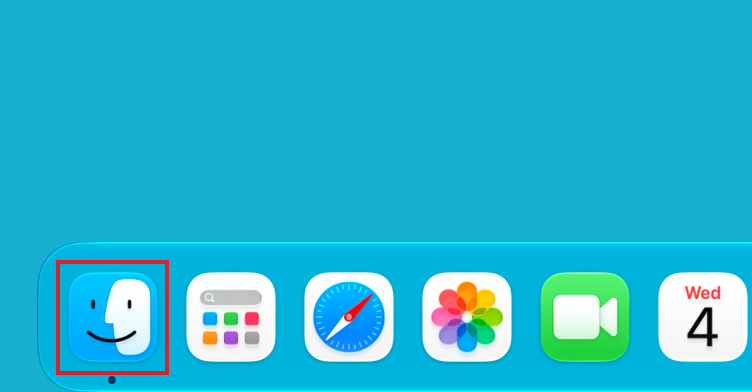
- Click the Finder icon (the blue smiling face) in your Dock.
- Look for Applications in the left sidebar under Favourites.
- Click it to view the available apps.
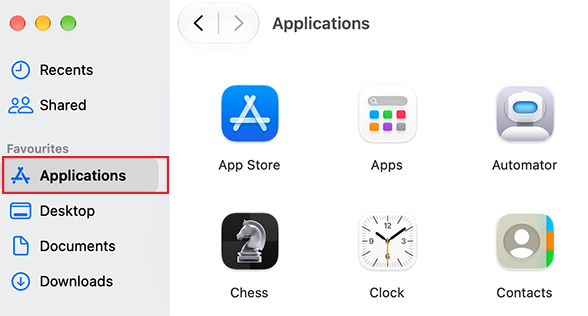
- Alt Text: applications folder
- Now you can double-click any app to open it.
If Applications is not visible in the sidebar, you can open it through the Go menu or add it manually.
Method 2: Using a Keyboard Shortcut
For quicker access, you can use this Finder shortcut:
- Click your desktop or open a Finder window.
- Press Shift + Command + A.
- Your Mac will open the Applications folder directly.
This is particularly useful when you need to access your apps frequently and don’t want to navigate through Finder every time.
Method 3: Using the Go Menu
You can also access the folder from Finder’s menu bar. Here’s how:
- Open Finder.
- Next, click Go in the menu bar at the top of your screen.
- Select Applications from the drop-down menu.
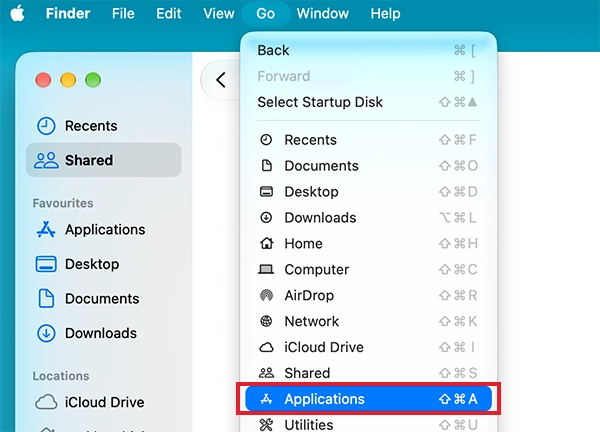
The Applications folder will open in a new Finder window on your Mac.
Method 4: Using Go to Folder
This method is useful when Applications is not visible in Finder, or you want to access a specific folder path.
- Open Finder.
- Press Shift + Command + G.
- Enter /Applications in the text box.
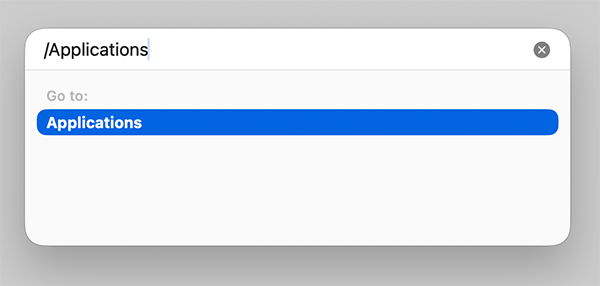
- Press Return
To open your personal Applications folder, enter ~/Applications instead. You can use the same shortcut to access other locations on your Mac if you know their folder paths.
How to Add the Applications Folder to Finder Sidebar or Dock?
If you access your apps frequently, adding the Applications folder to Finder’s sidebar or Dock can save you a few clicks.
To Add the Applications Folder to the Finder Sidebar:
- Open Finder and select Finder > Settings from the menu bar.
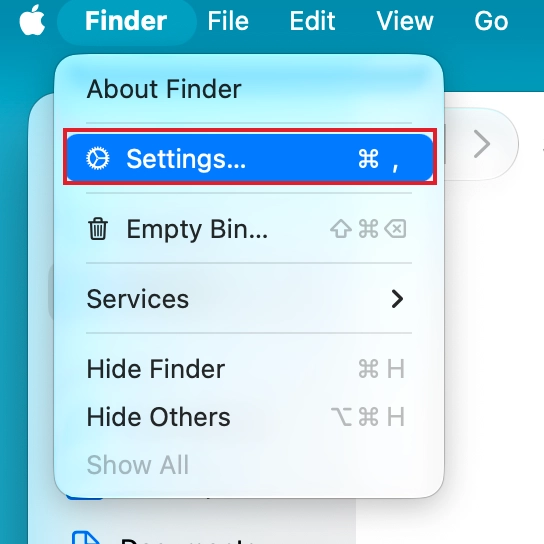
- Click the Sidebar tab.
- Look for Applications under the available sidebar items and enable it, if listed.
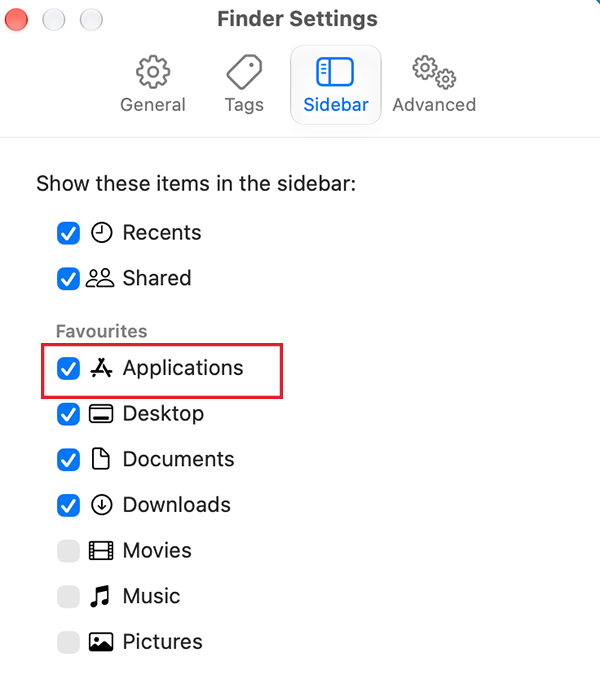
If it is not listed, open the Applications folder and drag it into the Favourites section of the sidebar.
This allows you to access the folder with a single click whenever you open the Finder.
To Add the Applications Folder to the Dock:
- Open Finder and navigate to the Applications folder.
- Drag the folder towards the Dock.
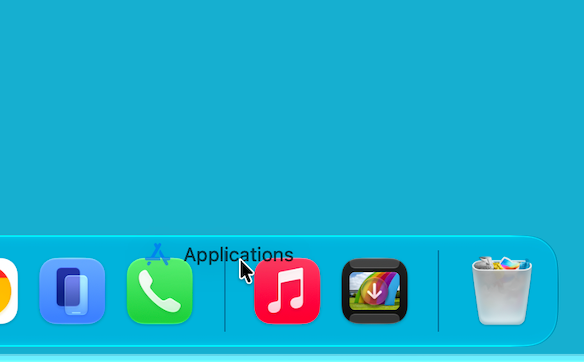
- Drop it in the folder section, to the right of the Dock divider and near the Trash.
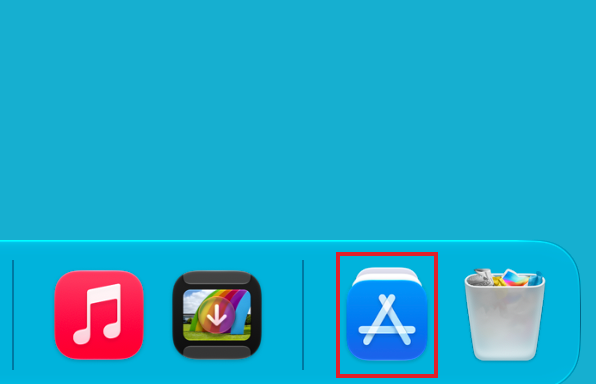
You can click its Dock icon whenever you want to browse your apps. This creates a shortcut without moving the original folder or changing where your apps are installed.
What to Do If an App is Missing from the Mac Applications Folder?
Where is the Applications folder on my MacBook? I have answered this question effectively. But what if you can’t find an app in Applications?
It may be stored somewhere else or may not have been installed properly. Do not assume that you have deleted the app on Mac. Check these locations before downloading it again.
- Search Using Spotlight: Press Command + Space, enter the app’s name, and check the results. If it appears, you can open it directly.
- Check Downloads: Apps downloaded from the internet may still be in this folder if you have not completed their installation.
- Look Inside Your Home Folder: Press Shift + Command + H in Finder and check for a personal Applications folder.
- Check the Installation File: If you downloaded a DMG file, open it and check whether it contains an app that needs to be dragged into Applications. For a PKG file, follow the installer’s instructions.
- Check Other Storage Locations: Some apps may be installed in a custom folder or on an external drive.
Also, do not confuse the Applications folder with Application Support. The Applications folder stores apps, while Application Support contains the files and resources they need to function.
Conclusion
The Applications folder is the main place to find and manage apps on your Mac. You can access it through Finder, the Go menu, or the Shift + Command + A shortcut. Adding it to your sidebar or Dock makes it easier to reach. So, whether you want to open an app, check its installation location, or troubleshoot a missing application, you now know where to look and make things easier.
Frequently Asked Questions
Where is the Applications folder on my iMac?
How do I open the Applications folder on my MacBook?
Open Finder and press Shift + Command + A. This shortcut takes you directly to the Applications folder.
Why can’t I see the Applications folder in Finder?
It may not be enabled in the Finder Sidebar. Open Finder > Settings > Sidebar and enable Applications under Favourites. You can also drag the folder into the sidebar manually.
What is the difference between Applications and Application Support on Mac?
Applications stores the apps you launch, while Application Support contains files and resources required by those apps to function.
How to open applications on Mac?
Open Finder, select Applications, and double-click the app you want to launch. You can also press Command + Space and search for the app using Spotlight.
Related Posts
How to Change Cursor Color in Windows 11?
The default white mouse pointer can be difficult to spot against bright windows, documents, and light-colored backgrounds. That’s when people…

What is LockApp.exe in Windows and How to Fix or Disable It?
LockApp.exe may look suspicious when you spot it in Task Manager, especially if you haven’t opened it yourself. This Windows…
How to Run Windows on Mac: 4 Methods That Actually Work
Buying a Mac does not mean you have to give up Windows. You might need a Windows-only work application, open…

How to Fix DISM Error 87 in Windows?
DISM Error 87 usually appears when Windows cannot understand a DISM command or one of its parameters. You may see…
How to Restart Explorer.exe in Windows?
A frozen taskbar, missing desktop icons, or an unresponsive File Explorer can make Windows feel stuck even when your computer…
How to Reopen Closed Tabs on Mac [Easy Ways to Restore Tabs]
Accidentally closing the wrong tab can be super annoying, especially when you were in the middle of something important. You…
What Is a .BAT file and How Do You Create One?
You may have seen a file ending in .bat and wondered why opening it brings up a Command Prompt window…
How to Disable Microsoft Edge in Windows? 4 Quick Methods
Microsoft Edge can feel difficult to “turn off” because several Windows and Edge settings control when it starts and what…
How to Open EXE Files on Mac: 5 Ways to Run Windows Apps
If you have downloaded a Windows .exe file on your Mac, double-clicking it won’t make it run. macOS does not…