


Ans. On Windows, go to System > About and check Installed RAM. You can also use Task Manager > Performance > Memory.
How to Check How Much RAM You Have on Windows and Mac?
How much RAM do I have? Not sure whether your computer has 4 GB, 8GB, 16GB, or more RAM? You don’t need to open the case or install another utility to find out.
Windows and macOS both have built-in tools that show how much memory your computer has. You can also check how much RAM is being used when you are troubleshooting slow performance.
This guide explains how to check how much you have on Windows and Mac and how to understand the numbers you see.
Quick Answer
- How to check RAM on PC?
Go to Settings > System > About and check Installed RAM under Device specifications. You can also go to Task Manager > Performance > Memory.- How to check RAM on Mac?
Go to the Apple Menu > About This Mac and look for Memory. You can use Activity Monitor for more detailed information.
How to Check How Much RAM You Have in Windows?
Windows gives you several ways to check installed RAM in computers. If you only need the total amount, Settings is the quickest option.
If you are troubleshooting a slow PC, Task Manager gives you more useful information about current memory usage. Here’s how to check how much RAM your pc has:
1. Check RAM in Settings
- Right-click Start and select System.
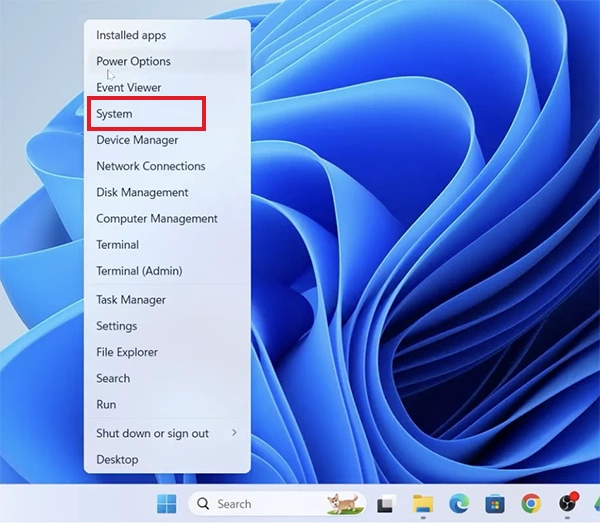
- Scroll down to About.
- Look under Device specifications and check Installed RAM.
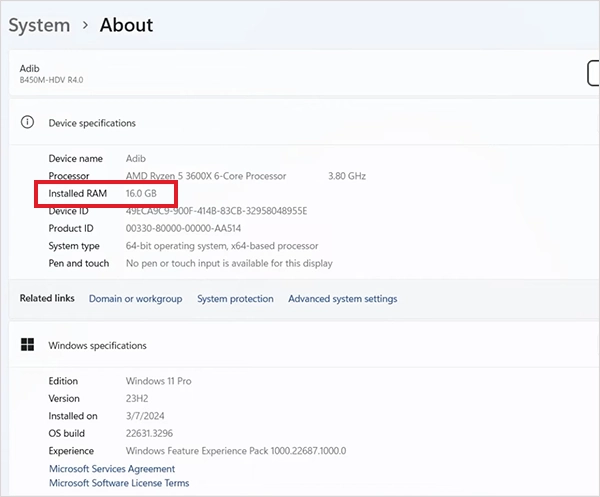
This page also shows other basic system details, including your processor and whether you are running a 32-bit or 64-bit version of Windows.
2. Check RAM Using Task Manager
Task Manager is a better option when you want to see both installed RAM and how much your computer is currently using. Here’s how to check PC RAM:
- Press Ctrl + Shift + Esc.
- Select Performance and click on Memory.
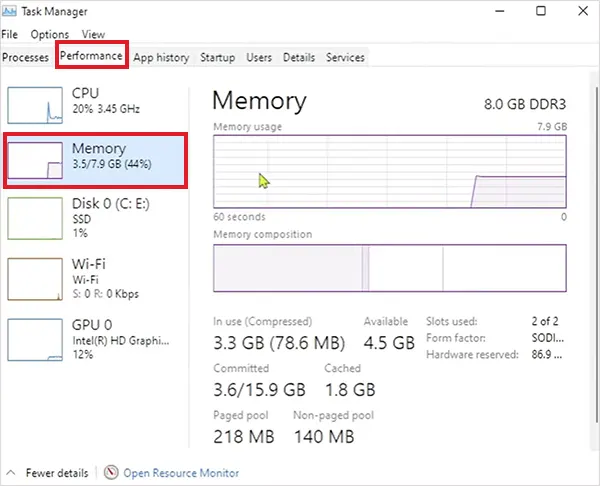
You will see your total memory along with current usage and other memory details. This is especially useful if your computer feels slow while several programs are running.
3. Check RAM With System Information
If you want RAM information alongside other hardware details. Here’s how to check the RAM of laptops:
- Press Windows + R.
- Type msinfo32 and press Enter.
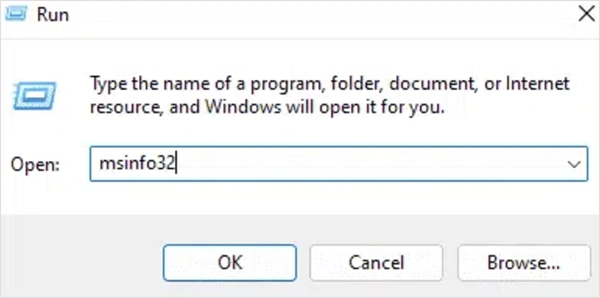
- Look under System Summary for the Installed Physical Memory information.
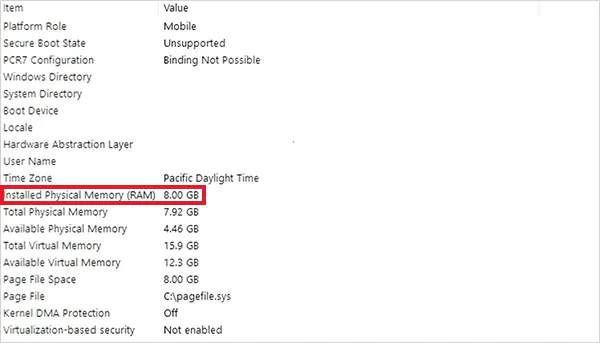
This is useful when you are checking several hardware specifications at once.
How to Check How Much RAM You Have on Mac?
You can check your Mac’s installed RAM directly from macOS. The quickest option is About This Mac, while System Information provides more detailed hardware information. Let’s see how to find RAM on MacBooks.
1. Check RAM in About
- Click the Apple menu at the top-left corner of the desktop.
- Select About This Mac.
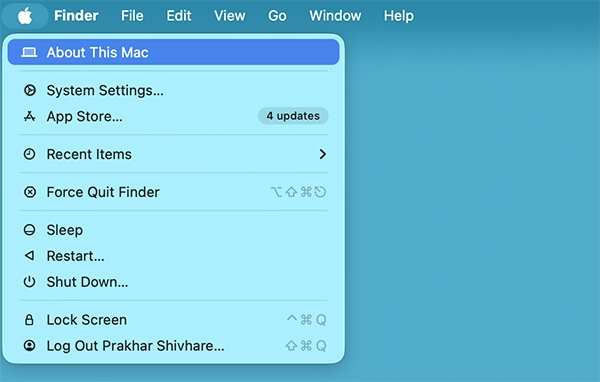
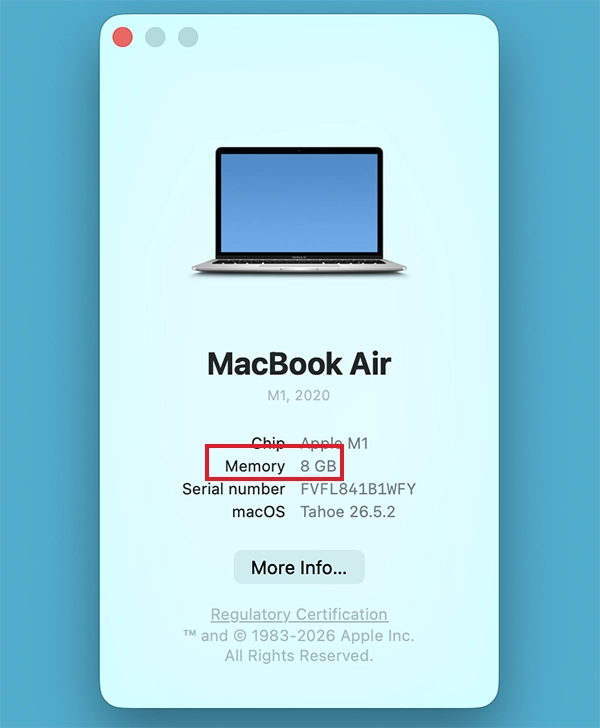
- Now, just look for the Memory information.
- For more detailed hardware information, go to the Apple menu > System Settings > General > About > System Report.
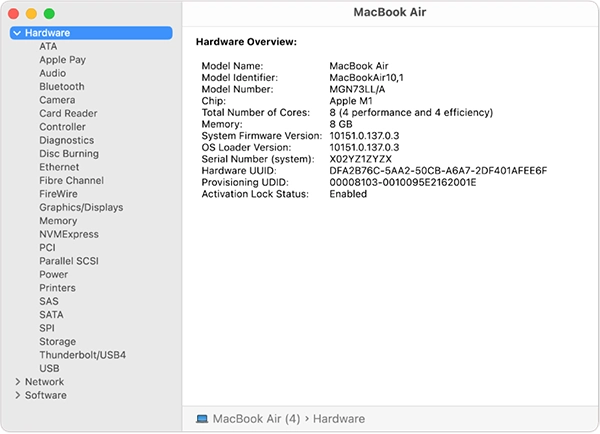
The System Information tool shows details about the hardware installed in or connected to your Mac.
2. Check RAM With Activity Monitor
If you also want to understand how your Mac is using memory, Activity Monitor is more useful.
- Open Spotlight and search for Activity Monitor.
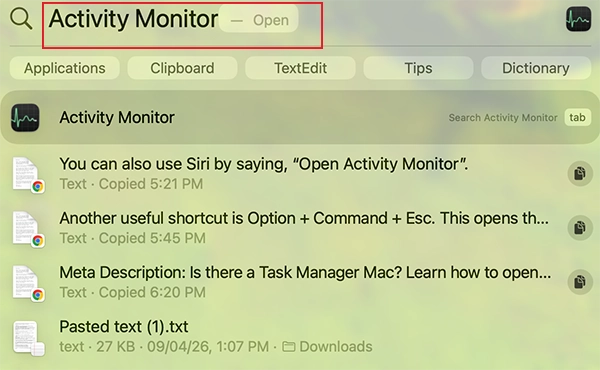
- Open it and click the Memory tab.
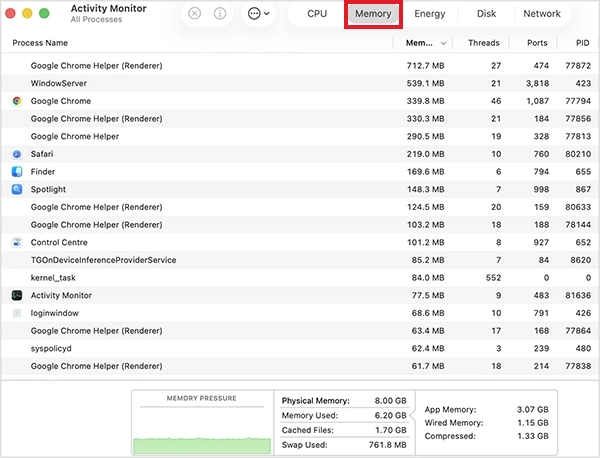
Here, you can see physical memory, memory used, compressed, cached files, swap used, and memory pressure. Activity Monitor also lets you clear RAM on a Mac.
This gives you more context than simply knowing whether your Mac has 8 GB, 16 GB, or 32 GB of RAM. Here, you can even check CPU usage on a Mac.
How to Check RAM Usage on Mac and Windows?
Knowing how much RAM your computer has and how much it is currently using are two different things.
For example, a laptop may have 16 GB of RAM but use only 6 GB during normal browsing. If the computer becomes slow while you are running several demanding applications, checking RAM usage can help you determine whether your memory is actually causing the problem.
Here’s how to check RAM usage on Windows:
- Open Task Manager.
- Go to Performance > Memory.
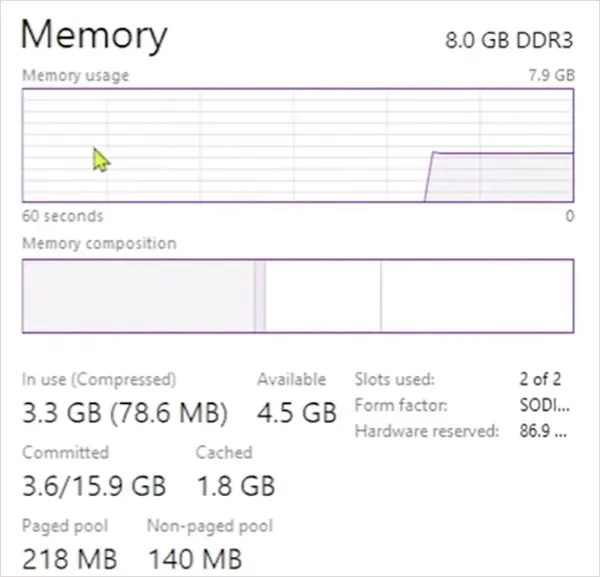
For a closer look at individual applications, open the Processes tab and sort the Memory column. This shows which running apps are consuming the most RAM.
Here’s how to check RAM usage on Mac:
- Open Activity Monitor.
- Select the Memory tab.
- Check Memory Pressure.

Don’t assume that a high Memory Used figure automatically means something is wrong. macOS actively manages memory through caching and compression, so using available RAM is not necessarily a problem.
Green memory pressure generally means your Mac is managing memory efficiently. Yellow or red pressure can indicate that the system is under greater memory pressure.
Why You Should Know How to Check Laptop RAM
Knowing how to check RAM on laptops can help when you are troubleshooting a slow computer, comparing systems, or deciding whether a memory upgrade is worth it.
It helps you determine your laptop’s RAM capacity, whether you are running low on memory, which apps are using the most RAM, and whether the RAM can be upgraded.
RAM capacity also matters when buying a new computer. A laptop with 16 GB of RAM does not necessarily have all 16 GB available to applications because some memory may be reserved for system or hardware functions.
If you are considering an upgrade, don’t look at capacity alone. Check your current memory usage and whether your computer’s RAM is upgradeable.
Conclusion
Checking how much RAM your computer has takes less than a minute. Before buying more RAM, check both your installed capacity and actual memory usage. You may find that RAM is not the real reason your computer is running slowly.
If your computer is still slow, check storage space, background processes, and system updates as well. You can also review startup apps and remove programs you no longer use to help your system run smoothly.
Frequently Asked Questions
How do I check how much RAM I have on my PC?
How do I know how much RAM I have on my Mac?
Ans. Click on the Apple Menu > About This Mac and check the Memory information.
How do I check what type of RAM I have on my computer?
Ans. Windows and macOS show basic memory information, but details such as RAM type, speed, and upgradeability may require your computer manufacturer’s specifications or a system information tool.
Is 16 GB of RAM good?
Ans. Yes, 16 GB is enough for many everyday tasks, multitasking, and many creative workloads, although your actual requirements depend on the applications you use.
How much RAM do I need for my computer?
Ans. It depends on your workload. Basic browsing and office work need less RAM than gaming, video editing, software development, or running several demanding apps at once. Just check your current usage before upgrading.
Related Posts
What Is a .BAT file and How Do You Create One?
You may have seen a file ending in .bat and wondered why opening it brings up a Command Prompt window…

How to Disable Microsoft Edge in Windows? 4 Quick Methods
Microsoft Edge can feel difficult to “turn off” because several Windows and Edge settings control when it starts and what…

How to Open EXE Files on Mac: 5 Ways to Run Windows Apps
If you have downloaded a Windows .exe file on your Mac, double-clicking it won’t make it run. macOS does not…

How to Sign Out of iMessage on Mac?
Your Mac can quietly become another place where your private conversations appear. That’s convenient until you are using a shared…

What is Windows Fast Startup and How Does It Work?
Fast Startup can make your PC boot noticeably faster after a shutdown. Instead of completely rebuilding the Windows kernel state…

How to Unzip Files on Mac: 3 Easy Ways to Extract ZIP Files
A ZIP file has a funny way of making a simple task feel more complicated than it is. On a…

How to Delete Files Completely in Mac Terminal?
Finder makes deleting files simple, but sometimes you need Terminal to remove a file or folder by its exact path…
How to Add Widget in Mac: A Step-by-Step Guide
Your Mac desktop can give you useful information without turning into another dashboard to manage. A weather update, calendar reminder,…
The macOS Installation Couldn’t Be Completed? Learn How to Fix It
You are halfway through a macOS update when the progress bar stops, and a message says the macOS installation couldn’t…